Part 1 gets you signed in. Part 2 is everything a member does, from
checking a drill to practicing. Part 3 is for leaders: squad leaders,
platoon sergeants and up, and the leaders of an MPT or section. Part 4
takes each admin role in turn, and Part 5 is for org admins, who run the
unit’s people and chain of command. Part 6 is for platform admins, who
run Cadence itself across every unit, and Part 7 is for command staff at
a Readiness Division or Major Command, who look after several bands.
Screenshots show example data for
made-up soldiers; your screens will show your own unit and your own name.
Video examples of all functionality can be found by clicking
here.
Where a section has a video of its own, a link to it sits under the section’s heading.
If you’re away from your phone or having trouble with the installed app,
you can still use Cadence in any web browser at
cadence.100tharmyband.com.
An invite code from your unit. It looks like
7K9M-QRXT. You can’t create an account without one. If yours
was sent to a particular email address, sign up with that address.
An authenticator app on your phone, such as Google
Authenticator, Microsoft Authenticator or 1Password. Every sign-in asks
for a code from it (more in step 4).
Get the app
Cadence runs as an app on iPhone and Android, and in a web browser at the
same address as this page. Your unit will tell you which to install.
Point your phone’s camera at the code for your phone, or, if you’re
already reading this on that phone, tap the link under it.
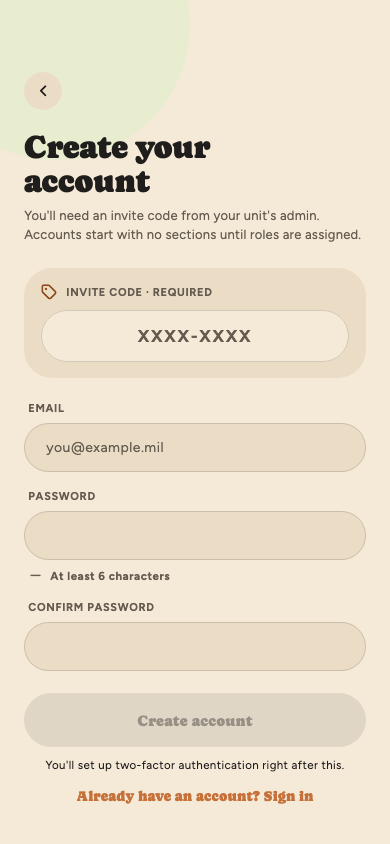
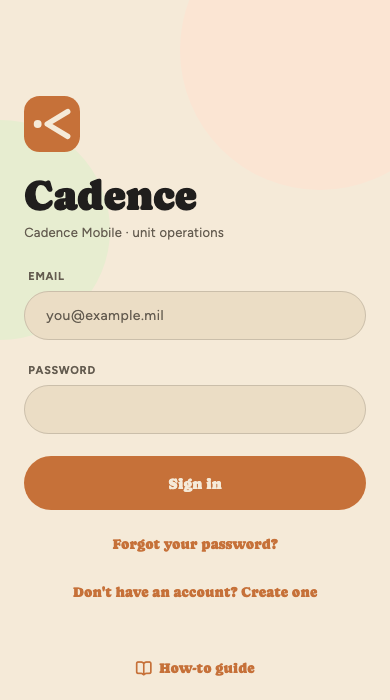
Open Cadence and tap Don’t have an account? Create one.
Type your invite code in the box at the top.
Enter your email and choose a password
of at least 6 characters, then type it again to confirm.
Tap Create account. The button stays greyed out until
every field is filled in correctly; the small checks under each
field tell you what’s still missing.
Your account starts almost empty.
A new account can open Profile and not much else. Your unit’s org
admin turns on the parts of the app you need, like Training,
Calendar and Messages. If something below is missing for you, ask them.
Create your account
Verify your email
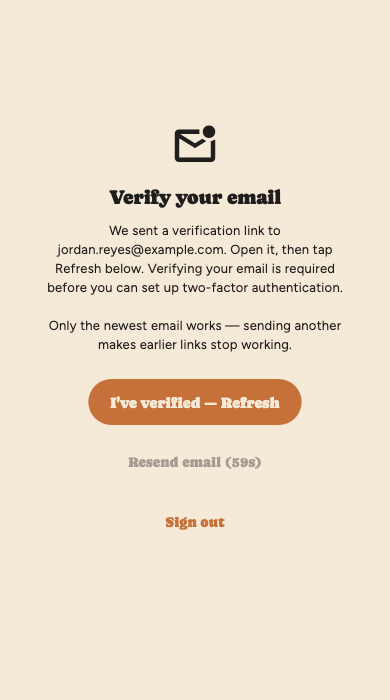
Cadence sends a verification link to the address you signed up with.
Check your inbox, and your spam or junk folder.
Open the link.
Come back to Cadence and tap I’ve verified — Refresh.
No email? Tap Resend email. It waits a minute between
sends, because resending too often makes the email provider block
you for a while.
Every Cadence account uses two-factor sign-in: your password plus a
6-digit code from an authenticator app. You set it up once, right after
verifying your email. The screen walks you through three steps:
Get an authenticator app if you don’t have one:
Google Authenticator, Microsoft Authenticator or 1Password all work.
Add this account to it. Scan the square with the
authenticator app. Setting up on the same phone? You can’t
scan your own screen, so copy the setup key shown under
the square and paste it into the app instead.
Enter the code it shows. Type the six digits
(they change every 30 seconds) and tap Verify and continue.
Read the last screen before you finish.
There is no email reset for a lost authenticator. If you lose it,
only your unit’s org admin can clear it for you; the screen names them and
gives you a button to call them. To avoid that:
Save the setup key somewhere safe, like a password
manager or written down at home. With the key you can set the
authenticator up again yourself.
Use an authenticator that backs itself up, like
Google Authenticator, Microsoft Authenticator or 1Password.
Tick the box to say you understand, and you’re done.
Getting a new phone? Before you wipe the old one, go to
Settings → Authenticator app → Replace. You confirm it’s
you with your password and a code from the old app, then link the new one.
The old one keeps working until the new one is set up.
Enter the 6-digit code from your authenticator
app. It submits as soon as you type the sixth digit.
On a phone that supports it, Cadence offers Face ID or
fingerprint sign-in after your first sign-in. Turn it on and
you tap the fingerprint button in the password field instead of
typing your password. You can change this any time in Settings.
Cadence remembers the last account signed in on a phone, so the
screen may show only Continue as and a password box. To sign
in as someone else, tap Not you? Use a different account.
That also turns off Face ID / fingerprint sign-in for the old account
on that phone.
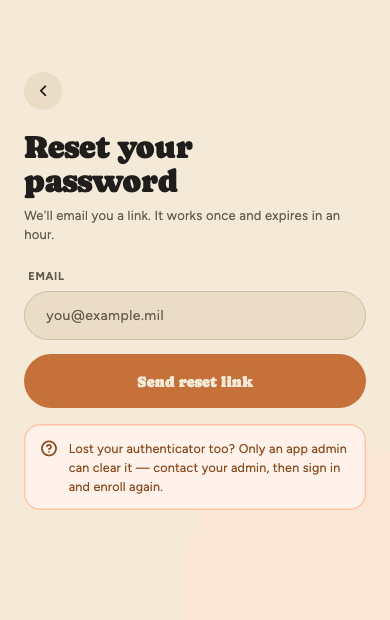
Forgot your password?
Tap Forgot your password? on the sign-in screen, enter
your email and tap Send reset link. The link works once
and expires after an hour. Resetting your password doesn’t change
your authenticator: you’ll still need a code from it.
At the bottom of the sign-in screen, How-to guide opens
this guide, and the line under it shows which version of Cadence
you have. Give that version when you report a problem.
This part covers what every member can do. Your org admin opens each
part of the app for your account, so if something here is missing for
you, ask them.
The bar along the bottom has up to six tabs. You’ll only see the ones your access covers.
TodayYour next drill and everything you owe.
CalendarEvery event you’re on the roster for.
SquadLeaders only: approvals and your soldiers’ readiness. See For leaders.
MessagesEvent, section, group and direct chats.
CommandDivision and Major Command staff only: the bands under you. See For command staff.
MoreEverything else, grouped.
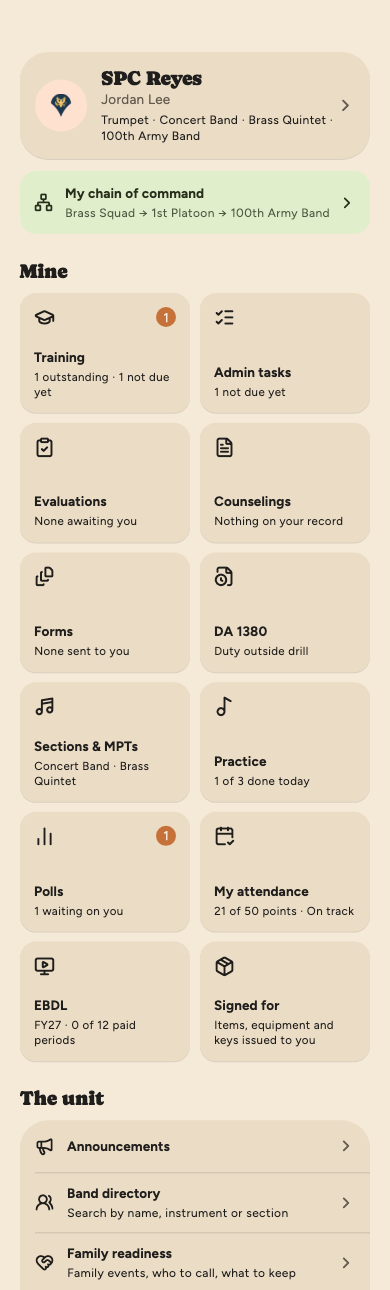
More is where you find everything else. The top of it
is you: tap your name to open your profile, or the green bar to see
your chain of command.
Mine holds your own things: Training, Admin tasks,
Evaluations, Counselings (any written about you,
and those you signed in your distance packet),
Forms (forms HR sends you to fill in and sign),
DA 1380 (duty outside drill),
Sections & MPTs, Practice (what your
ensembles' plans ask you to work on, and your own practice calendar),
Polls, My attendance (the codes recorded for you
at each drill, and every absence request you’ve made),
EBDL (getting paid for an online course),
and Signed for (what’s been issued to you). A
number on a tile means something is waiting on you now. A task or
training gets a number once its first reminder has gone out, so
something due weeks away is listed on the tile as
not due yet, without one.
The unit holds things for everyone, in alphabetical
order: Announcements, the Band directory, Family readiness, General
Resources (forms and guides from each shop) and the music Library.
If you’re an admin, a row for each area you run appears in the same
list; see For admins.
Account holds Settings, Support and Sign out.
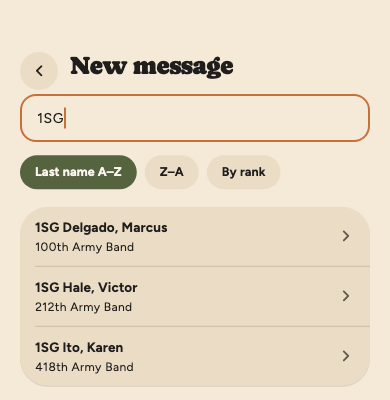
Lists of people, such as an event’s roster or the list
you pick people from, can be put in order by last name
(Last name A–Z or Z–A) or By rank. Your
choice carries to every list of people until you close the app.
An event’s roster and a drill’s MUTA roster also choose
By squad, under squad headings as they open, or
One list, everybody together in that order.
Files such as a hand receipt, a certificate or a part
from the library open inside the app on a phone, with a share button
to save or print them. Once you’ve opened one, it opens again even
without signal.
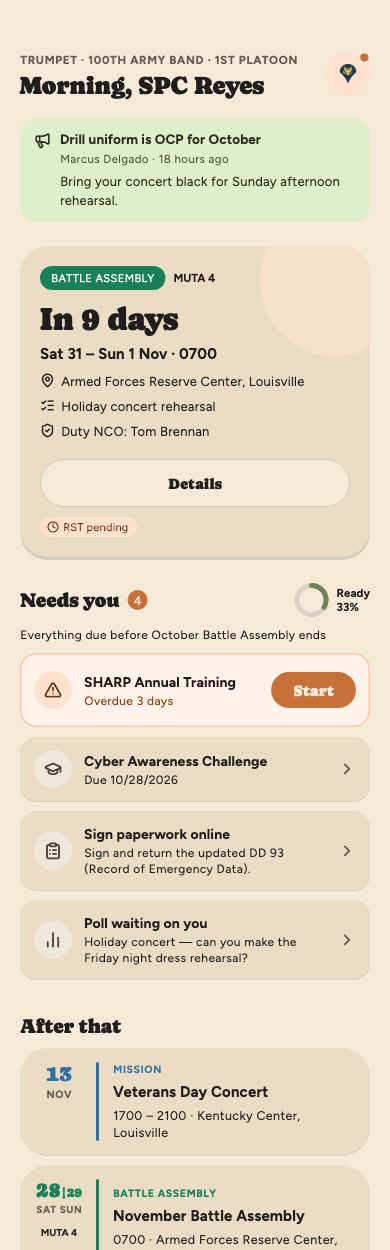
Today answers two questions: where do you have to be, and what do you owe.
Announcements from your chain of command sit at the
very top. Some ask you to acknowledge them, and those stay pinned
until you do. Tap a web or email address in one to open it.
Your next event shows the date, report time,
location and duty NCO. Tap Details for the full picture.
If you can’t make a drill, tap Request RST right there.
On a Battle Assembly weekend, the Sign in card
sits under it; see Signing in at
drill.
Needs you lists everything you have to do
before your next event ends: overdue or upcoming training,
admin tasks, a form to fill in, polls waiting on your answer, a
counseling to sign, a shop task, and so on.
The ring on the right shows how ready
you are. Anything without a due date always shows, because it’s owed
now. A task an admin cancelled drops off.
Anything waiting on your approval is at the top
of Needs you, because somebody else is waiting on it: an absence or
RST at your stage, a make-up’s proof to confirm, an EBDL request,
memo or DA 1380 to sign, a soldier’s DA 1380 for duty outside drill,
a soldier’s form waiting on your signature, a risk worksheet or an
FRG spend routed to you, and SOUs to countersign. Leaders also have
them on the Squad
tab. They count in the number next to Needs you but not in the
ring.
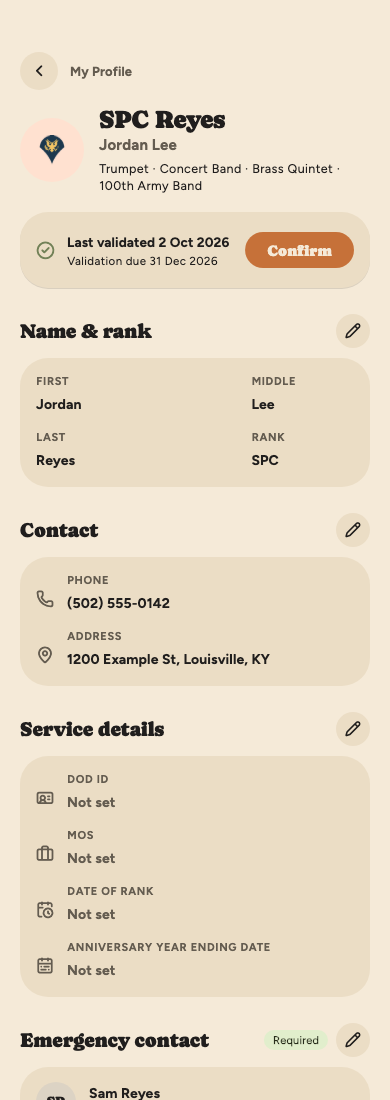
Open it from More by tapping your name. Your profile
holds your name and rank, contact details, service details and
emergency contact. Under Contact you can add other email
addresses and phone numbers; your unit sees those, like your main
phone. Service details holds your DoD ID, date of rank, MOS
and anniversary year ending date; an EBDL request
and its DA Form 1380 print them.
Tap the pencil beside a section to edit it.
A bar appears at the bottom naming what you changed. Tap
Save changes, or Discard to undo.
Confirm your details every 90 days.
The card near the top shows when you last confirmed them and when
they’re next due. If nothing has changed, tap Confirm.
If you let it lapse you’ll be assigned a task to do it.
Moved?
When you save a new address, Cadence asks whether you moved or are only
correcting how it’s written. A move means new paperwork before your
next drill: update your address in IPPS-A, send a new DTS/DTOD
printout, and sign updated statements of understanding if you live
more than 50 miles away. Your
annual distance packet reopens for it.
A correction changes nothing else.
Your address and emergency contact are only visible
to you, your chain of command, HR and your unit’s admins. Your phone
number is visible to your unit, so people can reach you.
Your chain of command appears further down, from your squad leader up
to the commander. Start with the highlighted person at the top.
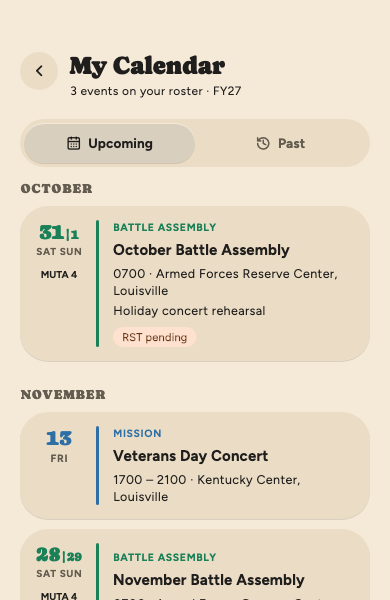
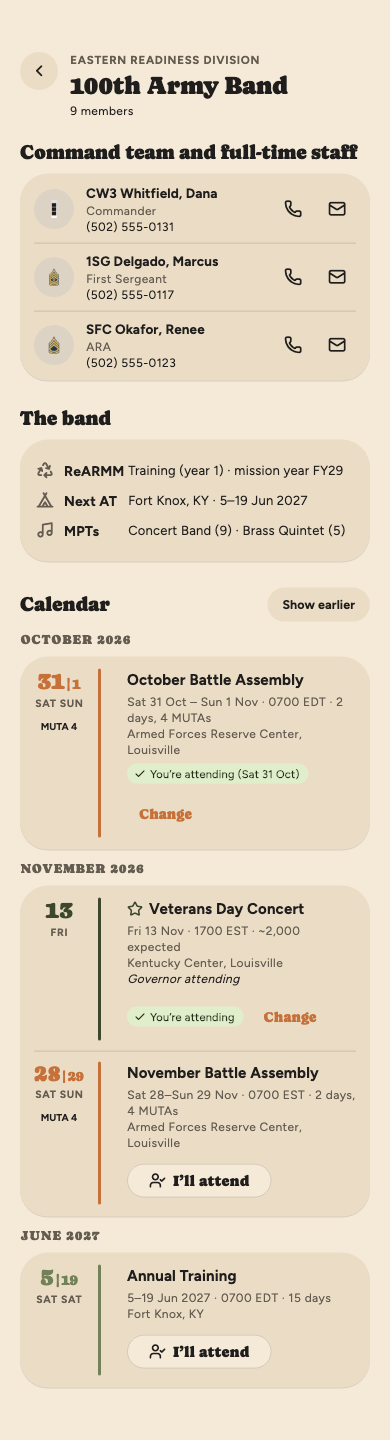
The Calendar tab lists every event you’re on the roster
for, grouped by month. Switch to Past to look back.
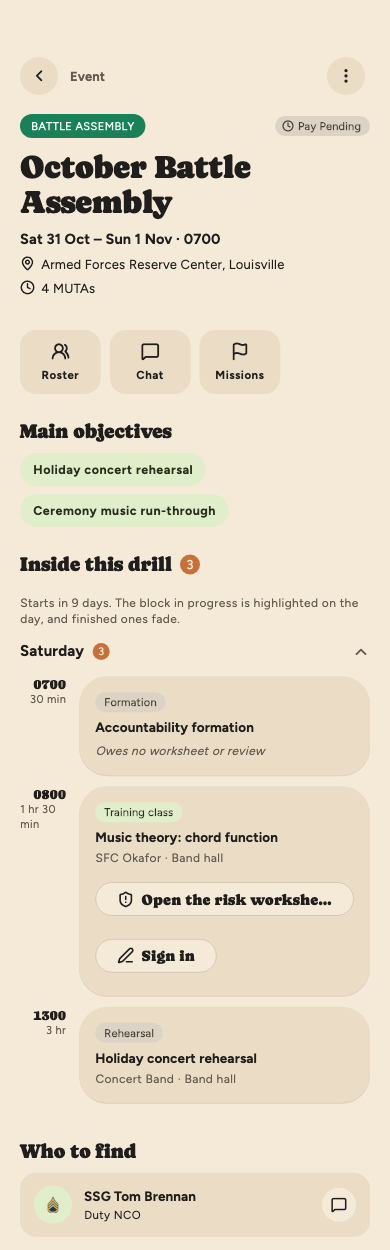
Tap an event to open it. You’ll see:
When and where, plus the MUTAs it counts for.
On a Battle Assembly, from the day before, the
Sign in card for each MUTA; see
Signing in at drill.
Buttons for its Roster (see below),
Chat, the training Schedule if
the unit linked one, the Missions linked to a
drill, a Mission’s Formations: where everyone
stands, with your own place highlighted, and
Polls if the event has any, with a badge for the
ones still waiting on your answer.
Notes: anything written about the event.
A drill’s Main objectives.
Inside this drill: the schedule, day by day:
formations, classes and rehearsals. Tap a day to open it. On the
day, the block in progress is highlighted and finished ones
fade.
Who to find, such as the duty NCO, with a button
to message them. A mission also lists its points of contact
(Event POC, or Event POC 1, 2 and so on
when there are several), with buttons to call or email them.
Request absence at the bottom.
When the unit is providing transport and you have a seat, the event
also shows your vehicle and when it leaves; see
Getting to an event.
An event Operations has archived drops off your
calendar and Today. If you open it from a link or a notification, it
says why it was archived, and it’s read-only.
My Calendar
Inside a drill
The roster
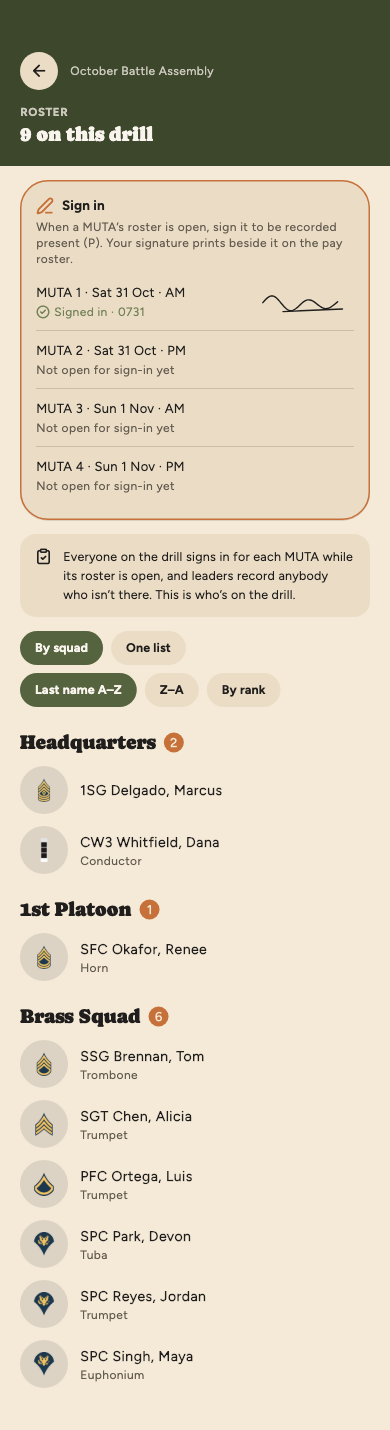
Roster on an event lists everyone on it, grouped by
platoon and squad.
On a drill, your Sign in card
is at the top (see Signing in at
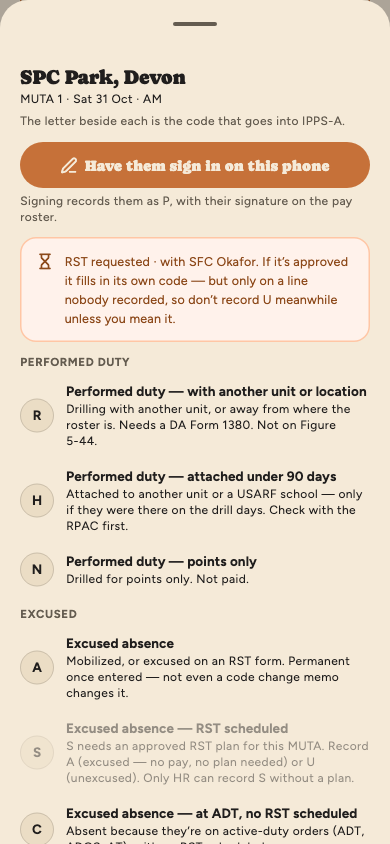
drill), then who’s on the drill. Leaders record anybody who
isn’t there, and the codes are theirs to see; see
Taking accountability.
On other events, such as a mission, each person
shows Present, Not traveling, Excused or
Unaccounted, and the count at the top says how many are
accounted for. A role for the day, such as NCOIC, shows under the
name, and your own row says (you). The pills show
everyone, only the absences, or just your squad, and the magnifying
glass finds someone by name or rank.
It’s read-only. On those other events people mark themselves
present on the event’s transportation screen (see
Getting to an event), and leaders can
mark their soldiers at formation.
A drill’s roster
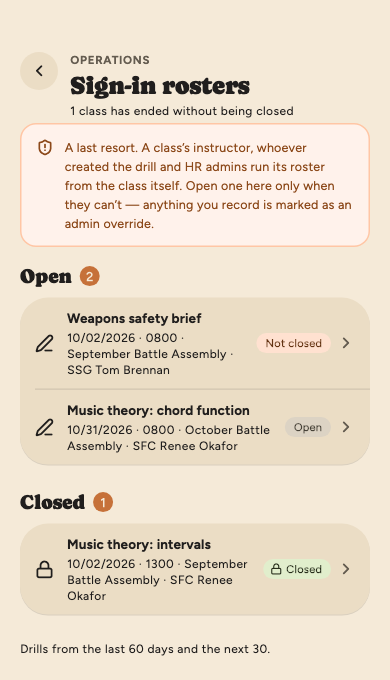
Signing in to a class
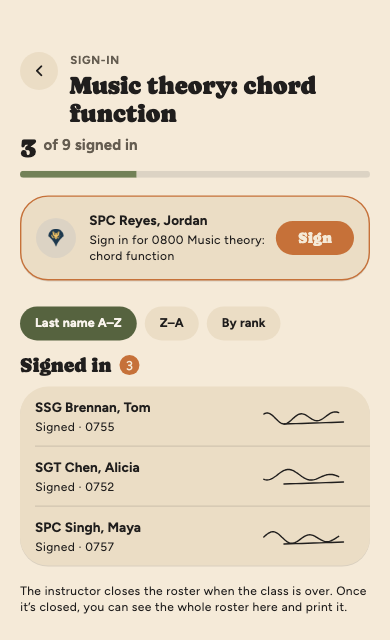
Some classes take a signed roster. The instructor may pass their
phone down the row, or ask everyone to sign in on their own phone:
open the drill, find the class under Inside this drill and
tap Sign in.
Your line. Tap Sign, sign with your
finger and tap Done. That signs you in. Your line can be
signed once.
While it’s open you see your own line and the
signatures made so far.
Once the instructor closes it, you can see the
whole roster and print it with Print the sheet.
Signing in to a class
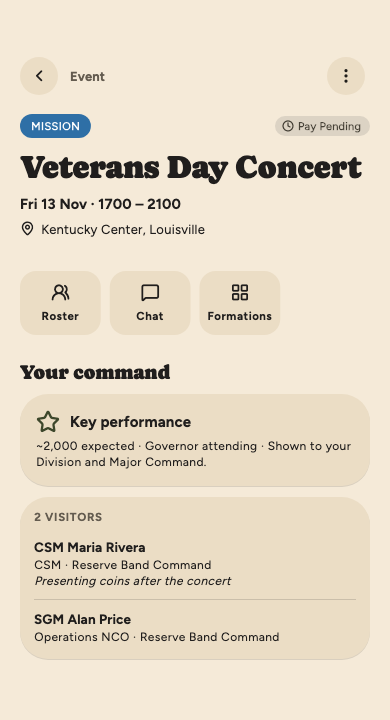
Key performances and visitors
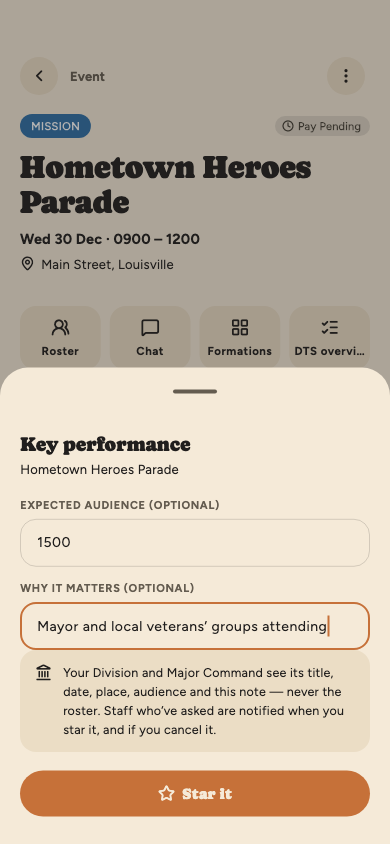
If your band belongs to a Readiness Division, the Division and its
Major Command see your Battle Assemblies, Annual Training and any
performance the band has starred, so their staff
know when and where to find you. They see when and where, never the
roster.
A starred performance shows Key
performance under Your command, with the audience
expected and why it matters.
Visitors lists anyone from your Division or
Major Command who has said they’ll come, with their title and, if
they gave one, why. Only your band and the visitor see it. The
Commander and First Sergeant are notified when someone says
they’ll come or changes their mind.
Who’s coming from your command
Signing in at drill
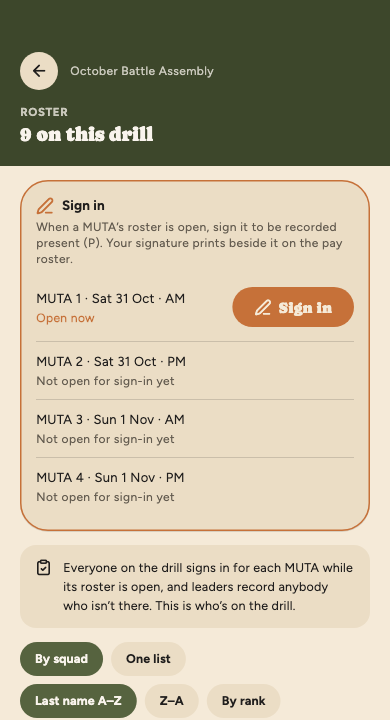
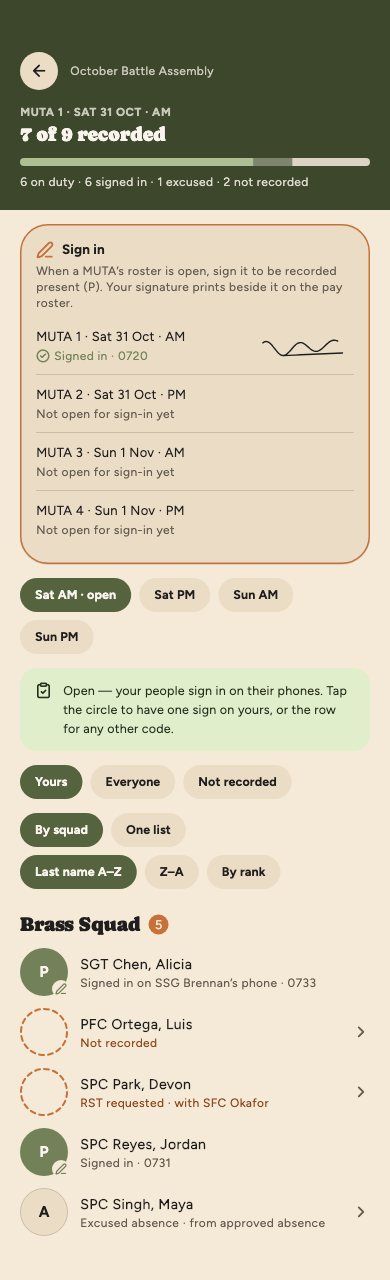
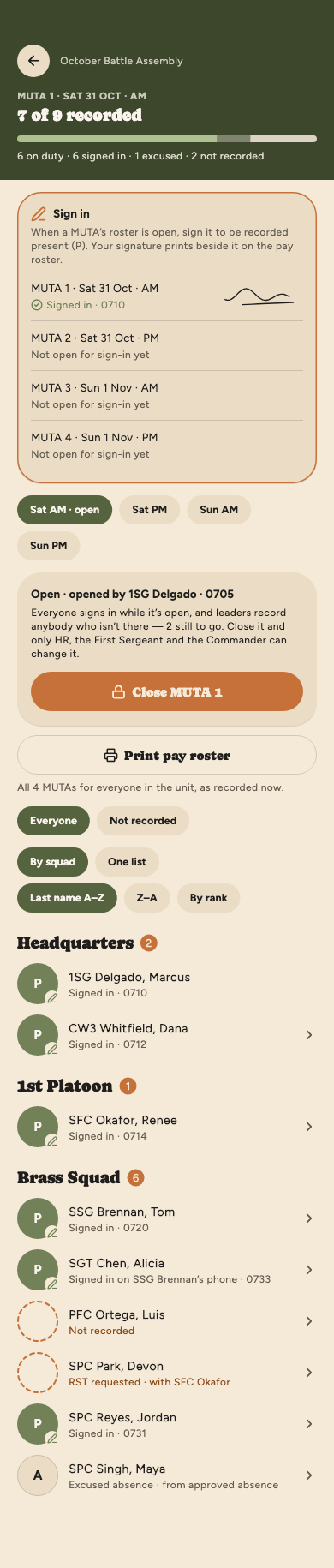
At a Battle Assembly you account for yourself. HR, the first sergeant
or the commander opens each MUTA’s roster when it starts, and
everyone on the drill signs in on their own phone. Signing records
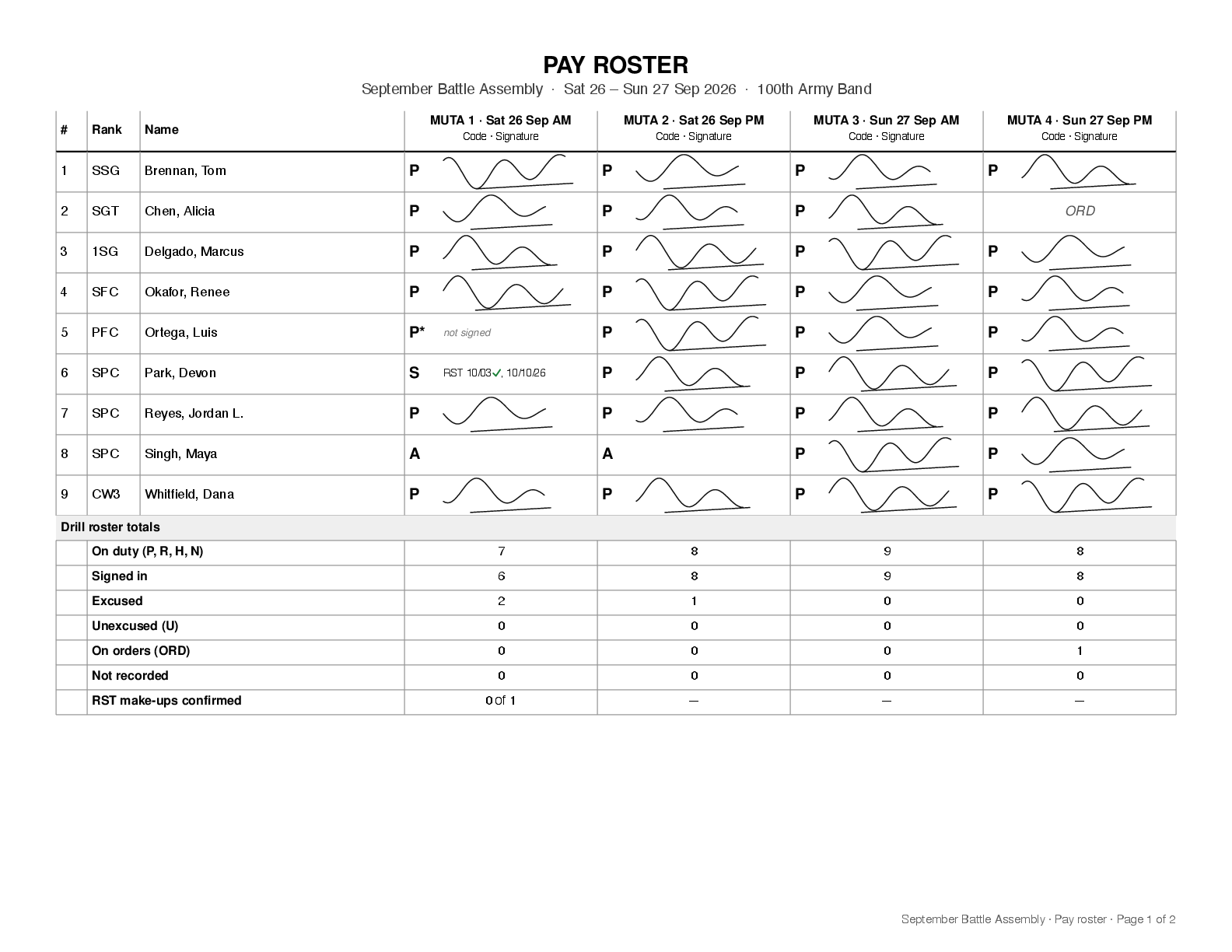
you as present: P, performed duty. Your signature prints
beside it on the pay roster HR uses to process your pay, so sign in
for every MUTA you’re there for: morning and
afternoon, both days.
Find the Sign in card. From the day before the
drill it’s under the drill on Today and at the top
of the drill’s page. Any time, it’s at the top of the drill’s
Roster.
The MUTA whose roster is open says Open now. Tap
Sign in beside it.
Turn your phone sideways, sign with your finger and tap
Done. Clear starts again, and the
✕ backs out without signing.
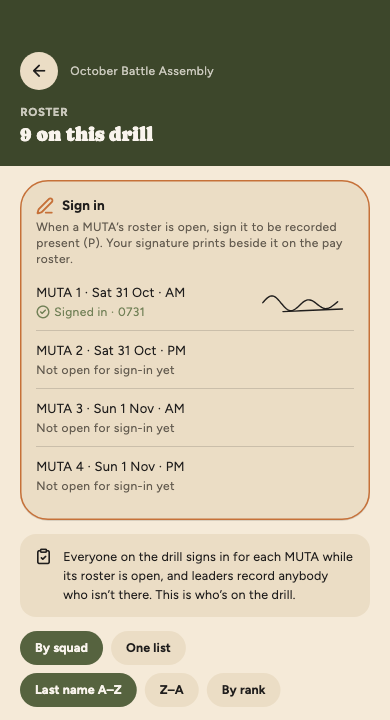
The line then reads Signed in with the time and your
signature. Each MUTA can be signed once, and only while its roster is
open. Signing needs a connection; if it doesn’t go through, the app
says why.
Signing in for a MUTA
When there’s nothing to sign
Not open for sign-in yet: the MUTA hasn’t started.
Wait for HR or the first sergeant to open it.
Approved absence (A) — no need to sign in: your
approved absence covers that MUTA. For an approved RST it reads
RST · make-up Mon 18 Jan 2027 — no need to sign in,
naming the make-up you owe instead.
On ADOS orders — you don’t sign this MUTA’s roster:
HR confirmed you’re on orders for it, and HR codes it from them.
See On orders instead of drilling.
Closed: the MUTA is over. If you were there and didn’t
sign, see below.
Signed in
If something goes wrong
No phone, or it’s dead? Your squad leader or
platoon sergeant can hand you theirs: you still sign it yourself, and
the roster notes it was on their phone.
“Your line is already recorded as …” A leader gave
you another code first, such as an absence before you arrived. Ask your
squad leader to clear it, then sign in.
Forgot to sign before the MUTA closed? You can’t
sign it any more. Tell your first sergeant: HR, the first sergeant or
the commander can still record you as present, but that P shows
not signed on the pay roster, and a soldier who didn’t sign
may need a DA Form 1380 for those periods.
“Your line was changed since” means HR or command
changed your line after you signed. Your signature is kept but won’t
print beside the new code. Ask your squad leader if that looks
wrong.
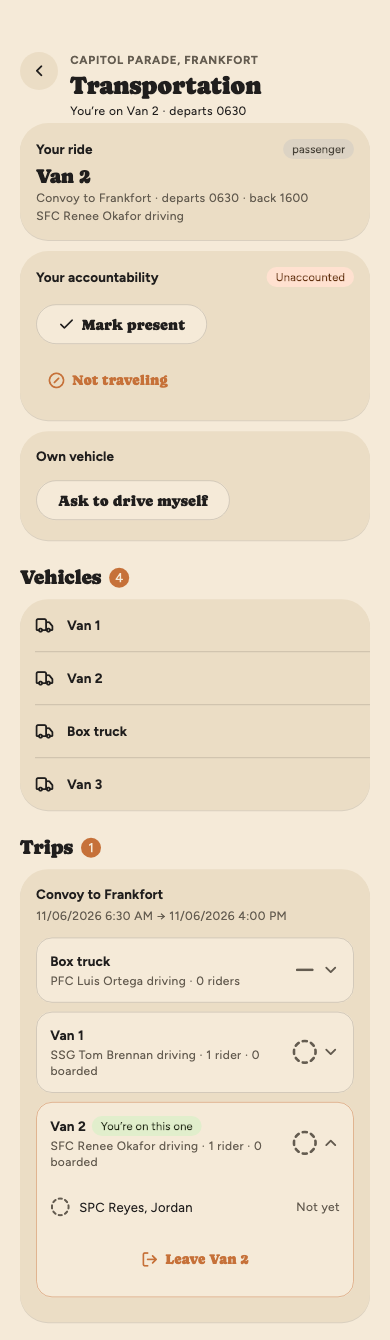
When the unit is driving people to an event, open the event and tap
⋮ → Event transportation. Once you have a seat,
the event also shows your vehicle and when it leaves, and
Details there opens the same screen.
Your ride: your vehicle, the trip, when it
leaves and gets back, and who’s driving. Until Operations publishes
the plan, a note says seats are still being worked out, so yours
may change.
Trips: each trip lists the vehicles travelling
together. Tap one to see who’s driving and who’s riding; yours says
You’re on this one.
No seat yet? Open a vehicle and tap its
button, such as I’m on Van 1. Leave Van 1
gives the seat up.
Your accountability: tap Mark present
when you’re there, or Not traveling if you won’t be
riding with the unit. Undo takes it back. If a leader
marked you at formation, the card says so. On a drill there’s
nothing to mark here: you sign in for each MUTA instead (see
Signing in at drill).
Driving yourself: tap
Ask to drive myself. An operations admin approves or
denies it, and you can withdraw the request while it waits. Once
it’s approved, no seat is held for you.
Driving a vehicle: yours says
You’re driving. Open it and tick each rider as they get
in; riders see Boarded or Not yet. When everyone
on the roster is accounted for, every driver gets a notification
that the trip can start. A drill is accounted for by MUTA instead,
so on a drill that notification doesn’t come.
Boarding isn’t accountability.
Being ticked off as boarded only tells the driver you’re in the
vehicle. You still mark yourself present, except on a drill, where
your leaders record you.
Your ride to an event
Your travel paperwork
An event with travel paperwork shows Your paperwork: the DTS
steps (Submitted DTS, DTS Approved, Submitted
Voucher, Voucher Approved) and anything else the unit is
tracking. Tap Mark done on the next step as you finish it;
Undo takes one back. Reminders start 14 days before the event;
see Reminders the app sends on its own.
Open the event and tap Request absence, or tap
Request RST on Today.
Pick the MUTAs you’ll miss. Every drill day is two:
a morning (AM) and an afternoon (PM).
Choose the type:
Excused: authorized, no pay for those MUTAs, nothing to make up.
Unexcused: no pay, and it goes on your record.
RST (rescheduled training): you keep your pay
and make the time up.
Give a reason. Your approvers read it.
Check the training you’ll miss. It fills in from
the drill’s schedule for the MUTAs you picked. Change it to say what
you’ll actually miss: your first line leader certifies it, and it
goes on the form HR files.
For an RST, add a make-up plan. Tap Add a
make-up for each session: what kind of work it is (missed
training or an HR task, a practice or duty task, or PT), when, what
you’ll do, and where. On a Battle Assembly the SOP sets four rules,
and the form checks them as you go:
Every make-up falls within 60 days either side of the drill.
The weekend just before or after it is best.
Together they come to at least 4 hours for every MUTA you
miss, without overlapping. The line under the heading counts
them up.
Need lodging (LIK)? Switch it on for that make-up. Lodging
has to be requested at least 60 days before it.
The uniform is OCP. Anything else needs the Commander’s
written authorization, and you say which.
Tap Sign and submit, sign on the pad, and tap
Done. The note above the button says what’s still
missing. An unexcused absence, or a request for Annual Training,
isn’t signed, so its button just says Submit.
Your DoD ID goes on the form.
It comes from your profile. If it isn’t there, the request screen
says so; add it on your profile before you submit.
Get it in before the drill.
An RST or an excused absence can’t be approved once its event has
started, and you can’t submit one after that point either.
Requesting an RST
Following your request
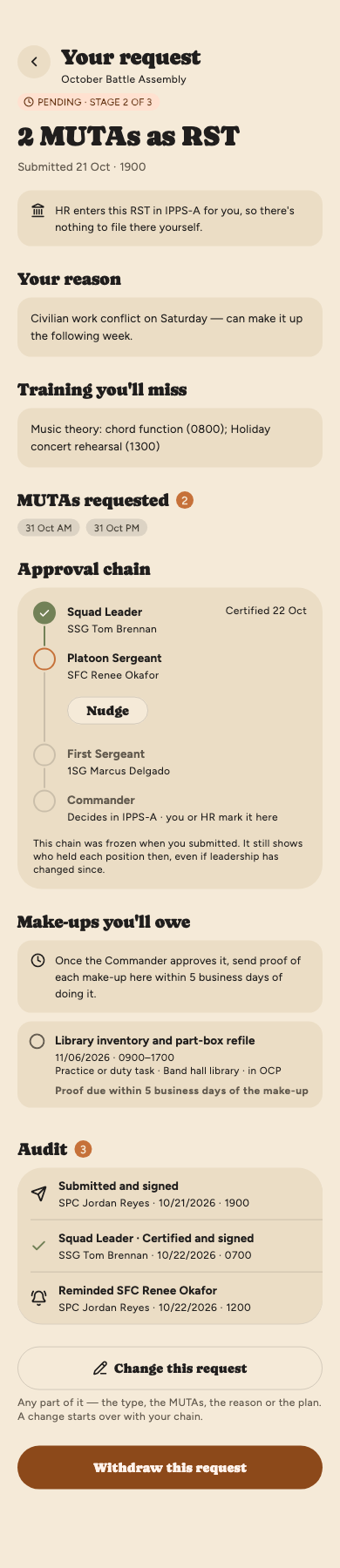
Your request goes up your chain of command: squad leader, then
platoon sergeant, then first sergeant. To check on it, open the event
and tap View your request. The status screen shows who
has signed it, who has it now, and a Nudge button to
remind them.
On a Battle Assembly excused absence or RST, nobody in your
chain approves it. Each leader signs the request form as
they decide: your first and second line leaders certify it, and your
first sergeant recommends approval or disapproval. Then it’s
with the Commander. Your signed request form
appears on this screen with Open the form, and HR files it
in IPPS-A for the commander, who approves or disapproves it. When
the commander decides, you mark it in Cadence (below), or HR records
it. Until then the request isn’t approved, and the drill’s MUTA
roster doesn’t count it.
On Annual Training your chain approves or denies it, and you get a
notification when it’s decided.
For a Battle Assembly RST, don’t start anything in IPPS-A
yourself.
Pay is routed through IPPS-A, but nothing is started there until your
chain has signed the form. Through 31 December 2026, HR enters RSTs
in IPPS-A for you, so there’s nothing for you to file. From
1 January 2027, once your chain has signed you get a task to file it
yourself with the signed form, due the day before the drill. When
you’ve filed it, tap Mark filed in IPPS-A and add the
IPPS-A ticket number if you have it (you can add it later).
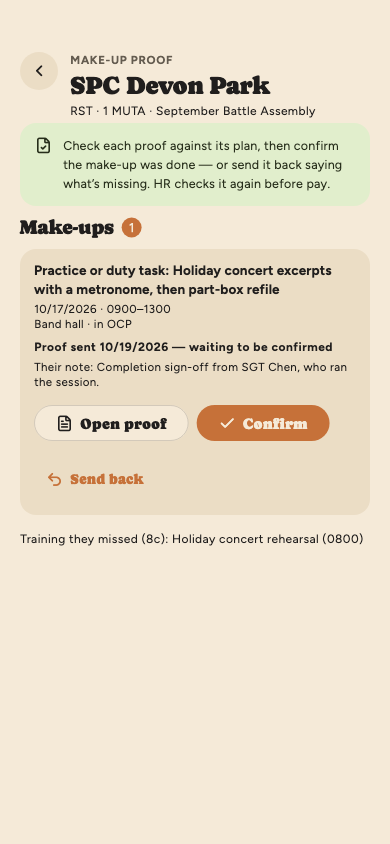
After each make-up, send proof of it within five business
days. Once the commander has approved the RST, tap
Send proof on the make-up and choose a photo or a PDF: an
NCO’s completion sign-off, a photo of the work, or a certificate. Your
first line leader confirms it, and HR checks it before your pay goes
through. Each make-up also shows as a task with its due date. If your
proof comes back, the reason is on the make-up; send new proof. Sent
the wrong file? Replace it until it’s confirmed.
On Annual Training, tick off each make-up as you complete it.
If an HR admin moves a make-up to another date, marks it not
performed, or reopens a confirmation, you’re told why and the make-up
says so. If your request is handed to a different approver, because
the person whose turn it was can’t get to it, you’re told that too.
The audit at the bottom lists every step, who took it and
when: when you asked, each leader’s signature, reminders,
the form being printed and filed, the commander’s decision, and each
make-up’s proof. Your chain of command and HR see the same list.
Your request’s status
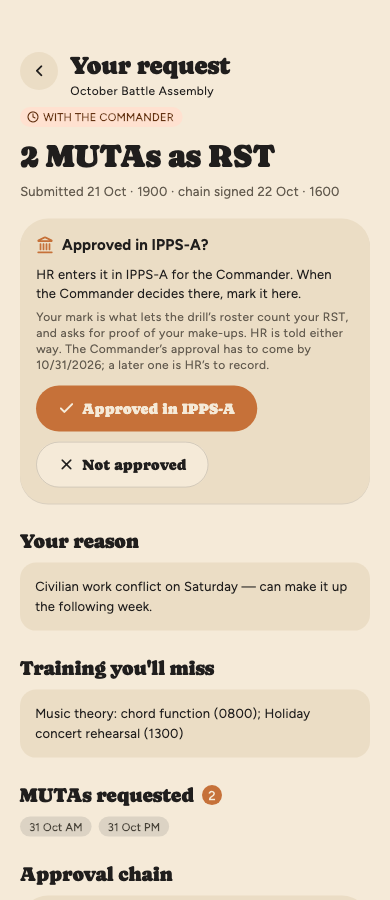
When the commander decides in IPPS-A, mark it here.
While your request is with the Commander, it shows an
Approved in IPPS-A? card, and Today’s Needs you
has a row for it.
Approved in IPPS-A asks for the date the
commander approved it and, if you have it, the IPPS-A request
number. Tap Mark approved.
Not approved asks you to confirm first.
Your mark is the commander’s decision in
Cadence. An approval puts your RST or excused absence on
the drill’s MUTA roster, and for an RST asks for proof of each
make-up. HR is told either way and can correct a mistake.
The approval has to come by the drill’s first
day. If it came later, HR records it.
Marking it from IPPS-A
Changing a request
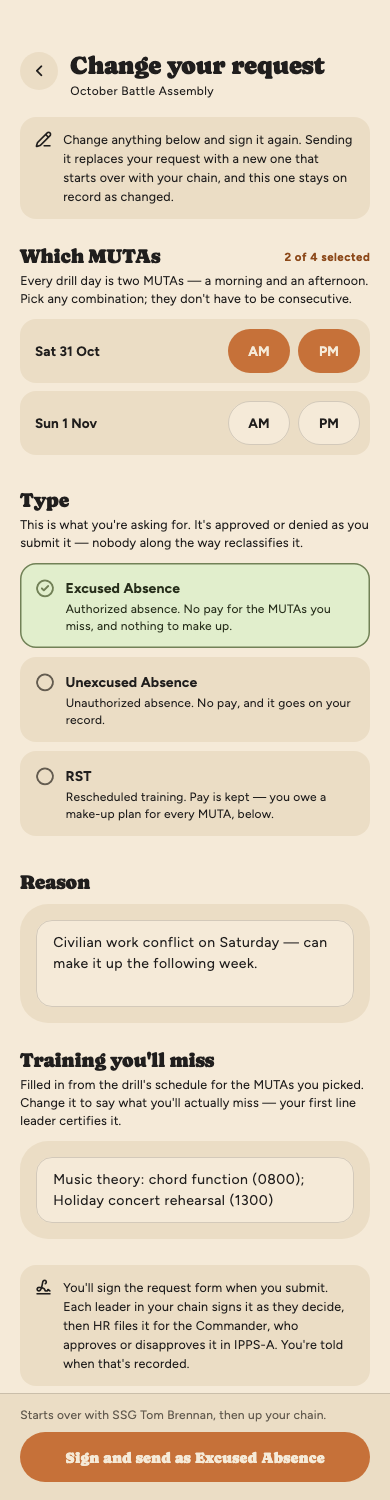
Asked for the wrong thing, or need a different weekend’s make-up?
Open the request with View your request and tap
Change this request. The form opens filled in with what
you sent: the MUTAs, the type, your reason, the training you’ll miss
and your make-up plan. Change any part of it and sign it again.
A change starts over. Your leaders’
signatures were on what you sent before, so the new version goes
back to your first leader, and the line above the button says
who. The old version stays on record, marked
Changed, with a link to the new one.
The button only works once something’s different.
Until then the form says Change something to send it.
Once the drill has started, it can only change
to an unexcused absence, just as you can’t ask for an excused
absence or RST then.
Changing one that’s with the commander or
approved asks you first. An approved absence stops being
approved, so you’re expected at the drill until the new one is,
and make-up proof you still owe is cancelled.
Who’s told: the leaders who saw the old
version, and the commander if it got that far. HR is told the
signed form no longer applies. Your first leader is asked to
approve the new one.
Once the drill’s pay is certified, it can’t be
changed. Ask HR.
Changing a request
Withdrawing a request
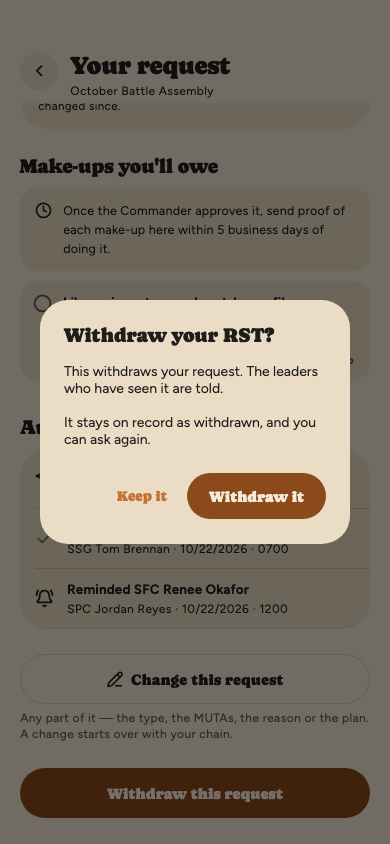
You can withdraw a request at any point, even after it’s approved.
Open it with View your request and tap
Withdraw this request at the bottom (Withdraw this
absence once it’s approved). Before anything happens, the
screen tells you who will be told and what will be undone. Tap
Withdraw it to go ahead.
It stays on record, marked
Withdrawn, and leaves everyone’s queue. You can ask again
from the drill.
The leaders it reached are told, and the
commander if it got that far. If HR had the signed form, they’re
told it no longer applies.
Withdrawing an approved absence means you’re
expected at the drill again. Any make-up proof you still owe is
cancelled. If you filed an RST in IPPS-A, withdraw it there
too.
Once the drill’s pay is certified, an approved
request can’t be withdrawn. Ask HR.
If you’re on ADT, ADOS or AT orders, or another separate duty status,
for a drill weekend, don’t sign that drill’s attendance roster for the
MUTAs your orders cover: being paid for IDT while on orders is a serious
violation. Tell HR before the drill, with your orders:
Open the drill and tap On ADT, ADOS or AT orders this
drill?, under the absence button.
Choose your status and the MUTAs the orders cover (all of them, to
start with), then attach a photo or a PDF of the orders. The orders
number is optional.
Tap Send to HR.
HR checks your orders and confirms them, or sends them back with a
reason; fix it and send it again. Once they’re confirmed, nobody can
record you as on duty for those MUTAs, and HR codes your attendance from
the orders. Until the drill starts you can Change it or
Withdraw it. After that it’s too late to declare it in the
app, so tell HR, who can still record it.
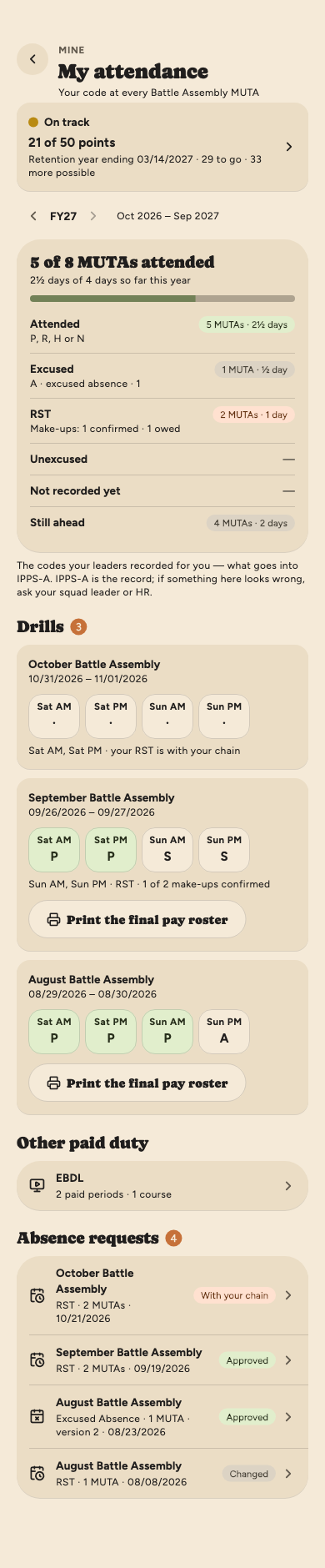
Your attendance and past requests
In More, under Mine, tap My attendance. It
shows one fiscal year (October to September) of your Battle
Assemblies; the arrows by the year step back to earlier ones.
The card at the top is your points toward a
good year, below.
The counts are every MUTA you were
on the roster for: attended (P, R, H or N), excused (each code
named), RST, unexcused, and not recorded yet. Each shows MUTAs and
the days they make, two MUTAs to a day. Under RST you’ll see where
your make-ups stand.
Each drill shows the code recorded for you at
every MUTA. A line says why one is blank: you’re on orders, or
your request is still with your chain or the commander. Tap a drill
to open it.
Print the final pay roster appears on a drill
once HR or command has closed every MUTA’s roster: the whole
weekend on paper, everyone in the unit, for your records (proof of
attendance for IDT travel, for instance). It opens in the app;
print or save it with the share button. The drill’s
Roster offers it too, and says so if a MUTA is
still open after the drill.
Other paid duty lists EBDL periods paid and DA
1380 points processed that year.
Absence requests lists every request you made
that year, whatever became of it: approved, not approved,
withdrawn or changed. Tap one to open it, with its history.
These are the codes your leaders recorded in Cadence. IPPS-A is the
record, so if something here looks wrong, ask your squad leader or
HR. A drill’s own page also keeps your last request when it didn’t
go through (Your RST was not approved · View),
beside Request absence, with earlier ones below.
My attendance
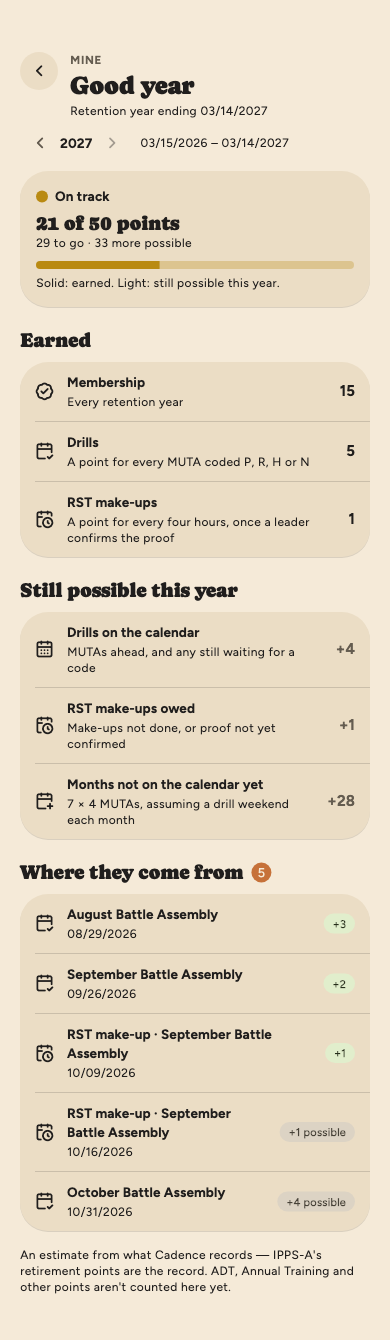
Your points toward a good year
A good year needs 50 retirement points in your retention year, which
ends on your anniversary year end. Add that date to your
profile (it's on your LES and in IPPS-A), then tap the card at the
top of My attendance.
What counts so far: 15 membership points every
year, a point for every drill MUTA coded P, R, H or N, and a point
for every four hours of RST make-up once a leader confirms your
proof. A make-up's points count in the year you do it.
Still possible adds up the MUTAs on the
calendar still to come (or still waiting for a code), RST make-ups
you owe, and four MUTAs for each month the calendar doesn't show
yet.
Green means you've reached 50.
Yellow means you can still reach it.
Red means you can't reach it this year even if you
make every drill and make-up left — talk to your squad leader or
HR about other ways to earn points.
Where they come from lists each drill and
make-up and its points. The arrows by the year show earlier
years.
It's an estimate from what Cadence records. IPPS-A's retirement
points are the record, and ADT, Annual Training and other points
aren't counted here yet.
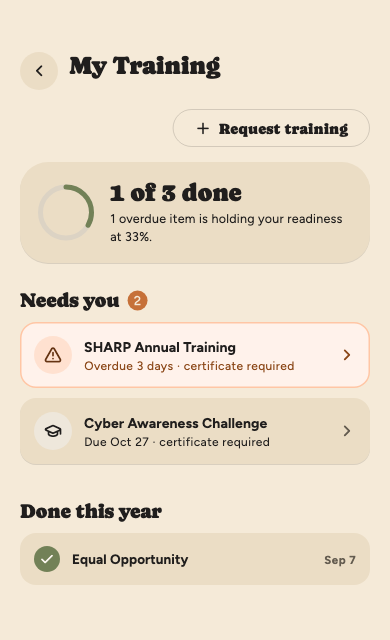
Open Training from More, or tap a training row on
Today. The ring shows how much of your required training is done;
overdue items are highlighted.
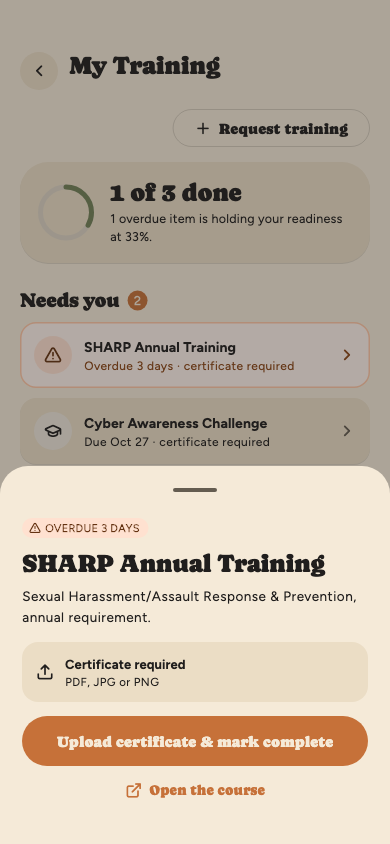
Tap a training to open it.
Tap Open the course to take it, if your unit added a link.
When you’ve finished, tap Upload certificate & mark
complete and pick the certificate (PDF, JPG or PNG). If no
certificate is required, the button simply marks it complete.
Want to go to a school or an extra class? Tap
Request training at the top, give the dates and a note,
and it goes to your training admin. Your requests are listed under
What you’ve asked for with their answers, including why one
was denied. If one is still pending, Remind the training
admins sends them a reminder (at most once every 12 hours). Approving a
school doesn’t file your absence: if it falls on a drill weekend,
request the RST yourself from that event. If a training admin later
changes their answer, you’re told why, and the request shows it.
A training you’ve completed can be reset by a training admin, for
example if the certificate was for the wrong course. You’re told why,
the training shows the reason, and the button to complete it comes
back.
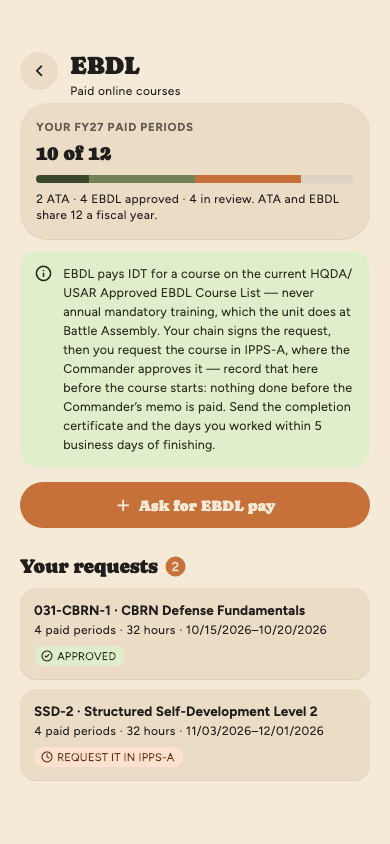
An online military course you do outside drill can be paid as IDT
(EBDL) if it’s on the current HQDA/USAR Approved EBDL Course List and
isn’t annual mandatory training: Cyber Awareness, TARP, Suicide
Prevention, EO/SHARP, OPSEC and the like are done at Battle Assembly and
are never paid this way. Each paid period needs eight hours of
coursework, so a 40-hour course pays five periods, and ATA and EBDL
together are limited to 12 paid periods a fiscal year. Payment is
subject to the availability of funds.
It takes six steps, and your request shows where it is at each one:
You ask in Cadence and sign the request.
Your chain signs it: your first line leader
certifies, your second line leader verifies, and your first sergeant
recommends approval or disapproval.
You request the course in IPPS-A, where the
commander approves it, and record that in Cadence before the course
starts.
The commander signs the memo that authorizes the
course, in Cadence.
You do the course and send the certificate with the
days you worked. A leader signs the DA Form 1380 those days become.
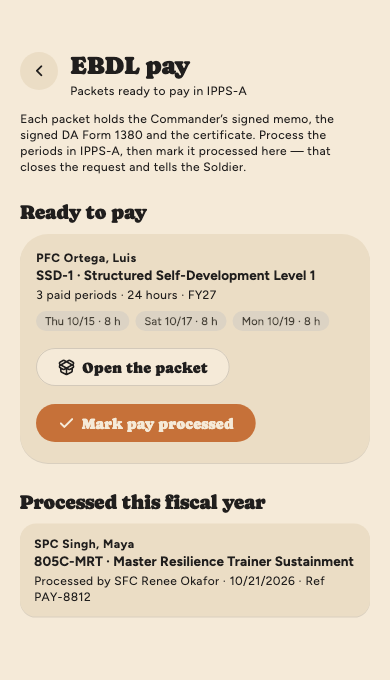
Your unit’s IPPS-A admins pay it from the packet
Cadence puts together.
1 · Asking
In More, under Mine, tap EBDL. It shows how many of
your 12 paid periods you’ve used this fiscal year, and your requests.
Tap Ask for EBDL pay. Enter the course number and title
as the course list shows them, and the course’s hours. Then choose how
many paid periods you’re asking for; Cadence won’t let you ask for more
than the hours cover.
Pick when it Starts and Ends. It has to start after
today, because the commander’s memo has to be dated before it. Cadence
shows which fiscal year it counts in and how many periods you have
left.
Answer Why is this course warranted? Your chain reads it
before they sign, so say what it does for you or the unit.
Tick the two statements: the course is on the list, and it isn’t
annual mandatory training. Add remarks if you like.
Tap Sign and submit and sign. It goes to your first line
leader.
The request form prints your DoD ID, so add it to your
profile first. You can withdraw a request until the
commander’s approval is recorded: open it and tap Withdraw this
request. If you’ve already asked for it in IPPS-A, cancel it there
too.
Your EBDL requests
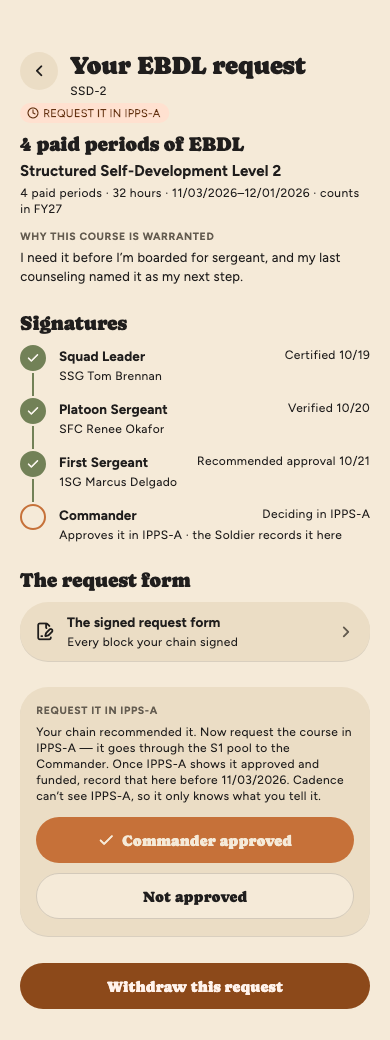
2 · Your chain signs
Each leader signs their block of the request form in turn. If your first
or second line leader declines, the request ends and you’re told. The
first sergeant recommends approval or disapproval; either way the
request goes on, because the commander decides. When the first sergeant
has signed, you’re told to request the course in IPPS-A.
3 · Requesting it in IPPS-A
Request the course in IPPS-A yourself. It goes through the S1 pool to
the commander, who approves it there and assigns the funds.
When IPPS-A shows it approved and funded, open the request in
Cadence. Under Request it in IPPS-A, tap Commander
approved.
Add the IPPS-A request number if you have it, and tap Record it
as approved.
Record it before the course starts.
Recording the approval makes the commander’s memo, dated that day.
Nothing done before the memo is paid. Once the course has started,
Cadence won’t take the approval. It also won’t take one that would put
you over 12 paid periods for the year.
If the commander didn’t approve it, tap Not approved. That
ends the request, and none of its periods count against you.
Recording the IPPS-A decision
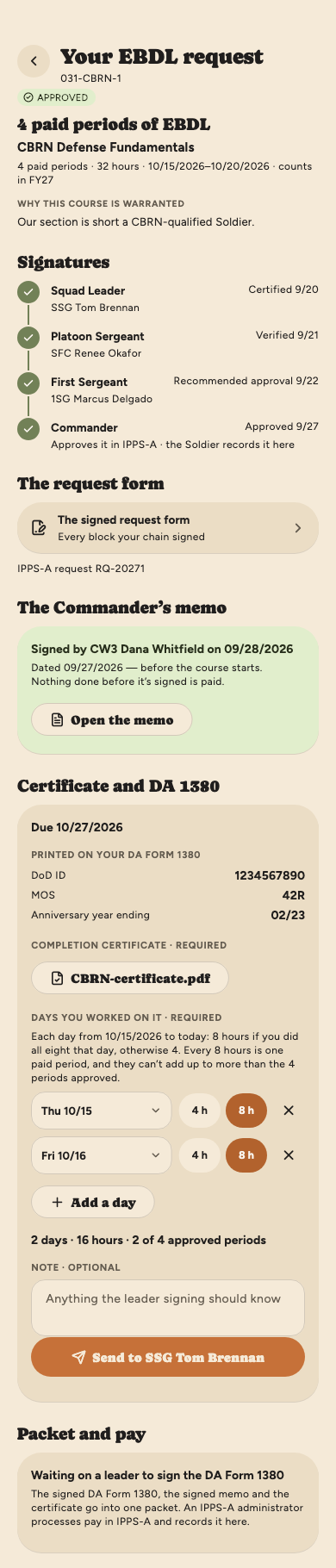
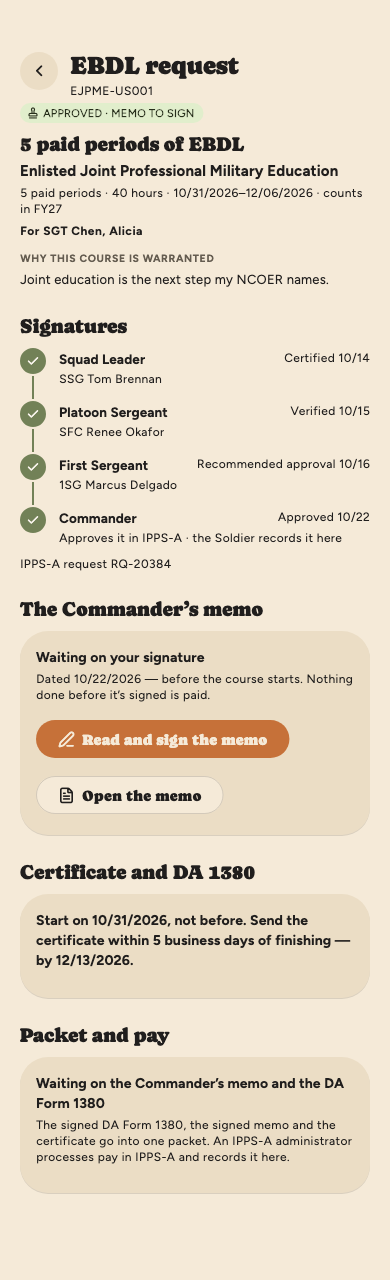
4 · The commander’s memo
The commander is asked to sign the memo in Cadence, and you’re told when
they have. Open it from the request under The Commander’s memo.
Enroll in the course yourself, and start on the day you said, not
before.
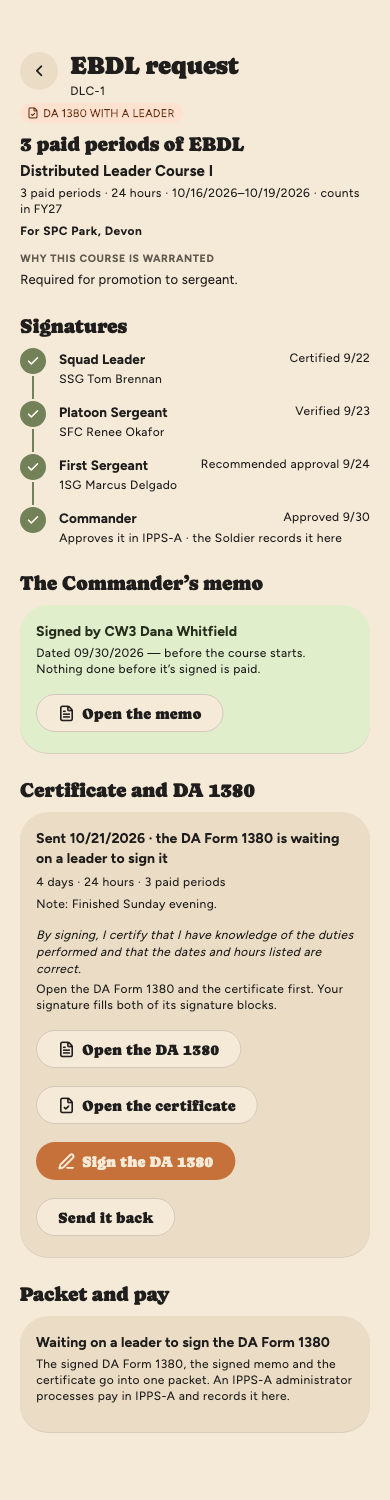
5 · The certificate and your DA 1380
Send your completion certificate within five business days of finishing.
You get an admin task for it, Send your EBDL certificate, under
Needs you on Today; it’s done when you send the certificate.
Open the request and tap Send the certificate.
Check the DoD ID, MOS and anniversary year ending date it shows: they
print on your DA Form 1380. If your DoD ID or MOS is missing, tap
Open my profile and add it first.
Choose the certificate, a PDF or a photo.
Tap Add a day for each day you worked on the course: 8
hours if you did all eight that day, otherwise 4. The total shows
against the periods you were approved.
Add a note if the leader signing should know something, then tap
Send to …, which names your first line leader.
Those days become your DA Form 1380, so:
List only days from the course’s start to today, and no more
periods than were approved.
A day you were on a Battle Assembly or Annual Training roster isn’t
paid.
Every eight hours is one paid period, so two 4-hour days make one.
A 4-hour day left over isn’t paid on this 1380, but Cadence keeps a
note of it.
Your chain is told, and a leader in your unit checks the certificate and
your days and signs the 1380. Once you’ve sent it you can’t replace it,
because a leader may be signing it; if something needs changing, ask
them to send it back. If they do, their reason is on the request: fix it
and tap Send a new certificate.
Sending the certificate and your days
6 · Pay
Once the memo and the 1380 are both signed, Cadence puts the packet
together: the signed DA 1380, the signed memo and your certificate, in one
PDF. Your unit’s IPPS-A admins process the pay in IPPS-A, and you’re told
when they have. Open the packet on the request shows it.
Duty outside drill: a DA 1380
Duty you did outside drill — training rescheduled for points, a day with
another unit, a class — goes on a DA Form 1380. Cadence fills in the form
for you: list each day, a leader in your chain of command signs it, and HR
processes it in IPPS-A. If you don’t see DA 1380 in More,
under Mine, your unit isn’t using it in Cadence yet.
In More, under Mine, tap DA 1380, then
Submit a DA 1380. The top shows the DoD ID, MOS and
anniversary year ending date the form prints from your profile. The
form can’t be made without your DoD ID and MOS, so add them first if
they’re missing.
Say what it was for, and who approved it. This prints in block 9.
If you did it with another unit, name the unit. Turn on
Additional training or distance learning if that’s what it
was.
Tap Add a day for each day. Pick the date, tap
4 hours · P1 or 8 hours · P2, and say what you
did. Days must be within the last year, and each day can only be listed
once.
Attach proof if you have it: a sign-in sheet, a certificate or a photo
of the work. Some units ask for proof with every DA 1380, and the form
says so.
Tap Send to your chain of command. The leaders in your
chain are told, and any of them can sign it.
If a leader or HR sends it back, you’re told why, and it’s under
Sent back to you. Tap Fix it and send again, or
Add proof and send again if HR asked for proof. If HR sent it
back and you only add the proof, without changing any day, it goes
straight back to HR with your leader’s signature still on it. If you
change a day, it goes back to your leaders to sign again. If nobody in
your chain can sign it, HR may send it back so you can send it to
whoever leads you now. You can Withdraw it any time before HR
processes it.
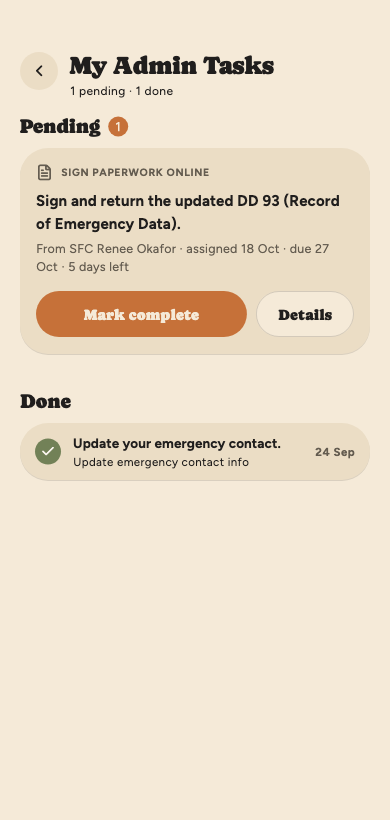
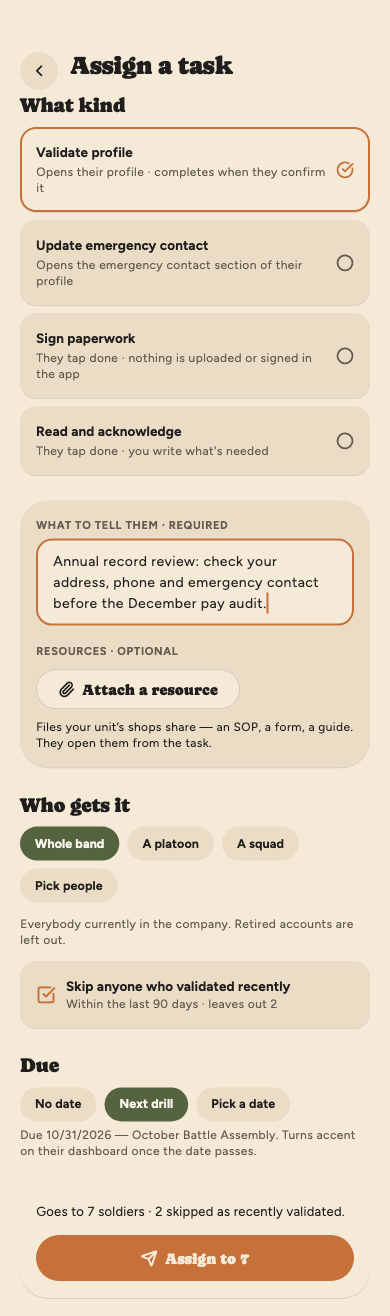
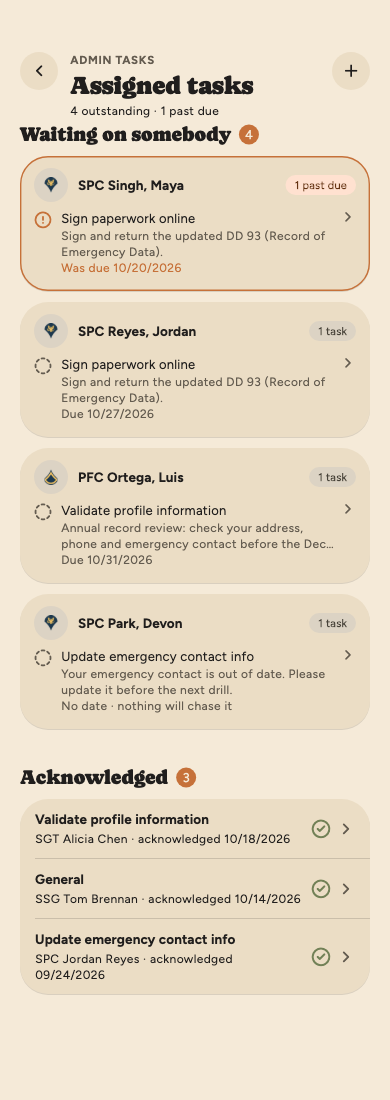
Your admin section assigns tasks like signing paperwork or updating
your emergency contact. Open Admin tasks from More.
Each card says what kind of task it is, who assigned it and when it’s due.
Tap a card to read the whole task.
Did it? Tap Mark complete. It moves to Done.
For tasks about your profile, tap Open my profile,
make the change and save, then come back and mark it complete.
Saving your profile doesn’t mark the task complete by itself.
An overdue task sends you a daily reminder until it’s done.
Files attached. If whoever gave you the task
attached files from the unit’s
resources (an SOP, a form, a guide),
they’re on the card and on the task. Tap one to open it. One
that’s since been removed says so.
Changed by HR. If HR cancels a task, moves its
due date or hands it to someone else, you’re told why, and the task
says so: Cancelled by an admin, Due date moved by an
admin or Handed to you by an admin, with the date and
the reason. A cancelled task moves to Cancelled at the
bottom, and nothing more is owed on it.
A task from your leader. Your squad leader, platoon
sergeant, first sergeant or commander can also give you a task, like
helping another soldier or finding something out. It shows on Today
under Needs you whether or not you have HR / Admin access,
and says who it’s from. When it’s done, open it and tap
Mark it done; you can add a short reply for them (what you
found, who you helped), or leave it blank. Only you and that leader
see it, not HR.
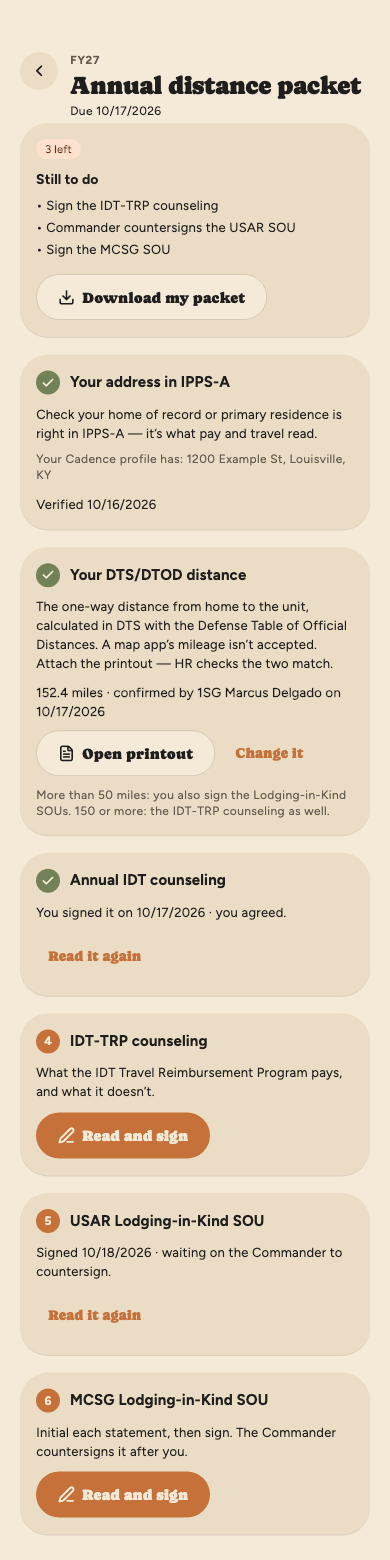
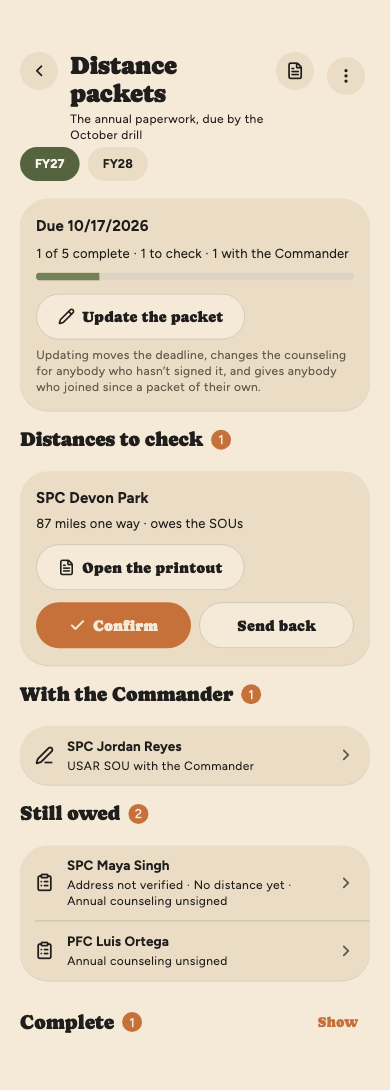
Every fiscal year, before the October Battle Assembly, you renew your
annual paperwork with HR. When HR opens the year you get a task,
Annual distance packet; open it from Today, your task list, or
HR / Admin → Annual distance packet. It works through
these steps, and each one says what it’s waiting on.
Your address in IPPS-A. Check your home of record or
primary residence is right in IPPS-A, then tap
I’ve verified it in IPPS-A.
Your DTS/DTOD distance. Enter your one-way distance
from home to the unit as DTS calculates it, attach the DTS/DTOD
printout (a photo or a PDF), and tap Send to HR. A map app’s
mileage isn’t accepted. HR checks the two match; if they send it back,
their reason shows here and you send it again.
Annual IDT counseling. HR writes it once for the
whole unit. Read it, choose I agree or
I disagree, add any remarks, and sign. Once signed it’s
on your record in Counselings, with any other
counseling you’ve signed.
More than 50 miles away? You also sign each
Lodging-in-Kind statement of understanding (one for USAR, one for
MCSG), with your confirmed distance already filled in. Tap the box
beside the first statement to draw your initials, tap each other box
to initial it, then sign. The commander countersigns it after you.
150 miles or more? You also sign the IDT-TRP
counseling, the same way as the annual one.
The SOUs and the IDT-TRP counseling unlock once HR confirms your
distance, because it decides whether you owe them and goes on the
form.
Change your distance and any SOU you signed is cleared: it would
state the old one.
Download my packet gives you one PDF of everything you’ve
signed, with your printout at the back. The counselings print on
DA Form 4856.
The task closes itself when the packet is complete.
If you move, the address, distance and SOU steps
open again, due the day before your next drill, and a note at the top
says why. Your signed counselings stand.
Your annual distance packet
Forms from HR
Some units send their paperwork through Cadence: a statement of
understanding, an acknowledgment, a request. When HR sends you a form,
you get a task, Fill in the …, under Needs you on Today.
Forms in More, under Mine, lists every form
you’ve been sent: what’s waiting on you first, then what’s with somebody
else, then what’s complete.
Open the form. Fields HR filled in say Filled in by HR, and
anything taken from your profile says so; fix those on your profile
if they’re wrong.
Fill in your part. Save draft keeps it without sending
anything.
Tap Sign and submit and sign. The line above the button
says what happens next.
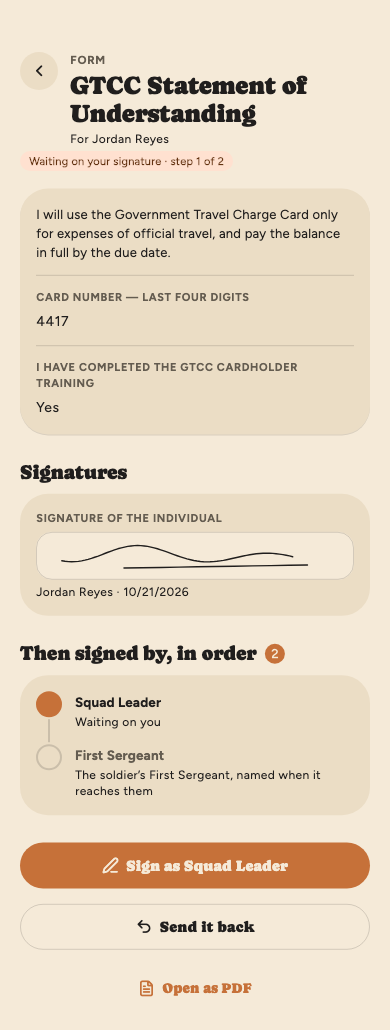
Who signs after you. Depending on the form, HR
checks it, and it may go to up to four people in turn: HR, your squad
leader or platoon sergeant, the first sergeant and the commander. Each
is named when it reaches them, and the form shows who has signed and
who has it now.
Sent back? You’re told why, and it’s back under
Waiting on you. Correct it and sign again. Every signature
after yours is cleared, so it goes through the chain again.
Printing. Once it’s submitted, Open as
PDF prints it, or Open the official form for a form
that prints on the official PDF, filled in from your answers.
Who can read it: you, your unit’s HR and org
admins, and anyone named to sign it while they’re in your unit.
Signed by you lists the forms you signed for other
soldiers.
A counselor’s signature. Some forms, such as the
annual training counseling, are signed first by a counselor HR names.
Their signature is already on your copy, above yours.
On your record. When a form is a counseling, the
signed copy also appears under Counselings in More,
with your other counselings. Open the form shows every word
of it.
Filling in a form needs HR / Admin access. If HR voids a form you were
sent, you’re told why and there’s nothing more to do on it.
Asked to sign as counselor
If HR names you as a form’s counselor, you get a task, Sign the … as
counselor, under Needs you on Today. You don’t need HR /
Admin access. Nothing goes to the soldiers until you sign.
Open it. It shows what goes out: every statement, what HR filled in
for everybody, and what each soldier answers or brings from their
profile.
Tap Sign and send to … and sign once. Every soldier gets
their copy with your signature on it, and HR is told.
If it isn’t right, tap Decline and say why. HR reads your
reason and can send it again.
If HR has set your rating chain, it’s on your profile under
My Rating Chain. Your evaluation reaches you after your rater
and senior rater, under Needs you on Today and in
Evaluations in More. Read their comments, add yours if
you want, and tap Approve — send to reviewer. If something is
wrong, write why and tap Not approved — back to senior rater.
The report itself is still done in EES; Cadence tracks the chain’s
sign-off.
The notes button at the top of Evaluations opens your notes log, which
your rating chain shares. Tap + to write down something worth
remembering at evaluation time. Only a note’s author can edit or delete
it.
A counseling to sign
When a leader counsels you, you get a notification and it appears under
Needs you on Today. Read every word, then tap
Read it and sign. If you disagree, write a rebuttal before you
sign: it becomes part of what you signed and can’t be changed afterwards.
Sign on the pad, then tap Sign it. The counseling stays on the
record, readable by you, your chain of command and your unit’s
admins.
To read one again, open Counselings in More, under
Mine. Anything still waiting on your signature is at the top,
then everything you’ve signed under On the record, including the
counselings from your distance packet. A counseling your leader withdrew
before you signed it is kept at the bottom. If one was written in error,
your unit’s org admin can mark it Entered in error: you’re told,
and a banner says so for everyone who reads it, but what you signed
doesn’t change.
Counselings is there whatever access your account has: what you’ve
signed is your record, and you can read it any time. Signing a new one
needs HR/Admin access; without it, the counseling says so, and your
unit’s admin can give it to you.
Print one. Open a counseling and tap
Open as DA Form 4856 to get the official form, filled in
with both signatures. Drafts and withdrawn counselings don’t print.
Add one you got on paper. Tap the upload button at
the top of Counselings. Say what it was about, the date on the form and
who counseled you, then choose the scan (a PDF) and tap
Add to my record. Your chain of command and your unit’s
admins can read it, as they can any counseling about you. Open it to
see the scan; you can remove a scan you added, but not a counseling
written in Cadence.
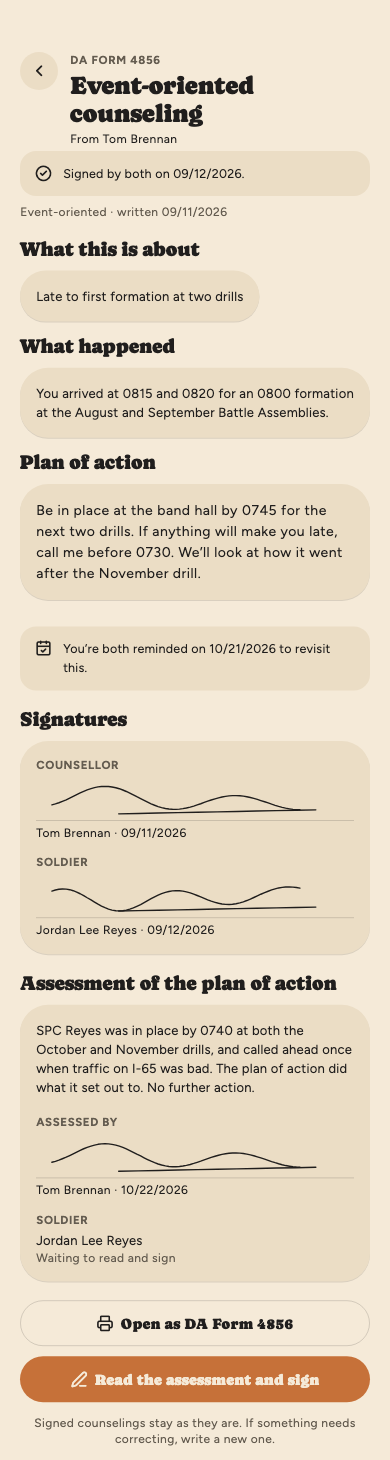
An assessment to sign
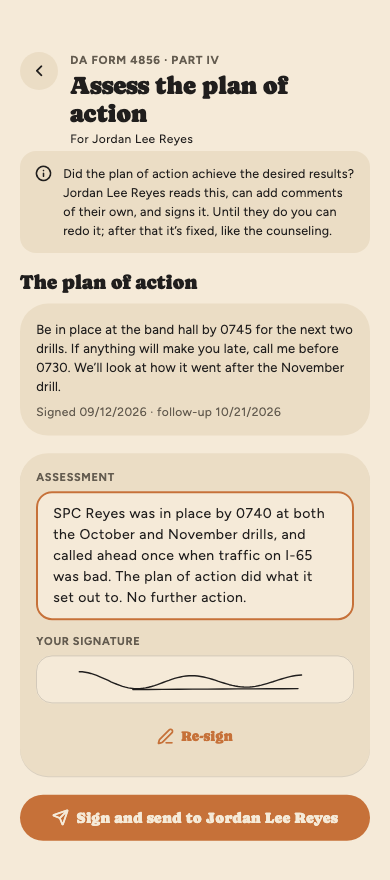
After a counseling, your leader may come back to say whether the plan
of action worked. That’s Part IV of the form, the assessment, and
it’s added beside what you signed rather than changing it.
It appears under Needs you on Today as a counseling
assessment to sign. Open it.
Read the assessment, under the signatures, then tap
Read the assessment and sign.
Add your own comments if you want, sign, and tap
Sign it.
Like a rebuttal, your comments are signed with it and can’t be
changed afterwards. Both print in Part IV of the DA Form 4856.
Sections & MPTs in More shows each MPT you’re in:
who leads it, how many are in it, the sections you’re in, its newest
practice plan and a button for its group chat. Open one for its
sections, practice plans and roster; tap anyone on the roster to open
their profile. Browse all MPTs in the band at the bottom shows
the rest.
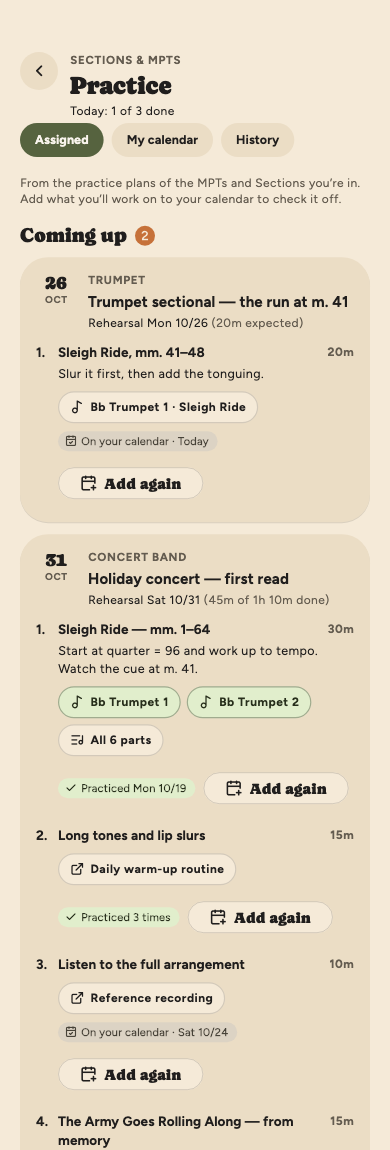
Practice in More has three parts: what your MPT and
Section leaders have asked you to work on, your own practice calendar,
and the history of everything you’ve practiced. Switch between them with
Assigned, My calendar and History at the
top.
Assigned practice
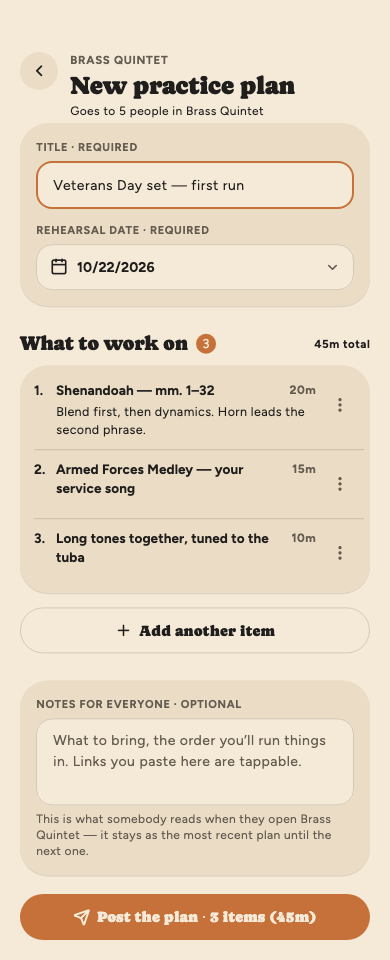
When a leader posts a practice plan for an MPT or Section you’re in,
you get a notification and the plan appears here, soonest rehearsal
first. Each plan is a numbered list of things to work on.
Time. The time beside an item is how long to
spend on it. The plan’s total is in parentheses beside the
rehearsal date, with how much you’ve done so far:
(45m of 1h 10m done).
Music from the library. When a plan links a
whole piece, the part for the instrument you play in that MPT is
highlighted. Tap it to open it, or All 6 parts to pick
another. Opening music needs Library access.
Links, such as a recording or a warm-up video,
open in your browser.
Make it yours. Tap Add to my practice
and pick a day to put an item on your calendar, or add the whole
plan at once.
Practice it as often as you like. Once an item is
on your calendar it offers Add again, so you can put it
on as many days as you want, even the same day twice. The item
shows where it stands: Practiced 3 times, or On your
calendar · Tue 10/6 for the next day it’s planned. Tap either
to open that day.
You can keep adding a plan until its rehearsal date has passed. After
that it moves to Past week (tap Show to look back
at what was covered) and can’t be added any more; whatever you
already added stays on your calendar. The same goes for a plan a
Sections admin withdraws: it disappears from here, and anything you
already put on your calendar stays.
Assigned practice
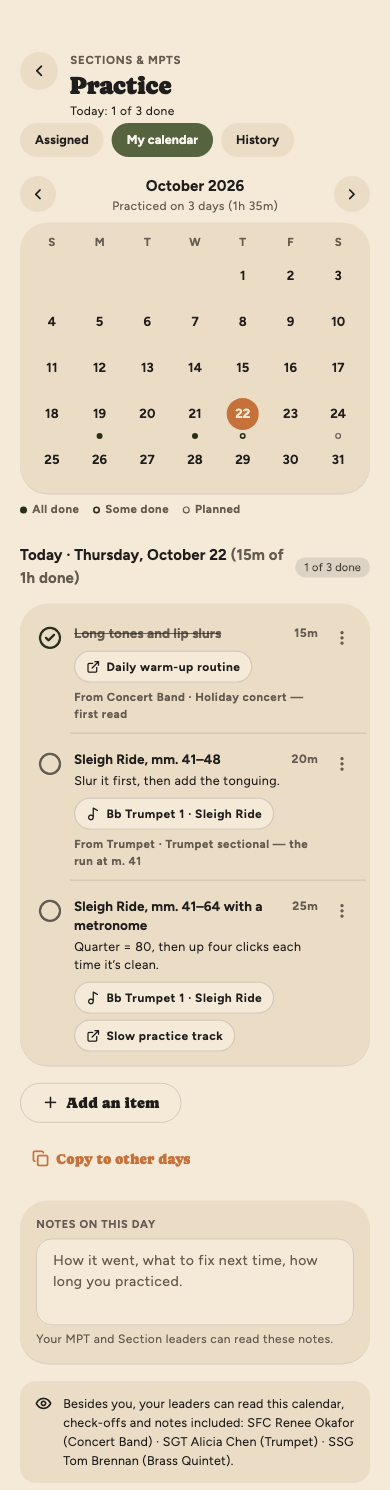
Your practice calendar
My calendar shows a month at a time. The marks under the
days show which were all done, partly done, or only planned; the key
is right below the month. Tap a day to open it underneath.
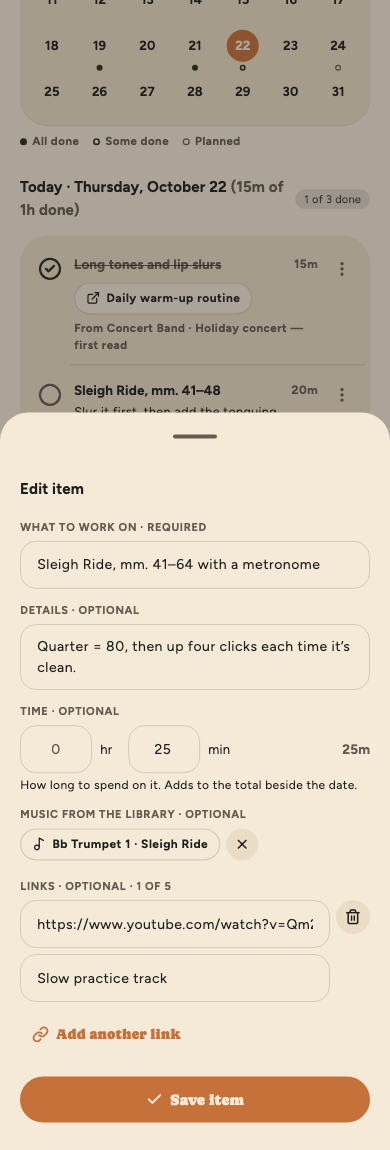
Plan the day. Tap Add an item and say
what you’ll work on. You can add details, how long it takes, music
from the library, and up to five links.
Check items off by tapping the circle beside each
one as you finish it. The date shows your time in parentheses:
(15m of 1h done).
Write notes on how it went, then tap
Save notes.
Plan a week at once.Copy to other days
copies the day’s items, unchecked, onto the days you pick.
The ⋮ beside an item lets you edit it, move it up or down,
or remove it. Items you added from a plan say which plan they came
from. Check-offs save even without signal and sync when you’re back
online.
Who can see your calendar
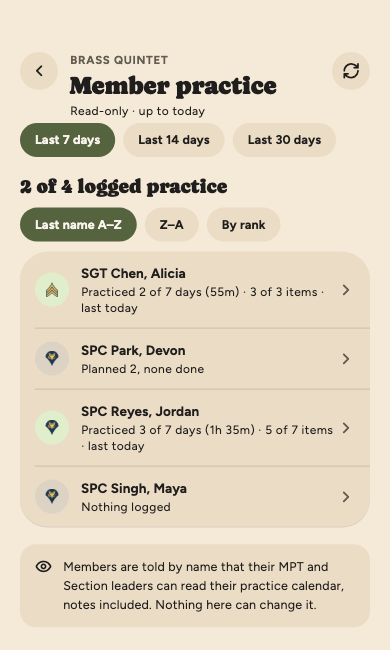
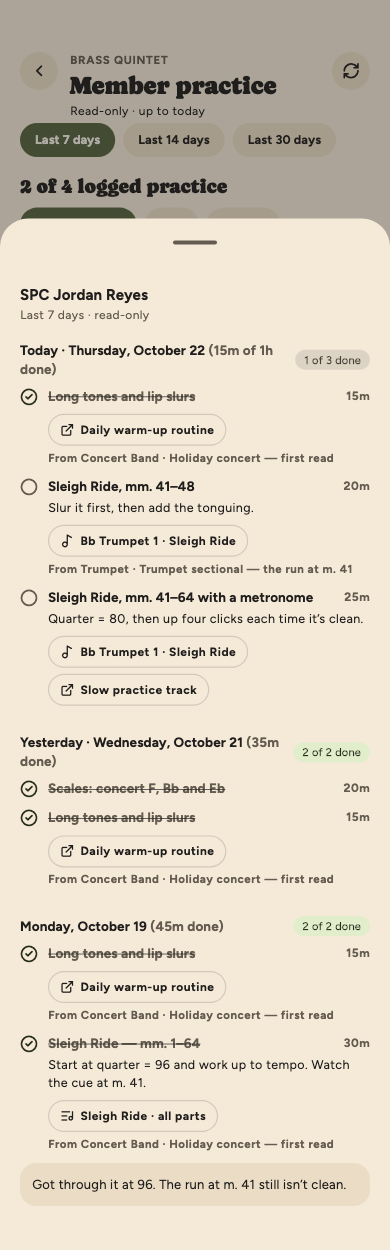
You, and the leaders of the MPTs and Sections you’re in, check-offs
and notes included. Nobody else can, not even an admin. The bottom of
the calendar names exactly who.
Your practice calendar
An item, with its time, music and a link
Your practice history
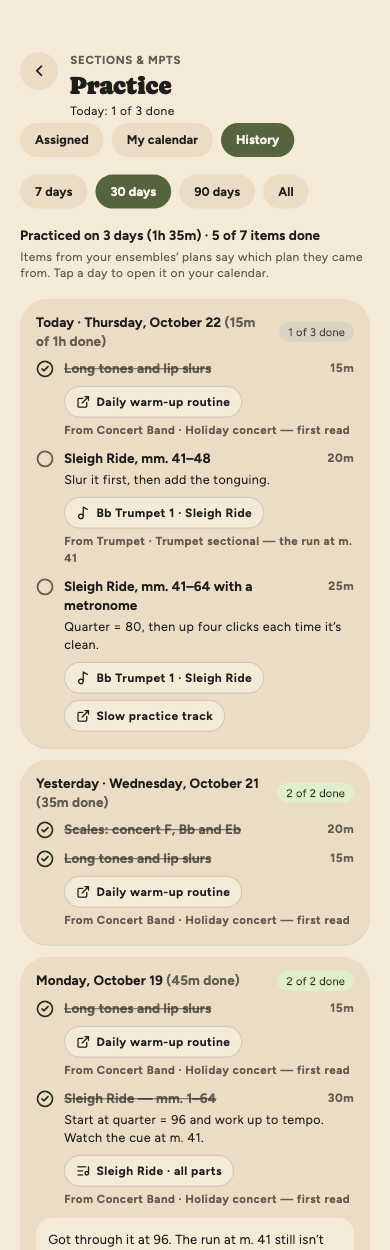
History lists every day you’ve practiced, newest first:
what was on the day, what you checked off, your time and your notes.
It shows both kinds of practice. Items from your ensembles’ plans say
which plan they came from, and items you planned yourself don’t.
Pick a span with 7 days,
30 days, 90 days or All. The line
at the top adds it up: days practiced, time, and items done.
Twenty days at a time. Tap
Show older days to see more.
Tap a day to open it on your calendar, where you
can change it.
It’s the same view of your practice your MPT and Section leaders see.
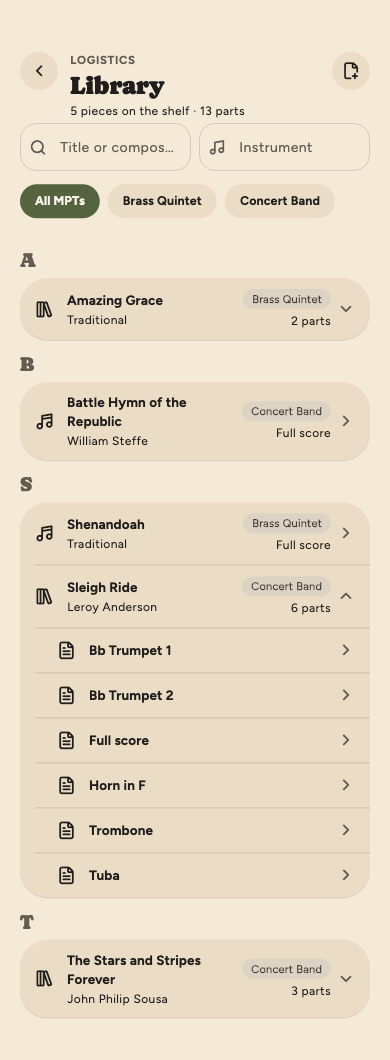
Library, under The unit in More, is the
band’s sheet music. Each piece is listed once: tap it to see its
parts, then tap your part and Open the PDF. From there you
can share, save or print it.
Find a piece by its title or composer, or type
an instrument to see only those parts. The pills narrow it to one
MPT’s music, and Clear filters shows everything
again.
Only library admins add music. When a practice plan links a piece,
your part opens straight from the plan too. A part a library admin
takes off the shelf leaves the library, but a practice plan that links
it still opens it.
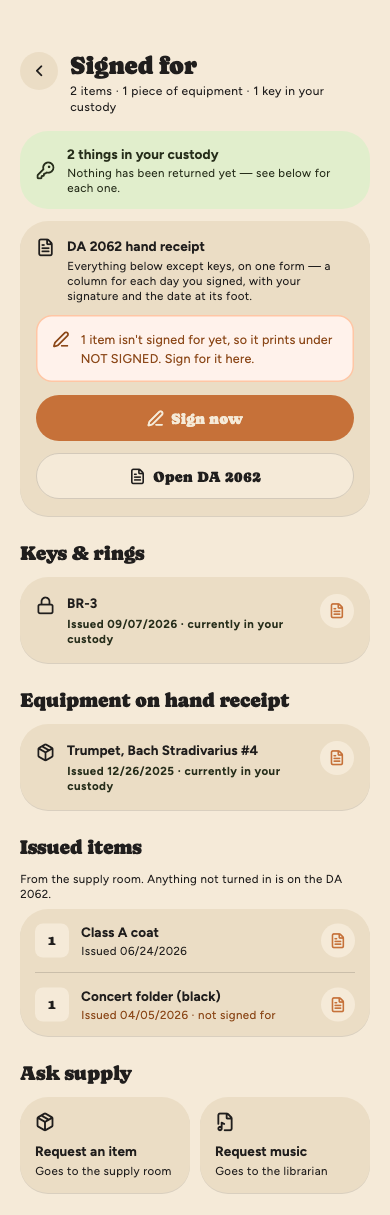
Signed for (in More, under Mine) is everything you’re
accountable for, in one place:
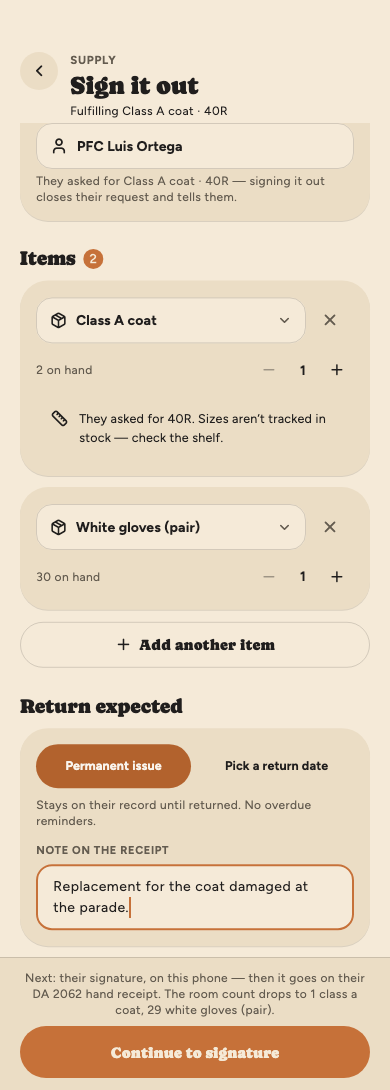
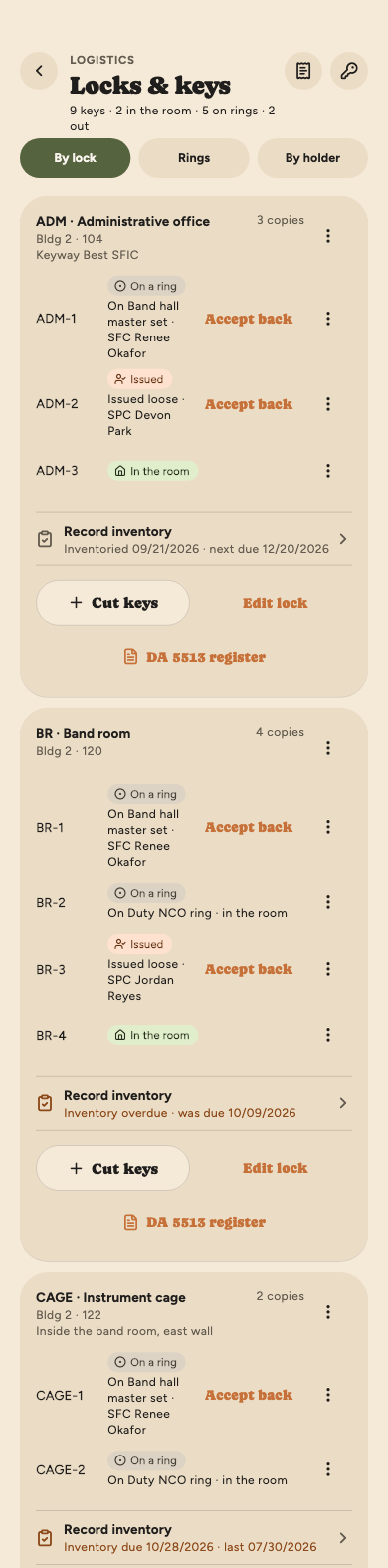
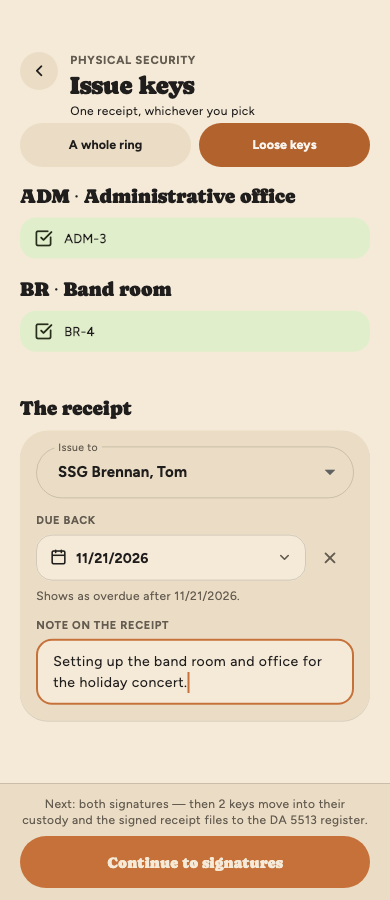
Keys & rings signed out to you.
Equipment on hand: instruments and other gear on
loan to you, which you’ll return.
Issued items: uniform pieces and expendables.
An item with a return date shows it.
Tap the document icon on any row to open the signed receipt. The
green card at the top tells you how many things are in your custody
right now.
Your DA 2062 hand receipt. Tap
Open DA 2062 for everything except your keys on the
official form, with a lettered column for each day you signed and
your signature and the date at its foot.
Anything you haven’t signed for, such as an item issued before
Cadence took signatures, says not signed for on its row and
prints under NOT SIGNED. Tap Sign now to sign for it.
Something here that you’ve already turned in?
Ask the supply room to record the return. It comes off your list as
soon as they do.
Corrections the supply room makes. You’re told
each time, with the reason:
A voided issue, one that was a mistake, stays
on your list greyed out, marked Voided by an admin. It’s
off your DA 2062.
Part of an issue taken back: the row lists
only what you still hold, such as 1 of 2 returned.
A key receipt closed by an admin, because the
keys were lost, issued to the wrong person, or you couldn’t be
reached to sign them in, is greyed out and no longer counts as in
your custody.
Signed for
Requesting an item or music
At the bottom of Signed for are two buttons.
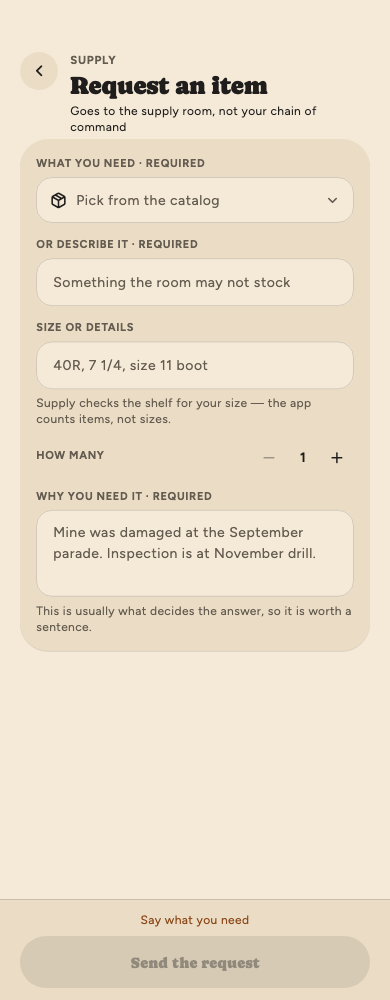
Request an item
Goes to the supply room, not your chain of command. Pick from the
catalog or describe what you need, add your size (like 40R),
how many, and why you need it. The reason is usually what decides the
answer. Tap Send the request. When it’s filled, it shows up
in Signed for. Your requests are listed under
What you’ve asked for: Withdraw takes back one
that hasn’t been answered, Remind the supply admins sends
the supply room a reminder about it (at most once every 12 hours), and a
denied one shows the reason. If the supply room reopens a request it
denied, you’re told, and it’s waiting again.
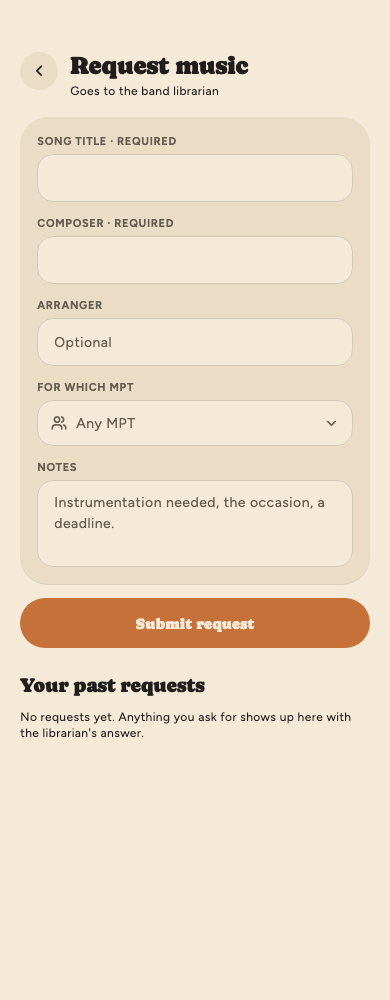
Request music
Goes to the band librarian. Enter the song title and composer (and
arranger if you know it), which MPT it’s for, and any notes like
instrumentation or a deadline. Your past requests and the librarian’s
answers are listed underneath. One still waiting, whether for an
answer or approved and not yet on the shelf, has
Remind the library admins (at most once every 12 hours).
If the librarian reopens a request, you’re told.
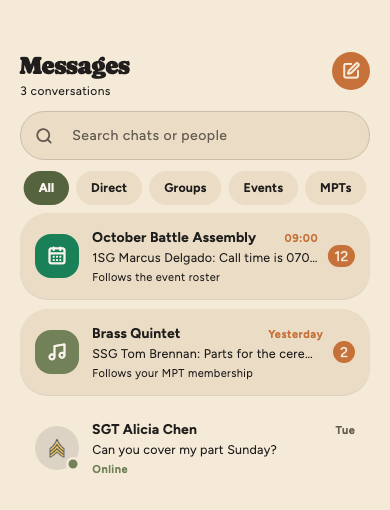
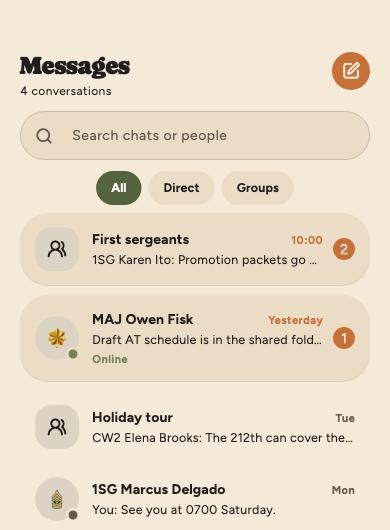
The Messages tab has every conversation you’re in,
newest first. Use the pills at the top to filter.
Event chats include everyone on that event’s roster.
Unit chats: your company, your platoon and your
squad each have one, with everyone in it. If you’re moved to
another squad or platoon, you leave the old one’s chat and join the
new one’s. Find them under the Groups pill, or with the
message button on the unit’s page in the chain of command.
MPT and section chats include everyone in that
group. You’re added and removed automatically as membership changes.
Direct messages are between you and one other
person.
Groups are conversations somebody started with
the people they picked.
To find a chat, type in the search box at the top: a chat’s name,
or someone’s name to find every chat they’re in. A chat found by a
person says who, such as With SSG Kim Park. Search works
within whichever pill is selected.
The pills are All, Direct, Groups
(groups people started, plus your squad, platoon, company, MPT and
section chats), Events and MPTs (your MPT and
section chats).
To start one, tap the pencil button and choose
Direct message or Group. Event, unit, MPT and
section chats appear on their own.
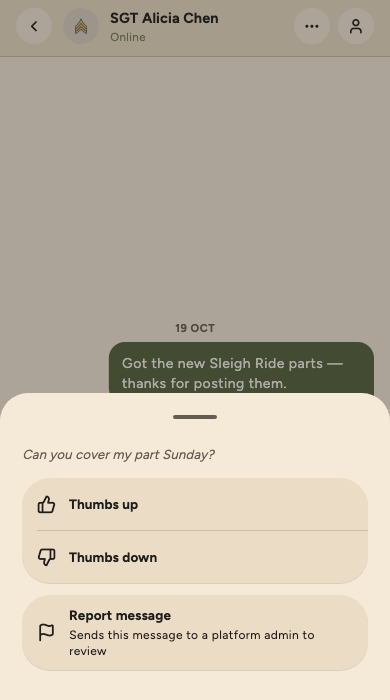
You can send photos and PDFs. Web addresses and email addresses in a
message are underlined — tap one to open it. Long-press a message to
give it a thumbs up or thumbs down; long-press one of your own to
edit or remove it, or someone else’s to report it (see below).
The button at the top of a conversation takes you to what it’s about:
the event, the MPT, your squad, platoon or company, the other
person’s profile, or a group’s members.
Messages
Reporting a message, and blocking someone
Report a message that shouldn’t be there:
long-press it and tap Report message. Add a note if you
like, then Send report. A platform admin, one of the
people who run Cadence itself, sees that one message, who sent it
and your note, not the rest of the conversation, and the sender
isn’t told who reported it. You’re told when it’s been dealt with.
A message that’s removed shows Message deleted for
everyone.
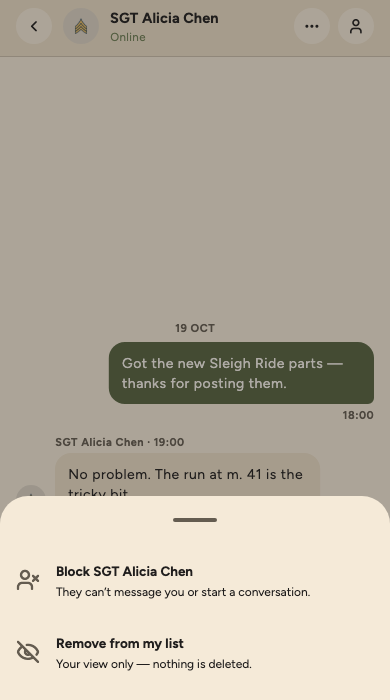
Block someone in a direct conversation: tap the
… button at the top, then Block and their
name. They can’t message you or start a new conversation with you,
and they aren’t told. What they already sent stays, and a group
you’re both in isn’t affected. Unblock is in the same
place.
Remove from my list, in the same menu, takes a
direct conversation off your list. Nothing is deleted; it comes
back if they write again.
A closed conversation says A platform admin
closed this conversation. Nobody can post in it. You can still
read it, and both of you are told when it’s closed or
reopened.
Reporting a message
Blocking someone
Groups
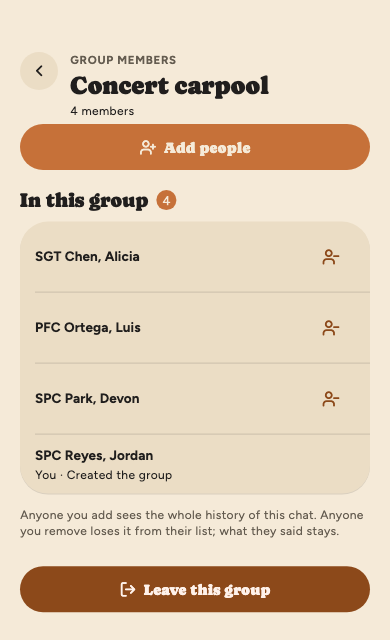
Tap the pencil button, then Group.
Give it a name, then pick who’s in it. You’re in it
automatically.
Tap Create with …, which counts everyone in it,
you included.
To see who’s in a group, open it and tap the people button at the
top.
If you started it, Add people adds
more, and the button beside a name removes them. Someone you add
sees the whole conversation so far; someone you remove loses it
from their list, but what they said stays.
Anyone in it can tap
Leave this group. Only whoever started it, or your org
admin, can add you back.
A group you started
Talking with your command
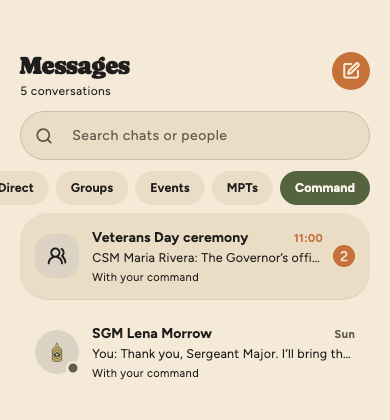
If your band is under a Readiness Division or Major Command, you can
message their staff, such as the CSM or the band program manager.
They can message you, too.
To start one, tap the pencil button and choose
Direct message or Group. Your command’s
staff are listed under Your command, below your
band. A group can include people from your band as well.
Every one has someone from your command in it.
A conversation with only your own band belongs in your band’s
messages instead.
They’re markedWith your command, and
the Command pill shows just these.
Everything else works the same: photos and PDFs,
reactions, editing and removing your own messages. Whoever started
a group adds and removes people, and anyone can leave.
Conversations with your command
Family readiness (FRG)
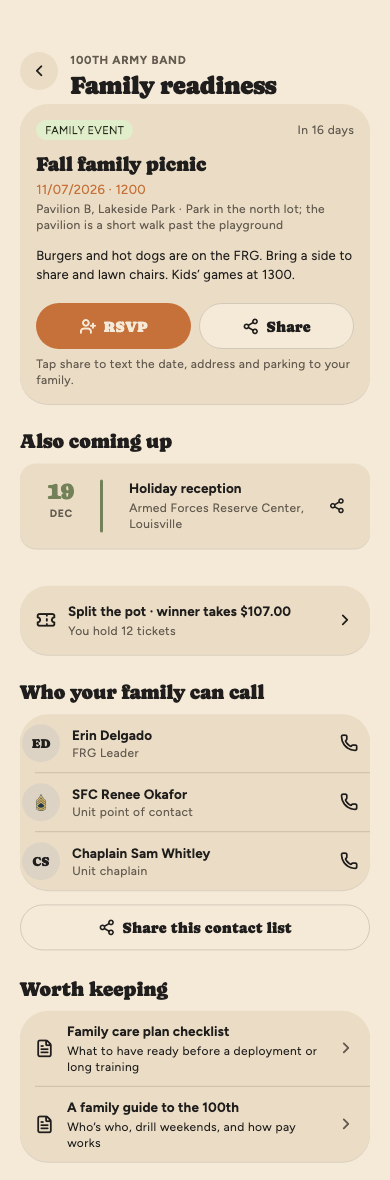
Family readiness, under The unit in More, is
what the Family Readiness Group shares with families: family events,
who your family can call, and documents worth keeping. Families can’t
sign in to Cadence, so most of it is made to be passed on.
Family events. The next one is at the top with
the date, the place and how to get there. Tap Share to
text the details, parking included, to your family.
RSVP. Tap RSVP, say whether you’re
coming, and count the adults (you included) and the children under
12. Your answer is private to you and the FRG; everyone sees the
totals.
Potluck. If the event has one, the RSVP screen
lists what’s still needed. Tap I’ll bring on a slot.
Who your family can call. The FRG Leader and
other contacts, each with a call button.
Share this contact list sends it to your family.
Worth keeping. Documents and links, such as a
family care plan checklist.
Split the pot. When a draw is running, a card
shows the pot and how many tickets you hold. Tap it for your ticket
numbers, your chances (“about a 1 in 39 chance”) and past draws.
Tickets are sold by FRG volunteers at drill. The winner takes half
and the rest funds family events; everyone who bought in is told
the result, and the winner collects from an FRG volunteer.
Family readiness
If the FRG cancels a family event, it drops off the list; opened from a
link, it says why and takes no RSVPs. A cancelled draw says
Cancelled with the reason, and a sale an FRG admin voids is
marked Voided. Either way the FRG gives back what you paid, and
you’re told.
The FRG’s money (its balance and ledger) isn’t shown to members. That’s
kept by the FRG admins; see FRG admins.
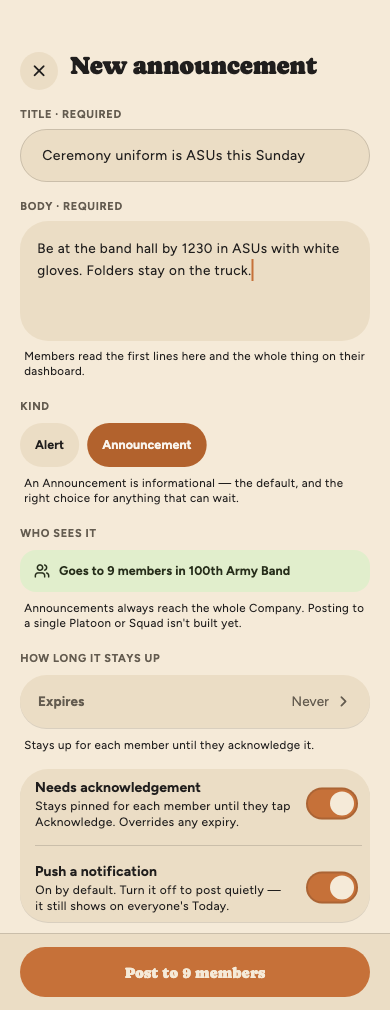
Alerts and announcements from your chain of command sit at the top of
Today until they expire. To see them all, open More →
The unit → Announcements: new ones first, then
those still current, with expired ones folded away at the bottom.
Opening the list marks them all read. One that needs acknowledging stays
pinned at the top of Today until you tap Acknowledge there.
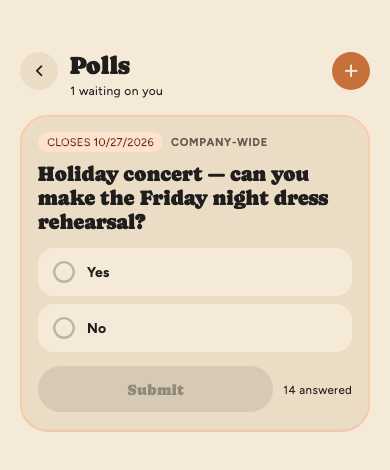
Polls ask the unit a quick question, like whether you can make a
rehearsal. Ones waiting on you appear on Today and at the top of
Polls in More. Pick an answer and tap
Submit.
Answers aren’t anonymous: everyone can see who answered what.
A poll waiting on you
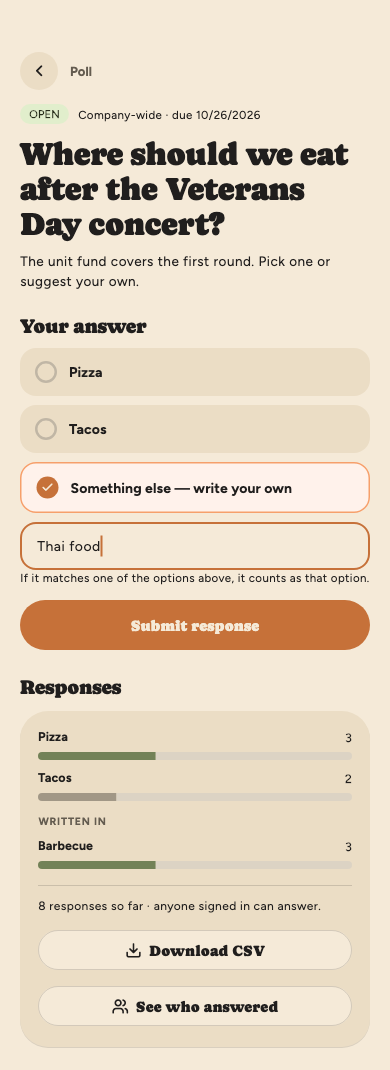
Writing in your own answer
Some polls let you answer in your own words. Tap
Something else — write your own, type your answer and
submit. If what you write matches one of the listed options, it
counts as that option.
Open a poll to see the results under Responses, with
written-in answers grouped at the bottom.
See who answered lists the people behind each answer, and
Download CSV saves the results as a spreadsheet, one row
per person.
Answering and results
Starting a poll
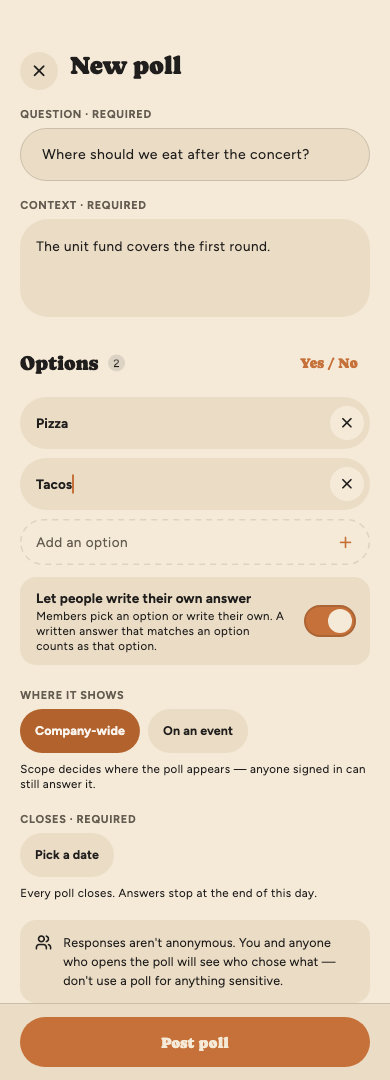
Anyone can start a poll with the + button. Ask your
question, add some context, then list the answers people can pick.
Yes / No fills in the two most common ones.
Turn on Let people write their own answer to allow
write-ins. With it on, the listed options are optional: remove them
all and every answer is written in. Pick a closing date and tap
Post poll. You can edit a poll until the first person
answers.
Your own poll asks you too: it waits on you like anyone else’s until
you answer it, then moves to Yours with the tally
and your pick. Your answer counts as a response, so answering it
ends editing just as anyone else’s would.
Where it shows is Company-wide or
On an event. An event’s poll appears behind that event’s
Polls button and is
announced to its roster; anyone in the unit can still answer it. To
start one from the event itself, tap ⋮ →
New poll.
Your unit’s org admin can close a poll early, change when it closes,
hide it, or remove an answer. The poll then says so, such as
Closed early by an admin, and its creator is told. Once an
admin has changed a poll, its creator can’t edit it.
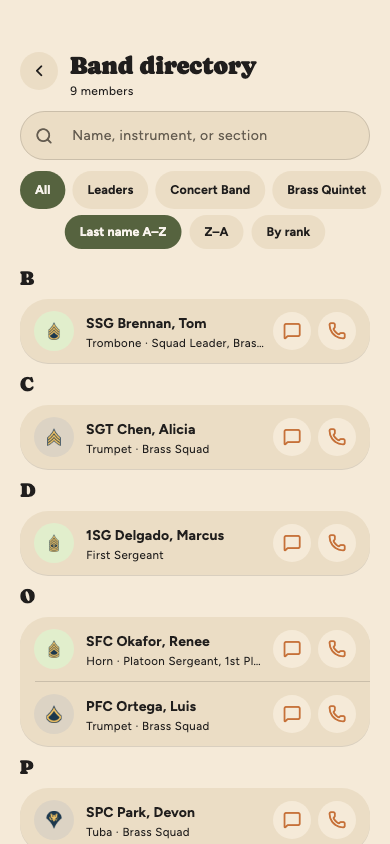
The Band directory (More → The unit) lists everyone
in your unit. Search by name, instrument or section, or use the pills
for My squad, Leaders and each of your MPTs. The
message button on a row opens your conversation with that person,
starting one if you’ve never talked, and the phone button calls them.
My chain of command (the green bar at the top of More)
answers “who do I go to?”. Pick what you need, like missing a drill or
a pay problem, and it tells you who handles it, with buttons to reach them.
Below that is your own chain, from your squad leader up, then
Outside your chain: people who decide things for you without
being in it, such as your rater and your MPT leaders. If something
serious is going on, the Something serious card says you can
go straight to your first sergeant or commander, without going in
order. See the whole unit shows the company: its commander and
first sergeant, each platoon with its squads and who leads them, and
everyone in it. Tap a platoon to show its squads, and
Open it or tap a squad to see who’s in it. On your own
company, platoon or squad, the message button at the top right opens
its chat.
Band directory
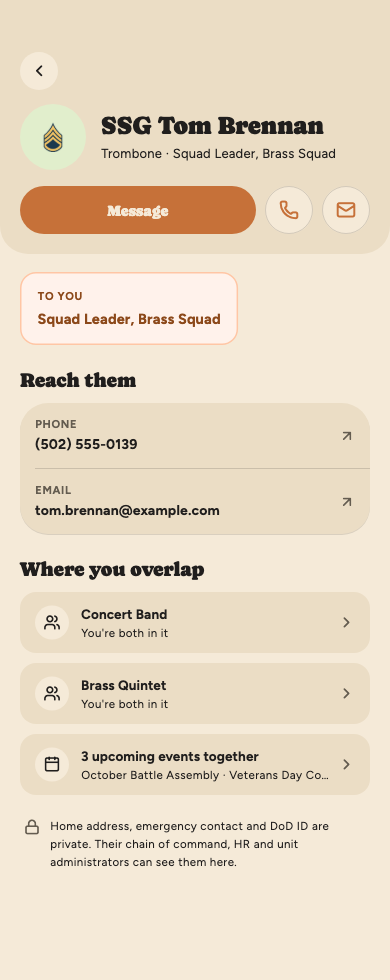
Someone’s profile
Tap anyone to open their profile: how to reach them, what they are to
you (your squad leader, say), and which ensembles and upcoming events
you share. Under Reach them, tap a phone number to
call it or an email address to write to it in your mail app.
Message opens your conversation with them.
A home address, emergency contact and DoD ID are private. Only the
person themselves, their chain of command, HR and unit administrators
see them. If that’s you, they appear under
Restricted details: tap the emergency contact’s
number to call it, or the DoD ID to copy it. Anything the soldier
hasn’t filled in shows as Not provided.
A colleague’s profile
Forms and guides
General Resources (More → The unit) holds the files each
shop shares with the unit: SOPs, forms and guides. It opens on a folder
for each shop; tap one to see that shop’s folders and files, and
Back to go up a level. Search by title or keyword finds a file
in any folder and says where it lives. Tap a file to open it;
⋮ → Download saves a copy, for a PDF you need to
fill in or sign. A task can point at these files too: when one is
attached, it opens from the task.
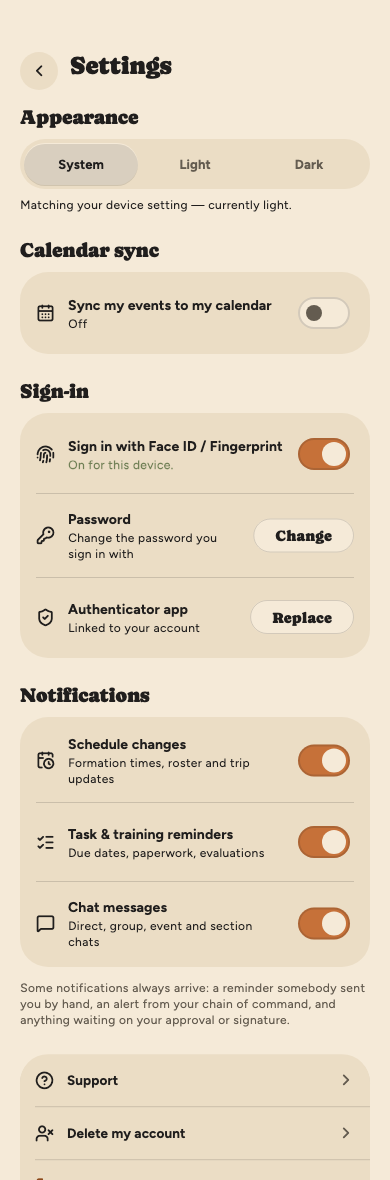
Appearance: match your phone, or always light or dark.
Calendar sync: copy your Cadence events into your
phone’s calendar; Change picks which of your calendars
they go into. Turning it off removes them again.
Sign-in: turn Face ID / fingerprint on or off,
change your password, or replace your authenticator app when you
get a new phone. Change password asks for your current
password, then the new one twice. Changing your password or turning
on Face ID / fingerprint also asks for the code from your
authenticator app, to confirm it’s you. Anywhere else you’re signed in
stays signed in, and Face ID / fingerprint sign-in on this phone
picks up the new password by itself.
Notifications: switch off schedule changes, task
and training reminders, or chat messages. Some notifications always
arrive, such as a reminder someone sent you by hand, an alert from
your chain of command, an admin’s correction to one of your
records, or anything waiting on your approval or signature. Turning a reminder off doesn’t remove the task: it stays
on Today.
Command updates, for Division and Major Command
staff only: a notification when a band stars a performance, or
cancels one it starred. It’s off until you turn it on; see
For command staff.
Delete my account, just above Sign out: you
enter your password, type DELETE and confirm with an authenticator
code. You’re signed
out straight away, and the account is deleted 7 days later. Can’t
sign in any more? See
Delete your Cadence account.
Settings
Reminders the app sends on its own
Every day Cadence checks for things coming due and sends reminders.
Times are Eastern. Nothing here repeats more than once a day, and the
reminders stop as soon as you do the thing.
8:00 AM · Admin tasks past due. Any admin task whose
due date has passed gets one reminder a day until you mark it complete.
That includes proof of an RST make-up and an EBDL completion
certificate with your days worked, each of which is done when you send
it. A task with no due date, or one an admin cancelled, is never
chased. Your annual distance packet is also reminded a week before and
the day before its due date.
9:00 AM · Travel paperwork (DTS). For an event with
DTS paperwork, reminders to submit your DTS start 14 days before the
event, and reminders to submit your voucher start 3 days after it ends.
They repeat daily until you check that item off. The approval steps
never remind you; those are your approver’s.
10:00 AM · Profile check. If you haven’t confirmed
your profile in 90 days, you get a Validate profile
information task, due right away, and the 8:00 reminders follow
until you confirm it.
11:00 AM · Training coming due. When your training
admin has set a reminder on a requirement (say, 30 days out), you get
one reminder that many days before it’s due and another on the due
date, unless you’ve already completed it. Several at once arrive as one
notification.
11:00 AM · Counseling follow-ups. On a signed
counseling’s follow-up date, the soldier and the counselor both get
Follow-up due today.
Noon · Evaluations. For each soldier with a rating
chain set up (sergeants and above, warrant officers and officers), the
rater is reminded when counseling is due within 7 days or overdue, when
the report opens to write (90 days before the thru date), and when the
rating period ends. The senior rater is reminded when the report must
reach HQDA within 14 days and isn’t complete. Each of these is sent
once.
1:00 PM · After action reviews. When a class that
needs an AAR has ended, its instructor gets an AAR task, due within your
unit’s window (72 hours unless Operations has changed it), and the 8:00
reminders follow if it goes past due.
3:00 AM · Account deletion. Accounts whose 7-day
grace period has ended are deleted. This one sends nothing.
Turning reminders off
In Settings, turning off Task & training reminders mutes all
of these except the HQDA evaluation deadline. The task doesn’t go away:
it stays under Needs you with its due date.
Everything else Cadence sends happens the moment something changes: a
task is assigned to you, a practice plan is posted, a poll opens, a supply
item drops to its low-stock level (to supply admins), a signed absence
request form is ready to file (to HR admins), the commander’s decision
on your absence request is recorded, and so on.
Getting help
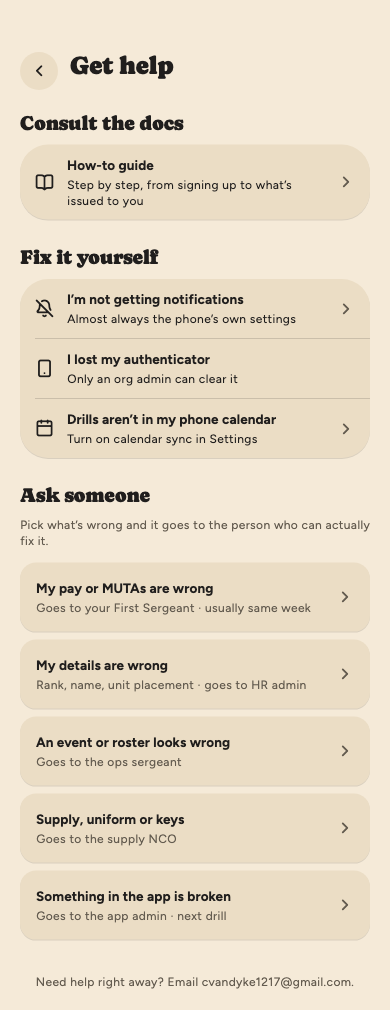
Open Support from More or Settings. At the top,
Consult the docs opens this guide. Then try
Fix it yourself: it covers the common problems, like missing
notifications or drills not showing in your phone calendar.
Otherwise, pick what’s wrong under Ask someone. Each choice
goes straight to the person who can fix it: pay problems to your
first sergeant or unit admin, wrong details to HR, event problems to
operations, supply to the supply room, and app problems to the app’s
admin. Say what’s going on (the first line becomes the subject), add
a screenshot if it helps, and tap Send to …, which names
who it goes to. Your name, unit and app version are attached for
you.
Your open requests are listed near the top of Support. Open one to
follow it, or to add something under Add to this request;
you’re notified when they reply. When they mark it resolved, it says
Your turn: tap Looks right, thanks once you’ve
checked it really is fixed, or write what’s still wrong and tap
Still wrong. For 30 days after you close it, you can
write what’s wrong and tap Reopen this.
Lost your authenticator?
You can’t fix that yourself. Contact your unit’s org admin, who can
clear it so you can set it up again.
Get help
When a request is sent to you
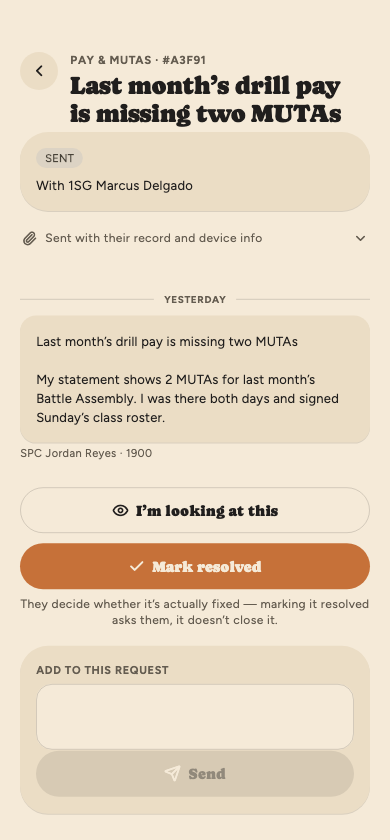
If you’re the one a request goes to (the first sergeant or your
unit’s pay contact, an HR, operations or logistics admin, or a point
of contact your unit named), you get a notification and it appears
under Sent to you on Support. Open it:
I’m looking at this tells them somebody has it.
Reply under Add to this request; they’re
notified. The paperclip line opens to show their rank, unit, app
version and phone.
Mark resolved once it’s fixed. Say what changed (you
have to) and when they should expect to see it, then tap
Send it back for their OK. That doesn’t close it: they
close it once it really is fixed, or send it back if it isn’t.
An org admin who gets a request somebody else should handle can pass
it on: ⋮ → Hand it to someone else, with a
reason. The new person can read the whole thread, and both they and
the person who asked are told.
A request sent to you
Part 3 · For leaders
The Squad tab
If you hold a chain-of-command position (squad leader, platoon
sergeant, first sergeant or commander), you get a
Squad tab. It’s your dashboard as a leader, from the
top:
Waiting on you: absence and RST requests that
need your decision, oldest first, then make-up proof to confirm,
EBDL requests, memos and DA 1380s to sign,
a soldier’s DA 1380 for duty outside drill,
a soldier’s form waiting on your
signature, and SOUs to countersign. The number on the Squad tab is how many are
waiting, so you can see it from anywhere in the app. They’re also at
the top of Needs you on Today.
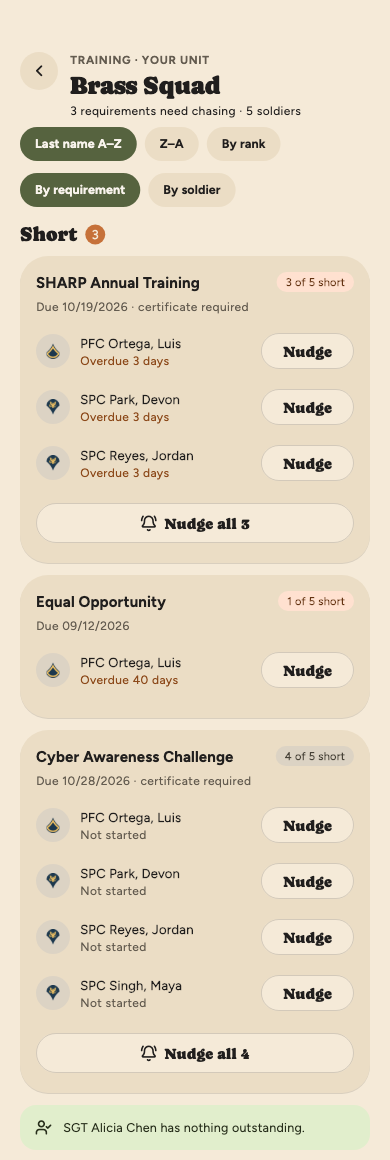
Your squad (or platoon): each soldier, with
anyone who has no code yet for the next drill’s current MUTA at the
top. Under it are Squad training status and
Take accountability.
Your duty: shown when you’re Duty NCO or CQ for
the next drill, with how many are present, excused and not yet
recorded for its current MUTA.
Also on your plate: your own outstanding
items.
Evaluations, if you have HR / Admin access:
every open evaluation you rate, senior-rate or review, with the
ones waiting on you first, then late ones, each saying where it
is.
Leader tools: all your approvals, counseling a
soldier, posting an announcement, and
giving your soldiers a task.
Leading an MPT or Section doesn’t add the tab. Those tools are on
the ensemble’s own screen; see
Practice plans for your ensemble.
First sergeant? Pay problems members report through Support come to
you unless your unit named someone else; see
When a request is sent to you.
The Squad tab
Countersigning SOUs (commanders)
When a soldier more than 50 miles away signs their Lodging-in-Kind
statements of understanding, you get a notification and a row under
Waiting on you: SOUs to countersign. Each one is
there to read in full, with the soldier’s initials and signature, and
they all start selected. Untick any you’re not ready to sign, then tap
Countersign and sign once for the lot. Your own SOUs don’t
appear: HR records whoever countersigns them for you on paper.
Giving your soldiers a task
For anything no shop owns, like helping another soldier move or finding
something out and reporting back, open Leader tools →
Tasks for your soldiers and tap Give a task. Say what
needs doing, attach any files they’ll need from the unit’s resources
(Attach a resource, up to five), pick a due date or leave it
undated, and tick who it’s for.
Only the soldiers you lead are listed: your squad, your platoon, or the
whole company if you’re the first sergeant or commander.
Each soldier gets a notification and a row on Today. A dated task
reminds them each morning once it’s due.
Only you and the soldier see it. HR doesn’t.
When they mark it done you’re notified, with their reply if they
wrote one. Tasks for your soldiers lists what’s still open
(overdue ones outlined), what’s done with each reply, and anything
you withdrew.
Changed your mind? Open the task and tap
Withdraw this task. You can say why; the soldier is
told.
Approving absences and RSTs
A soldier’s absence request goes up their chain one person at a time:
squad leader, then platoon sergeant, then first sergeant. You get a
notification when one reaches you, and it appears at the top of the
Squad tab.
The card shows the type and MUTAs, the soldier’s reason, the
training they’ll miss, the event and, for an RST, their make-up
plan.
On a Battle Assembly excused absence or RST, you’re signing
the unit’s request form. The card names your block and quotes
what it says. As the soldier’s first line leader you
Certify and sign; as their second line leader,
Verify and sign. Either opens the signature pad: sign, then
tap Done. Backing out of the pad sends nothing. It then
passes to the next person, who is named under the buttons.
The first sergeant chooses Recommend
approval or Recommend disapproval, and signs either
way. That finishes the chain: the request goes to the commander, the
signed form goes to HR to file in IPPS-A, and the commander approves
or disapproves it there. A recommendation of disapproval doesn’t end
the request; the commander can still approve it.
Deny asks you to confirm, because it ends the request: it
goes no further, and the soldier has to submit a new one. A denial
below the first sergeant isn’t signed, because the form has no box
for it.
On Annual Training it’s Approve and Deny, with
nothing to sign.
More than one waiting? The rest are listed under the first. Tap
All approvals under Leader tools to work through a
long list.
The soldier can nudge you while it’s waiting on you. They’re told when
the chain has finished and again when HR records the commander’s
decision. If you can’t get to it, an operations or HR admin can hand
your stage to someone else; you and the soldier are told, and the
request’s history shows who handed it on and why. The new approver
decides for themselves.
Decide before the drill.
An RST or an excused absence can’t be sent on once its drill has
started, at any step of the chain. Signing it in Cadence doesn’t file
anything in IPPS-A: HR does that through 2026, and from 2027 the
soldier files it once you’ve all signed.
Confirming make-up proof
After an approved RST, the soldier sends proof of each make-up
within five business days of doing it: an NCO’s completion sign-off,
a photo of the work, or a certificate. As their first line leader you
get a notification, and it’s listed under Waiting on
you on the Squad tab.
Tap it. Each make-up shows its plan (when, where, in what, and
what kind of work) with the proof and any note.
Open proof and check it against the plan.
Confirm it, or Send back and say what’s
missing. The soldier reads your reason and sends new proof.
Once confirmed, only HR can reopen it. When every make-up on the
RST is confirmed, HR is told it’s ready for pay. If you can’t get to
it, anyone else in the soldier’s chain can confirm it, and so can HR.
Confirming make-up proof
Signing an EBDL request
A soldier asking to be paid for an online course (EBDL) goes through the
same chain as an RST, on the same form. When it’s your turn you get a
notification, and it’s at the top of Needs you on Today and under
Waiting on you on the Squad tab. Open it to see the
course, its hours and dates, and why the soldier says it’s warranted.
Check the course is on the current Approved EBDL Course List and
isn’t annual mandatory training, and that the hours cover the periods
asked for (eight hours each).
Your block shows the form’s own words. The first line leader taps
Certify and sign, the second line leader Verify and
sign, and the first sergeant Recommend approval. Then
sign.
To turn it down, a first or second line leader taps Deny,
which ends the request. The first sergeant taps Recommend
disapproval and signs; it still goes on, because the commander
decides.
After the first sergeant signs, the soldier requests the course in
IPPS-A and records the commander’s decision in Cadence.
Signing the DA 1380
After the course, the soldier sends the completion certificate and the
days they worked, and Cadence turns them into a DA Form 1380. Any leader
in the unit can sign it, but not the soldier. The leaders in the
soldier’s chain are told, and it’s in Needs you and under
Waiting on you.
Open the request. Tap Open the certificate and Open
the DA 1380, and check the course was finished and the days are
right: 8 hours only for a day all eight were done, otherwise 4, and
none on a drill.
Tap Sign the DA 1380 and sign. You’re certifying you know
the duties were done and the dates and hours are correct. Your
signature fills both of its signature blocks, under your name and
position.
If something’s wrong, tap Send it back instead and say
why. The soldier reads it and sends again.
Signing a DA 1380
Commanders: signing the memo
When a soldier records your IPPS-A approval, Cadence makes the memorandum
that authorizes the course and asks you to sign it. It’s in Needs
you and under Waiting on you. Open it and tap
Read and sign the memo: the memo opens first, then you sign,
and the soldier is told. You can’t sign the memo for your own course.
The commander’s memo to sign
Signing a soldier’s DA 1380
When a soldier you lead submits a DA 1380 for duty outside drill, you get
a notification, and it’s in Needs you on Today and under
Waiting on you on the Squad tab. Any leader in the
soldier’s chain can sign it: their squad leader, platoon sergeant, first
sergeant or commander. You need HR / Admin access to sign; if you can’t
open it, ask your unit’s HR.
Open it and tap Open the DA 1380. You have to open the form
before you can sign it. Check the days, the hours (4 hours is P1, 8 is
P2) and what the soldier says they did, and open the proof if there
is any.
Tap Sign the DA 1380 and sign. You’re certifying you know
the duty was done on those dates and for those hours. Your signature
fills both of the form’s signature blocks, and it goes to HR.
If something’s wrong, tap Send it back instead and say why.
The soldier reads it, fixes it and sends it again.
Signing a soldier’s form
Some forms HR sends go through a signing chain after the soldier: their
squad leader or platoon sergeant, the first sergeant, the commander,
or HR, in an order set for that form. Whoever holds the position when
the form reaches it signs. When it’s your turn you get a notification,
and it’s in Needs you on Today and under Waiting on
you on the Squad tab, saying which step you are.
Open it. The chip at the top says Waiting on your signature
and which step. Read the soldier’s answers and check their
signature.
Then signed by, in order shows the whole chain: who has
signed, and who it goes to next.
Tap Sign as … (or Countersign when you’re the
only step) and sign. The next person is named and asked.
Something wrong? Send it back and say why. The soldier
corrects it and signs again, and every signature in the chain is
cleared, so it comes round again.
You don’t need HR / Admin access to sign, and nobody signs two steps
of the same form. If you’ve moved on and can’t sign, your unit’s HR can
sign in your place or send it to whoever holds the position now.
On a drill, accountability is kept the way it goes into IPPS-A: a
code for each soldier, for each MUTA. HR, the first sergeant or the
commander opens each MUTA’s roster as it starts. Your
soldiers sign in for themselves on their own phones (see
Signing in at drill), which records
each of them as P with their signature. Your job while the roster is
open is everyone who hasn’t.
On the Squad tab, tap Take accountability. It opens
on the MUTA whose roster is open, showing Yours: your
squad, or your platoon if you’re a platoon sergeant.
Everyone shows the whole drill and
Not recorded shows who’s left. One list
drops the squad headings and lists them all by name;
By squad puts the headings back.
Sign in yourself on the Sign in card at the
top. Nobody records your line for you.
Watch your people sign in. A soldier who has reads Signed in
· 0731, with a pen on their circle.
Somebody there without their phone? Tap the
dashed circle beside them and hand them your phone. They sign, and
their line reads Signed in on SSG Brennan’s phone.
Somebody not there? Tap their row and choose
what happened; see What each code means.
While the roster is open P isn’t on that list: it only comes from
a signature. A row with another code can be changed or cleared the
same way.
Approved absences fill themselves in when the roster opens, and
again when it closes: excused as A, RST as S, with the make-up
date where a signature would be. If one turns out wrong, change it
like any other.
A request still waiting? A soldier whose
absence or RST hasn’t been decided reads RST requested · with
SFC Okafor, or · waiting on IPPS-A once it’s with
the commander. Leave the line blank: if it’s approved it fills in
its own code, but only on a line nobody recorded. The app asks
before you record U over one.
A line a soldier signed is locked for you: only HR, the first
sergeant and the commander can change it. The pills along the top
switch between the drill’s MUTAs, and the count and bar cover
whichever one you’re looking at, with how many have signed in.
Recording needs a connection; if a tap doesn’t save, the app tells
you why.
Taking accountability for a MUTA
What each code means
The codes are Figure 5-44 of the Reserve Supplemental Pay Guidance,
plus R, which the unit uses. Tap a soldier’s row to see them, each
in plain words, with the letter that’s entered in IPPS-A beside it,
grouped as performed duty, excused and unexcused. While the roster
is open, the list starts with Have them sign in on this
phone instead of P.
P · Performed duty: there, and signed the drill
attendance roster. One who forgot to sign needs a DA Form 1380 for
those periods.
R · With another unit or location: drilling
with another unit, or away from where the roster is, with a DA
Form 1380. R isn’t on Figure 5-44.
H · Attached under 90 days: attached to another
unit or a USARF school, and only if they were there on the drill
days. Check with the RPAC first; it needs a DA Form 1380.
N · Points only: drilled for points only, not
paid.
A · Excused absence: mobilized, or excused on an
RST form. A is permanent once it’s entered: not even a code change
memo changes it.
S · RST scheduled: excused, with an approved
RST plan that names this MUTA. The line shows the make-up date
where a signature would be. Without an approved plan S is greyed
out, with A (excused, no pay, no plan needed) or U as the choices;
only HR can record S without a plan, and has to say why. A code
change memo can still change S later.
C · At ADT, no RST scheduled: absent because
they’re on active-duty orders (ADT, ADOS or AT).
T · At IADT: at initial entry training: Basic,
AIT, OSUT or BOLC.
W · ET scheduled: excused, with equivalent
training scheduled.
Z · Pending loss: has an approved reassignment
or separation PAR in IPPS-A (IRR, ETS, resignation or
discharge).
B, F, G and M are uncommon: attached 90 to 179
days, on an individual training schedule (USARF schools only), on a
90-day conditional release, and excused for points only.
U · Unexcused absence / unsatisfactory
participant: missed it without an excusal. Follow the USAR
UNSAT guidance first, to be sure they really are
unsatisfactory.
The senior NCO and the commander are responsible for the
codes.
Lines from before October 2026 recorded as K now read as R. Cadence
doesn’t count the 48-UTA limit for you.
A soldier HR has confirmed on ADT, ADOS or AT orders for the MUTA
shows On ADOS orders — HR codes this, with a document mark
instead of the dashed circle. Leave that line for HR: P, R, H and N
aren’t offered for them. One who says they’re on orders, but whose
orders HR hasn’t checked yet, shows that too and can be recorded as
usual.
The codes, in plain words
Who records whom
Everyone signs in for themselves while a MUTA’s roster is open, and
that is the only way to a P while it’s open.
A squad leader records their own squad.
A platoon sergeant records anyone in the platoon, as backup for the
squad leaders.
The first sergeant and the commander record anyone, including the
leaders below them and each other.
HR can record anyone. An operations admin can record anyone while
the roster is open.
Nobody records themselves. You sign in for your own line, and if
you don’t, it belongs to the next level up.
A line a soldier signed can be changed only by HR, the first
sergeant and the commander. Their change sets the signature aside: it
is kept, but no longer prints.
S needs an approved RST naming that MUTA, whoever records it. Only
HR can record S without one, with a reason; the first sergeant and
the commander can’t. If the RST is later withdrawn or disapproved,
the S it rested on comes off the roster.
Once a MUTA’s roster is closed, squad leaders and platoon sergeants can’t
change it, so accountability can’t be filled in after the fact. HR, the
first sergeant and the commander can still correct any line, however long
ago the drill was; a correction is marked as one,
and the app keeps a record of what it replaced. A P recorded after the
roster closed has no signature, and the pay roster prints it as
not signed. If that’s you, see
Opening and closing MUTA rosters.
Duty NCO?
The Your duty card on the Squad tab counts the current MUTA
across the whole drill. Open accountability opens the drill’s
full roster.
On other events, such as a mission, Take accountability is a
simpler check: tap the circle beside each soldier who is there, and tap
again to undo. Soldiers with an approved absence are listed separately
and already count as accounted for.
This is for MPT and Section leaders, who are appointed by your Sections
admin (Sections admins can post plans too). Open the MPT or Section from
Sections & MPTs in More.
Posting a plan
Tap New plan beside Practice plans.
Give it a title and the rehearsal date it’s for.
Tap Add an item for each thing to work on: a piece, a
passage, scales. Each item can have details, how long to spend on
it, music from the library, and links such as a recording.
Add notes for everyone if you like, then tap
Post the plan.
Linking music: link the whole piece and each
member finds their own part, or link one part.
The top of the form says who it goes to. Everyone in the ensemble
gets a notification, and the plan appears in their
Assigned practice, where they can add its
items to their own calendar.
A posted plan can’t be edited. If something changes, post a new
one. A Sections admin can withdraw a plan; if it was yours, you’re
told why.
Somebody can play different instruments in different MPTs: trumpet in
the concert band, keyboard in the rock band. On your MPT’s screen, the
music button beside Roster opens Who plays what.
Each member plays their primary instrument there unless you choose
another, so tap anyone who plays something else in your MPT. It shows on
the roster and decides which part is highlighted as theirs in your
practice plans. Choosing an instrument they don’t already play adds it to
their list.
Each person’s full list of instruments, with their primary, is kept by
a Sections admin; see Sections & MPTs
admins.
Reviewing your members’ practice
Under the plans, Member practice shows who has been
practicing over the last 7, 14 or 30 days, taken from each member’s
own practice calendar: days practiced, time, and items done.
Tap a member to see each day: what they planned, what they checked
off, and their notes.
Read-only, and your members know you can see it.
Each member’s calendar names the leaders who can read it. Only the
ensemble’s leaders can open this, not admins; a Section’s leaders and
its MPT’s leaders can both see the Section.
Member practice
One member’s week
Posting an announcement
Tap Post an announcement under Leader tools, or
+ on Announcements in More. It goes to
everyone in the company and sits at the top of their Today tab.
Kind: an Alert is marked urgent; an
Announcement is for anything that can wait.
How long it stays up: until a date you pick, or
until you take it down.
Needs acknowledgement keeps it pinned for each
person until they tap Acknowledge. On the Announcements list, the
Who’s acknowledged button on yours shows who has, and
who still hasn’t.
Push a notification is off unless you turn it
on. Without it, the announcement appears quietly.
An announcement can’t be edited once posted. Take it down and post a
new one. Your unit’s org admin can take down anyone’s; they give a
reason, and you’re told.
Tap Counsel a soldier under Leader tools. The list shows
counselings you’ve written and any written about you. Tap
+ to start a DA Form 4856.
Pick the soldier from your chain of command, and the purpose.
Fill in what it’s about, what happened, and the plan of action. The
plan is required before you can send it.
Set a follow-up date if you want one. Cadence reminds you both on
the day.
Sign and send. You can save a draft and finish it later; nobody
else can see a draft.
The soldier reads it in the app and signs it, and can add a rebuttal
when they sign. You can withdraw a counseling until they sign it, but not
after. Once it’s sent, Open as DA Form 4856 on the counseling
gives you the official form, filled in, for the soldier’s file.
If you leave the unit before the soldier signs, your unit’s org admin
can withdraw it for you, or remove an assessment of yours they haven’t
signed. An org admin can also mark a signed counseling Entered in
error. The soldier is told, and what was signed stays as it was.
Who can read a counseling
The soldier, you, your unit’s admins, and leaders above the soldier in
their chain of command. Being an HR admin doesn’t make someone a reader.
Don’t see Counsel a soldier? Counseling sits in the
HR/Admin section, so ask your unit’s admin to open HR/Admin for your
account.
Assessing the plan of action
A signed counseling doesn’t change, but Part IV of the form, the
assessment, is done later: did the plan of action achieve what it set
out to? When you’re ready, often on the follow-up date when Cadence
reminds you, open the counseling and tap
Assess the plan of action.
Read the plan of action at the top, then write how it went.
Sign, then tap Sign and send. The soldier is notified.
The soldier reads it, can add comments of their own, and signs.
You’re told when they have.
Who can assess it: the leader who wrote the
counseling, or anyone now in the soldier’s chain of command, so it
isn’t stranded if the counselor has moved on.
Until the soldier signs, you can redo or remove
your assessment. Nobody else can change it, and once the soldier has
signed it’s fixed.
It prints in Part IV of the DA Form 4856: your
assessment, the soldier’s comments, both signatures and the date.
There’s one assessment per counseling, as there is on the form.
If the plan needs more work, write a new counseling.
Assessing the plan of action
Evaluations on your rating chain
HR sets each soldier’s rating chain. If you rate, senior-rate or review
someone, their evaluation is under Evaluations in More,
and on Today when it’s your turn. Cadence tracks the rating period and
the chain’s sign-off; the report itself is still done in EES.
Counseling. As rater, you’re reminded to hold
initial counseling within 30 days of the period starting, then at least
every six months. Record each one with
Record counseling on the evaluation.
Your step. The report opens 90 days before the thru
date. It goes to the rater, the senior rater, the soldier, then the
reviewer. Add comments and tap Approve to send it on, or
Not approved to send it back a step with your reason.
Notes through the year. Keep notes on a soldier from
their evaluation. The soldier and everyone on their rating chain can
read and add to them; only a note’s author can edit or delete it.
The deadline. The report has to reach HQDA within
90 days of the thru date. The senior rater is reminded two weeks before
if it isn’t finished.
If HR steps in. HR can hand your step to someone
else, reopen a finished evaluation at a step, or void one. Whoever
holds the step is told why, and the evaluation’s history shows it.
Operations builds each drill’s schedule out of blocks: formations,
training classes and other time. If you’re named as a class’s teacher,
three things are yours. Open the drill from your Calendar and find the
class under Inside this drill.
Before: the risk worksheet (DRAW). A class can’t run
until its risk worksheet is approved. Tap
Start the risk worksheet and pick one of the unit’s
templates. Open a hazard to adjust it: the subtask it belongs to, what
could happen and why, How likely (Unlikely to Frequent) and
How bad (Negligible to Catastrophic) before controls, the
controls, how they’re put in place and who does it, then how likely and
how bad it is after controls. Add a hazard adds
your own. The worst hazard after controls sets the worksheet’s risk,
and the risk decides who approves it: low goes to the drill’s owner,
medium to the commander, and high or extremely high is approved above
the company and recorded by Operations. Under For the form,
write the supervision plan and your recommendation (it has to be there
before you can send it) and, if there is one, the lesson plan or
OPORD. The send button names who it goes to; tapping it asks for your
duty title and your signature, which go on the worksheet’s DD Form
2977. Print on DD Form 2977 makes the form, filled in and
signed, once it’s approved.
During: the sign-in roster. If the class has one,
either tell everyone to sign in on their own phones (they open the
class and tap Sign in; each phone offers only its owner’s
line), or tap Take the sign-in roster and hand your phone
down the row so each soldier signs their name. You can mix the two.
Someone with an approved absence gets Excuse instead of
Sign. Tap Close the roster when you’re done; it
doesn’t have to be complete, and once it’s closed everyone can see it
and print it. Print the sheet makes a PDF with the
signatures. Whoever created the drill and HR admins can run the roster
too, and an operations admin can step in as a last resort (see Overriding a sign-in roster).
After: the after action review. If one is required,
it’s due a set time after the class ends (72 hours unless your unit has
changed it). It’s short: what was supposed to happen, what actually
happened, what to sustain and what to improve. Tap
Make this a task on an improvement to give it an owner and a
date, then File the AAR. Once it’s filed,
Export the review makes a PDF of it.
Commander, or the drill’s owner? Worksheets come to you with a
notification. Open one and tap Sign and approve: confirm your
duty title, add any guidance for the class, and sign. That signs the
approval block of its DD Form 2977. Or Send back with what
needs to change; it’s signed again when it comes back to you.
If the plan changes after a worksheet is approved, an operations admin
can replace it with a new one. The class can’t run until the new one is
approved; whoever wrote and approved the old one is told, and the old
one is kept as the record.
What your command sees
When your band belongs to a Readiness Division, the Division’s staff
and its Major Command’s see a short picture of the band: its Battle
Assemblies, Annual Training and starred performances, its MPTs, and
the Commander’s and First Sergeant’s names, phones and emails.
Nothing else of the band leaves it.
A few things on that picture are yours to keep current. Open
More, tap the green chain of command bar, then
See the whole unit. For your command is
at the bottom.
ReARMM: where the band is in the four-year
cycle. Set it once and every other year follows from it. Only the
Commander or First Sergeant can set it.
Planned AT: where and when Annual Training will
be, before the event exists. Once someone creates the AT event, the
event is shown instead. Operations admins can set this too.
Full-time staff: the ARA, Unit Administrator and
the like, each with a title. They’re shown with their phone and
email beside the Commander and First Sergeant, so the command can
reach whoever answers the phone between drills.
The Commander and First Sergeant can also star a performance for the
command to see; see
Starring a key performance.
Each admin role covers one area of the app, and your org admin gives it
to you on your account. Every area you administer adds a row under
The unit in More, with a line saying what it
opens. The sections that follow take each role in turn.
External Contacts. Any admin can keep the unit’s list of
people without a Cadence account, such as a guest conductor who
borrows an instrument or a rater at another headquarters. Open
More → The unit → External Contacts
and tap +: a first and last name, and a phone number or an
email so they can be reached. Put a rank, or a civilian title like
Mr. or Dr., in Rank or title; the list reads
like a roster, COL Smith, Jane, by last name. You can also add one on the spot from a
picker with + Add new contact. A contact you no longer need
is retired, never deleted: anything signed out to them stays signed
out, and past receipts keep their name. Bring back
restores one. A contact’s DoD ID and home address are seen only by HR
admins and org admins.
Support requests. Members’ support requests about
wrong details go to an HR admin, about events to an operations admin,
and about supply to a logistics admin. For details and supply, a point
of contact your unit named takes them instead. See
When a request is sent to you.
Resources. Training, Logistics, Operations and HR
admins can share files with the unit: SOPs, forms, guides. Open your
area’s Resources (for Operations, the folder button
on the company calendar) and tap + →
Share a file here: pick the file (PDF, image, Word, Excel,
PowerPoint or text, up to 20 MB), the folder it goes in, and give it a
title people will search for, keywords and a description. Tap
Share with the unit: everyone in the unit can open it, from
your area’s resources or from General Resources, in your area’s
folder. To organise them, tap + → New folder
(folders can go inside folders); a folder’s ⋮ renames,
moves or removes it, and a file’s ⋮ →
Move to a folder moves it. Removing a folder deletes
nothing: what was in it moves up a level. A folder shows in General
Resources only once it holds something everyone can open. Tick Restricted to keep it to your area’s
admins instead; decide before sharing, as that can’t be changed
afterwards. The file itself can’t be replaced: remove it and share the
new version.
Shop tasks. HR / Admin, Library,
Logistics, Operations and Training admins keep a task list for their
own shop: counting the CIF, renewing a range card, anything the shop
has to do. Open More → Mine →
Shop Tasks and tap New task on your shop:
what needs doing, any files to attach from the unit’s resources
(your shop’s restricted ones too), an optional due date, and who
does it.
Everyone does their own means each admin in the shop marks
their own part done (Mark my part done), and it’s finished
once all of them have; someone who joins the shop owes it too, and
someone who leaves doesn’t. One of you clears it means the
first to tap Mark done for everyone clears it for the
shop. Everyone in the shop is told when a task is added. It shows on
their Today under Needs you once it falls due before their
next event ends, or straight away with no date. You can edit or
cancel an open task, and open a cleared one again. An org admin sees
and keeps every shop’s list, but only the shop’s own admins owe its
work.
Admin actions: correcting a record
Some mistakes can’t be fixed by the person a record belongs to: a task
sent twice, a supply issue entered against the wrong soldier, keys
nobody can turn in, an approval stuck with someone who’s left. For
those, the record’s ⋮ menu has an Admin
actions group. It appears only for admins who can use
something in it.
Open the record and tap ⋮, then the action.
The sheet says What it does, What it doesn’t,
and Who is told. Read it: most of these can’t be
undone.
Give a reason. It’s required: the person told reads it, and it’s
kept with the record.
Tap the button, which names the action, such as Cancel the
task. If it can’t be done, the sheet says why.
Your own unit’s records only, and almost never
your own: not a task assigned to you, a request you made, or an
entry you recorded.
It leaves a mark everyone who reads the record
can see, such as Cancelled by an admin, with the date and
the reason.
It’s recorded. Your unit’s org admins see every
one in Admin activity, with who did it
and why.
Each area’s actions are listed in its own section below.
The Admin actions menu
Every action asks why
Messaging has no admin tools.
Making someone a Messaging admin adds nothing. Anyone can start a group
conversation, and only its creator or an org admin can change who’s in
it (see Groups). Only the sender can edit or
delete a message; anyone can report one.
Training admins set the unit’s required training and decide training
requests. Open More → The unit →
Training, or tap the shield at the top of My Training.
Requirements
Open Requirements and tap +.
Name it and say what it is. If there’s an online
course, paste its link: members get an Open the course
button.
Who needs it:Everyone,
Leaders only or Pick people. Leaders
only fills in the commander, first sergeant, platoon sergeants and
squad leaders as they are today; somebody promoted later doesn’t pick
it up on their own.
Due: one date for everyone.
Rules: tick Certificate required if
soldiers must upload one, and choose when to remind them:
Never, 7 days out, 30 days out or
60 days out. A reminder goes out that many days before the
due date and again on the day.
The footer says how many soldiers get it and when it’s due. Tap
Create requirement. It appears in each of their Training
lists.
To change one, tap it, then the pencil. A requirement you no longer need
is retired, not deleted: open it for editing, tick Retired and
save.
Who has done it
Tap a requirement to see who is Still short and who is
Done, with each soldier’s certificate. The Nudge
button beside Still short reminds all of them at once. When
everyone has finished, the requirement completes on its own;
Close it out closes it early whether or not they have, for one
that no longer applies, and Reopen it undoes that.
Unit training status shows the same thing for the whole
company at once, by requirement or by soldier, with Nudge on
every soldier who’s short.
Training requests
Training requests lists what soldiers have asked to
attend. Each card shows the dates, whether it collides with a drill (the
soldier would need an RST), how many it leaves on their instrument, and
their notes.
Approve decides it straight away. It doesn’t file an RST;
if the school collides with a drill, the soldier is told to request
one.
Deny asks for a reason, which the soldier sees.
Reports
Reports builds a spreadsheet for the dates you pick:
every soldier down the side, with a column for each class held in those
dates (the date they signed in, Excused, or Missing if
they were on its roster and didn’t sign in) and each requirement (the
date they completed it, or Not complete). A blank cell means
they weren’t expected. Tap Export spreadsheet.
Admin actions
Reset progress, in the ⋮ on a soldier
under Done on a requirement: sets them back to not complete,
for a certificate that was for the wrong course, say. Their completion
and certificate are kept on the record, and they’re told why.
Change to approved or Change to
denied, in the ⋮ on a decided training request.
The first decision stays on the request, marked as changed, and the
soldier is told. A reason you give for a denial is what they read.
Logistics admins run the supply room, equipment on loan and key control.
Open More → The unit →
Logistics.
The supply room
Supply is under More →
The unit → Logistics →
Supply. It opens on what needs doing:
Waiting on you (soldiers’ item requests) and Out and
overdue (anything past its return date). The catalog, key rings and
durables are under The room.
Expendables: the catalog
Expendables are things the room counts: batteries, a coat, a cap.
Add an item. In Catalog, tap
Add an item: what it is, how many are on hand, and
Tell me when it drops to. When stock reaches that number, the
catalog outlines the item and every supply admin gets a low-stock
notification. Zero means never warn.
Restock or fix a count. Tap the item, then
Adjust stock, enter what’s physically on the shelf, tap
Continue, and say why the count changed. The item then
shows admins what it was and why. Issuing and returning change the
count on their own.
Sizes aren’t counted separately. A soldier’s
request says the size they need.
The supply room
Issuing
Tap an item and Issue to a member, or answer a request
with Issue & sign out.
Issuing to: a member, or a contact (someone without
an account, such as a guest). You can add a new contact right
there.
Items: add as many as you need, with how many of
each. One receipt covers them all.
Return expected:Permanent issue for
things that don’t come back, or Pick a return date. Past
that date the issue shows under Out and overdue.
Add a note if you like, and tap
Continue to signature. Hand the phone to the soldier to
sign. Nothing is issued until they do. The items go on their DA 2062
hand receipt, and they see them under Signed for.
Requests. Issue what was asked for, or deny it with
a reason. The soldier reads the reason, so “Out of stock until January”
saves them asking again.
Returns. Tap the item, find the person under
Who’s holding one, and tap Return. The stock goes
back up.
Overdue.Remind sends the holder a
reminder.
Two items on one receipt
Durables: equipment on loan
Durables are tracked one by one: instruments, cases, toolboxes, each with
its own serial number. Open Supply →
Durables.
Add storage locations first. Tap
Storage locations at the top and add where things live, such
as the instrument cage. Every unit needs one. A location you stop using
can be retired rather than deleted.
Add a type with Add type: the kind of
item, such as Trumpet or Toolbox. A type can’t be removed later.
Add units. Open the type and tap
Add unit for each physical item: its serial number, where it
lives, and any notes. For a kit with parts, turn on
Track what’s inside it and list them under What should be
in it.
Sign one out. Open the unit and tap
Sign it out to somebody: who is taking it, and a
Back by date or No return date. Tap
Continue to signature and hand them the phone to sign.
It goes on their DA 2062 hand receipt, and a unit past its date
shows under Out and overdue.
Take it back. Tap Accept it back, count
the checklist with the person returning it, then tap
Mark it returned.
A unit signed out
GCSS-A
GCSS-A is still the system of record, and Cadence doesn’t change it. When
you sign a unit out or accept it back, tick that it’s already entered in
GCSS-A if it is. GCSS-A sync status, at the top of Durables,
lists every loan and return still to be entered, so nothing is missed.
Locks, keys and key control
Keys are under More →
The unit → Logistics → Physical
Security. Locks & keys has three views:
By lock, Rings and By holder.
Locks and keys
Tap Add a lock: its name (such as Administrative Office),
building, the core or keyway if you track re-coring, and a
stamp prefix. Keys are stamped with the prefix and a
number: ADM-1, ADM-2.
Under Cut its keys, add a row for each copy, then tap
Add lock & cut …. A lock with no keys can’t be
issued.
To add copies later, tap Cut keys on the lock’s
card. Edit lock changes its details; changing the prefix
re-stamps every key.
Key rings
A ring is a set of keys issued together, such as a building’s master set.
In Rings, tap Build a ring, name it and pick its
keys. A key can be on only one ring, a key on a ring can only be issued
with it, and a ring can’t be changed once it’s built. To change one,
Retire it (its keys go back to the room) and build a new
one. A ring retired by mistake can be put back in service from the
⋮ under Retired, as long as its keys are still
free.
Locks & keys, by lock
Issuing keys
Tap Issue keys at the top of Locks & keys, or
Issue on a ring.
Choose A whole ring or Loose keys, then pick the
ring or tick the keys. One receipt covers whatever you pick.
Issue to a member or a contact. Set
Due back, or make it Open-ended for someone
who holds keys as part of their job; open-ended keys never show as
overdue. Add a note if you need one.
Tap Continue to signatures. The person taking the keys
signs first on your phone; then you take it back and countersign as key
control. Tap the button to issue and file it to the DA 5513.
Issuing loose keys
Returns, clearing someone, and the register
Taking keys back. Find them under By
lock or By holder and tap Accept back or
Return. The holder signs the turn-in and you sign that you
received it.
Someone leaving. Under By holder,
Return everything & close out takes back every key they
hold with one pair of signatures and files a clearance receipt.
Overdue keys are marked, and Remind sends
the holder a reminder. Contacts can’t be reminded, having no
account.
The DA 5513 register. On a lock, tap
DA 5513 register for every issue and turn-in of its keys,
signatures included. DA 5513 (PDF) fills in the official
form: page 1 lists the lock’s keys, page 2 every issue and turn-in with
printed names and signatures, and page 3 its inventories. When a page
fills up, another copy of it is added. All locks (zip) saves
one form per lock.
Inventories
Every lock’s keys are counted every 90 days. On each lock’s card,
Record inventory says when it was last done and when the
next one is due. The line is highlighted from two weeks before the
due date, and stays highlighted once it’s overdue.
Tap Record inventory on the lock’s card, or on its DA
5513 register.
Count the keys. In the key box lists the ones you should
find there; Signed out shows who has the rest.
If a key can’t be accounted for, don’t sign. Report it first.
Tap Sign the inventory and sign, then tap
Record inventory. The date and time, your printed name
and your signature go on page 3 of the lock’s DA 5513.
Recording an inventory
Who has what
Who has what, on the Logistics screen, shows anyone’s
hand receipt. Pick a member or a contact (retired members are marked) to
see their keys and rings, the equipment on loan to them and their issued
items, as they see it themselves under Signed for.
Open DA 2062 there prints their hand receipt. Anything they
haven’t signed for prints under NOT SIGNED until they do: tap
Sign on this phone and hand them the phone. This is also how a
contact, who has no account, signs.
Reference data
Reference Data holds the numbers and codes the supply
room has to look up, such as a DODAAC, an account number or a point of
contact. Tap +, enter what it’s called and what it is, and tap
Add it. The pencil and bin on each row edit or delete it.
Admin actions
Each is in the ⋮ on the record. The holder is told, with your
reason, except where noted.
Void this issue, on an issue under Who’s
holding one or on someone’s hand receipt (Who has what):
for an issue that was a mistake. Everything still held goes back on the
shelf and the issue comes off their DA 2062. It isn’t a return, and the
receipt is kept.
Return some of these, on an issue with more than one
item: take back only what they brought in, without a signature.
Close receipt, on a key receipt (By
holder or their hand receipt): when keys can’t be turned in
because they’re lost, were issued to the wrong
person, or the holder can’t be reached. Lost keys are
marked lost for good; otherwise they go back in the room. The DA 5513
prints ADMIN CLOSE, and nobody signs for the holder.
Correct this unit and Write this unit
off, on a durable: fix its serial number, notes or location,
or take it out of service for good. Nobody is told.
Retire this lock and Void an
inventory, on a lock’s card; Correct this
key on a key, and Mark it lost or
Retire this key on one that’s in the room and on no
ring. A lock can’t be retired while any of its keys is out. Voiding an
inventory takes it off page 3 of the DA 5513, and the signer is
told.
Reopen this request, on a supply request under
Recently denied on the item requests list: it’s waiting again,
and the soldier is told.
Library admins
Library admins keep the band’s sheet music and answer music requests.
Open More → The unit → Library;
Upload and Requests are at the top. Members see the
same shelf without those two buttons.
Adding music
Tap Upload and choose the PDF. Each part is its own
PDF.
Enter the song title and composer, the arranger if there is one, the
instrument or part (such as Bb Trumpet 2 or Full
score), the genre, and which MPT plays it.
Tap Add it to the library.
Upload every part of a piece under the same title and the library shows
it as one piece with its parts beneath. A practice plan that links the
whole piece then highlights each member’s own part.
Fixing a part
Open the part and tap ⋮. Each asks for a reason, and nobody is
told.
Correct the details: title, composer, arranger,
instrument, genre or MPT. Practice plans keep the title they were
posted with.
Take off the shelf hides it from the library and
the practice-plan picker. The PDF stays, so a plan that already links
it still opens it. Put back on the shelf restores it.
Parts off the shelf are listed under Off the shelf, at the
bottom of the library.
To replace a PDF, upload the new one and take the old one off the shelf.
Music requests
You’re notified of each new request, and Requests lists them.
Approve or Deny one (each asks you to confirm). An
approved request waits under Approved · not on the shelf yet
until the music arrives; then tap Mark it fulfilled. The
member sees where their request stands at each step. Decided one by
mistake? ⋮ → Reopen this request puts it back a
step, and the member is told.
Operations admins
Operations admins build the unit’s events and keep them ready. Open
More → The unit → Operations
for the company calendar. + at the top creates an event, and
the gear holds Absence requests, Sign-in rosters and
Operations settings.
The company calendar
Every event in the fiscal year (the arrows change year), opening on
Needs work; All shows the rest too. An event that
needs work is outlined, with chips saying what’s missing: no roster,
people with no seat, vehicles with no trip, DTS paperwork nobody has
started, a class that can’t run yet, no CQ, no duty NCO. A grey
reviews owed chip counts AARs still to file; that alone doesn’t
put an event under Needs work. The chips refresh each time you open the
calendar.
Tap +. Pick the type (Mission,
Battle Assembly, Additional Duty or Annual
Training), then the title, location, and when it starts and
ends.
Roster: tick who’s on it, or Select all.
You can search by name, rank or instrument.
Details depend on the type: for a Battle Assembly,
the duty NCO, CQ and main objectives; for a Mission, the NCOIC, its
points of contact and special notes. Any event can link its training
schedule. Except on a Battle Assembly, you can add tracked items and
tick Require DTS paperwork for the four DTS steps; these can’t
be changed later.
Check the review and tap Create event. It appears in the
Calendar of everyone on the roster.
Points of contact. A mission’s points of contact
are people members may need to reach, often outside the unit: the
venue’s stage manager, a range control officer, the host unit’s NCO.
The form starts with one; Add another POC adds more, up to
10, and the ✕ beside a name removes one. Each needs a
name if you give a phone or email; a block left completely blank is
dropped. Members see them under Who to find, with buttons to
call or email.
Changing one: open the event and tap
⋮ → Edit event. Delete event is
there too, until the event has ended or its accountability is
complete.
Archiving one: an event that’s over and shouldn’t
be on anyone’s calendar, such as one the venue cancelled after the
fact, can be archived from its Admin actions ⋮ once it
has finished, as long as its pay hasn’t been certified and no
absence request on it is still waiting.
It drops off every calendar, Today and the pay queue, and opens
read-only with your reason. It can’t be undone. Whoever created it
is told.
Copying a setup: a future event with nobody on
its roster shows Copy a previous setup on the calendar.
Pick an earlier event of the same type to copy its roster, duty
NCO, CQ, NCOIC and objectives. The date, title, location, points of
contact and transport aren’t copied.
A mission’s points of contact
A drill’s schedule
On a Battle Assembly or Annual Training, ⋮ →
Add a block adds to the schedule members see under
Inside this drill. Pick the day and the times; a block has to
fall within the drill.
Training class: its title, teacher and place.
Switches set whether it takes a sign-in roster and whether an AAR is
due after it ends, which lands on the teacher’s tasks. A class can’t run
until its risk worksheet is approved; see
Teaching a class at drill.
Time block: time that’s spoken for, like shop time
or a rehearsal, optionally with someone running it and a sign-in
roster.
Formation: a time and a place.
Link a mission: attach an existing Mission to a
Battle Assembly, so it shows as part of that weekend. The
Missions tile on the drill lists and unlinks them.
Each block’s card has Edit and Remove. A block
can’t be removed once someone has signed in to it or its AAR is filed.
Transportation
Open the event and tap ⋮ →
Event transportation. Above what members see (see
Getting to an event), you get the plan:
who still needs a seat, who has asked to drive themselves, and the
event’s vehicles.
Vehicles: tap Add vehicle beside the
Vehicles heading and give it a label, such as Van 1. A vehicle no
trip uses yet says No trip.
Trips: tap Add trip under the trips.
Give it a label and the times it departs and returns, then for each
vehicle pick the driver, an optional co-driver and the riders under
Manifest. Add another vehicle puts more
vehicles on the same trip, travelling together. Save with
Create trip.
Seats: everyone still without a seat is listed
at the top. Seat someone by editing a trip (the pencil on its card)
and adding them to a vehicle, or tap Allow POV to let
them drive themselves. A request to drive has Allow POV
and Deny.
Publish: the card above the button says what’s
still open, such as 2 unseated · 1 vehicle without a trip.
Publish shows everyone their seat; until then they’re
told seats are still being worked out. Nobody is notified, you can
publish a plan that isn’t finished, and you can
Publish again after changes.
Planning seats
Changing a trip: the pencil edits it, and
Duplicate trip (the copy icon) starts a new trip from
it, such as a second day’s run.
A vehicle on several trips: one vehicle can
make more than one trip during an event, as long as their times
don’t overlap. A trip that would double-book a vehicle won’t save,
and says which trip it clashes with.
Boarding: a vehicle’s driver and co-driver, and
operations admins, tick riders off as they board. It only tracks
that vehicle and doesn’t mark anyone present.
Accountability: riders mark themselves present
on this screen, and leaders can mark their soldiers at formation.
Once everyone on the roster is accounted for, every driver and
co-driver is notified. A drill is accounted for by MUTA instead
(see Taking accountability), so on a
drill there’s nothing to mark here and that notification doesn’t
come.
One trip, three vehicles
Travel paperwork
On an event with DTS paperwork or tracked items, the
DTS overview tile opens Paperwork.
By step shows who hasn’t started anything and how many are
outstanding at each step; By soldier shows each traveller’s
next step, grouped by squad. The Nudge buttons remind one
soldier or everyone at a step, skipping anyone reminded in the last 12
hours. A traveller who has left the unit with steps still open can be
cleared with ⋮ → Mark paperwork not required on
their card.
On a Mission, the Formations tile lays out where everyone
stands. Tap +, name it and pick a shape: a
Ceremonial block (2 to 5 across and 1 to 10 deep) or a
Concert arc (rows of up to 30 seats). Tap Build it,
then tap each position to place someone, and Save formation.
Members see it read-only. Resizing drops anyone whose position no longer
exists, and the button says how many.
Absence requests over the chain
Gear → Absence requests lists every pending request in the
company, oldest first, with who it’s waiting on.
Approve anyway or Deny decides it over the chain,
skipping whoever has it now; both ask you to confirm. Once an event has
started, its RSTs can only be denied.
To keep the chain but move it along, open the request and use
⋮ → Hand this stage to someone else, for an
approver who’s away or has left. Pick the new approver; they decide for
themselves, nothing is signed for them, and they and the soldier are
told. HR admins can do this too.
Risk worksheets and AARs
High risk. A worksheet rated high or extremely high
has to be approved above the company, outside the app.
Print on DD Form 2977 gives you the form, signed by whoever
prepared it, for that authority to sign. Once it has been approved,
open the worksheet, tap Approve and record who approved it
and when, such as “approved by the battalion commander on 14 Nov”. The
form leaves the approval block for that signature and notes who
recorded it. Send back returns it with what needs to
change.
A plan that changed. On an approved worksheet,
⋮ → Supersede with a new worksheet starts a new
one and blocks the class until it’s approved. The old one is kept as
the record, and whoever wrote and approved it is told. You can’t
supersede a worksheet you wrote.
Risk templates. Gear → Operations settings
→ Risk templates. Write your own with their standing
hazards, copy one of Cadence’s defaults to adjust it, or retire one you
no longer use.
The unit’s UIC. In Operations settings,
under Risk assessment. It prints on every risk worksheet’s DD
Form 2977; until it’s set, that box is blank.
The AAR window. In Operations settings,
choose how long instructors have to file an AAR, from a day to a week
(72 hours unless you change it). A change applies from then on.
Overriding a sign-in roster
When an instructor can’t run their class’s sign-in roster, you can
take it over, as a last resort. It isn’t on the class itself: there
you see the same screen as every other soldier. Tap the gear on the
company calendar and choose Sign-in rosters.
Not closed marks a roster whose class has ended
without being closed. Those are listed first.
Opening one gives you the instructor’s view:
sign or excuse anyone, close or reopen the roster, and print
it.
It’s on the record. Anything you record there
shows admin override on that soldier’s line, for everyone
who reads the roster.
A wrong signature on an open roster can be
voided from the ⋮ on that line. It stays in the
roster’s history, and the soldier is told so they can sign
again.
The list covers drills from the last 60 days and the next 30.
Sign-in rosters
Starring a key performance
Your Readiness Division and Major Command see every Battle Assembly
and Annual Training. A Mission or Additional Duty reaches them only
if you star it: do that for a performance you expect a big audience
for.
Star it. Open the event, find
Your command and tap Star it. Add the audience
you expect and why it matters, such as who’s attending, then tap
Star it again.
What they see: its title, date, place, audience
and your note. Never the roster.
Until the event is over, Change
edits it, and Take the star off removes it. Staff who
asked to hear about key performances are notified when you star
one, and when you take the star off or delete the event. Anyone
who said they’d attend is told too.
The band’s Commander and First Sergeant can star an event too.
Starring a performance
HR admins
HR admins assign tasks, send forms, keep rating chains, file signed
absence request forms, and close events out for pay. Open More → The unit →
HR / Admin.
A task can be a profile review, an emergency contact update,
paperwork to sign, or anything else somebody needs to read and act
on. Open Tasks, tap the shield at the top
(Task admin) for Assigned tasks, then tap
+.
Pick what kind. Each type says what the person will
be asked to do:
Validate profile opens their profile and is done when they
confirm it; Update emergency contact opens that part of their
profile; Sign paperwork and Read and acknowledge are
done when they tap done (nothing is uploaded or signed in the
app).
Say what to tell them. Required: what you need, and
by when. To point them at a file, tap
Attach a resource and pick from the unit’s resources
(up to five): they open it from the task. Only files shared with
the whole unit are offered, since nobody outside a shop can open
its restricted ones.
Pick who gets it:Whole band,
A platoon, A squad, or Pick people.
Retired accounts are always left out. For the two profile tasks you can
tick Skip anyone who validated recently (within 90
days).
Pick when it’s due:No date (nothing will
chase them for it), Next drill (the next Battle Assembly), or
Pick a date. Once a due date passes, they get a reminder
every morning until it’s done.
Tap Assign to …, which names how many people it goes to.
Each of them is notified, and the task appears under
Needs you on their Today screen.
Assigning a task
Assigned tasks lists what’s Waiting on somebody,
grouped by person with overdue tasks first, then what’s been
Acknowledged, then anything Cancelled. Tap a task
to open it.
Tasks that assign themselves
Cadence also creates tasks on its own, and they show up in the same
list: the 90-day profile check, the IPPS-A task once a soldier’s chain
has signed a Battle Assembly RST (from 1 January 2027), a proof task
for each make-up once the commander approves the RST, the annual
distance packet, an EBDL completion certificate, a form you send,
and the after action review for a class’s instructor. See
Reminders the app sends on its own.
Assigned tasks
Correcting a task
Open a task that’s still waiting and tap ⋮ (see
Admin actions). Each asks for a reason, which
the soldier reads, and leaves a mark on the task.
Change due date: pick the new date. A form, distance
packet, make-up proof or EBDL certificate the task is for moves with
it, and the daily reminder follows the new date.
Take the due date off: nothing reminds them any
more.
Hand to someone else, for a general or paperwork
task: it moves to the new person, who needs HR / Admin access. Both are
told.
Cancel task: it leaves their list and Today, and
it’s kept, marked cancelled. It isn’t marked done, and it can’t be
undone; assign a new one if it’s needed after all. Cancelling a form’s
task cancels the form, and a distance packet’s excuses the packet.
A task can’t be corrected by the person it’s assigned to. The IPPS-A RST
task’s date can’t be moved, and a distance packet, make-up proof or EBDL
certificate always keeps a due date.
Evaluations and rating chains
For a sergeant or above, a warrant officer or an officer, Cadence opens
the evaluation itself on the day the rating period begins, tracks
counseling and reminds the chain, but only once HR has set that
soldier’s rating chain.
Open Evaluations and tap the list button at the top
(The whole queue), then the chain button
(Rating chain assignments). Soldiers without a chain are
listed first, marked No chain set.
Tap one, or + to choose someone, and pick their
rater, senior rater and
reviewer. Each can be In the unit, or
Outside the unit for someone at another headquarters
without an account (a contact).
If you know it, enter their last report thru date
from EES or IPPS-A: the next rating period starts the day after it.
Without one, Cadence starts from the date of rank on their
profile.
Tap Save the chain.
Remove this chain, on a soldier’s chain, stops Cadence opening
their next evaluation for them. Evaluations already open, and everything
already submitted, stay as they are.
The queue opens on Stuck: evaluations that
have sat on one step for a week or more, saying whose turn it is and
since when. Coming due shows thru dates in the next 30 days,
and All open everything; a missed thru date is outlined.
Nudge reminds whoever has it. Evaluations moving normally are
folded into one line at the bottom.
A rater outside the unit can’t sign in, so on their
step the queue shows Record their step. Enter what came back
(for example, “Signed in EES 12 Oct”) and approve it on; the history
shows you entered it for them. You can also record counseling an
outside rater held, or one held on paper.
A one-off evaluation, for a late arrival or a
correction: tap + on the queue, pick the soldier, the year
and the cycle, and the chain fills in from their standing chain. It
opens on the rater’s step and doesn’t track counseling.
Correcting one, from the evaluation’s
⋮: Reassign hands the rater, senior rater or
reviewer step to someone else, in or outside the unit, without
approving anything for them; Reopen at a step reopens a
complete evaluation; Void this evaluation takes it out of the
schedule, the reminders and the queue, and keeps it on record. A
counseling entry recorded by mistake is voided by tapping it in the
rating period. Whoever holds the step is told.
A drill’s accountability is a roster for each MUTA. You open each one
as its MUTA starts and close it when it’s done; the first sergeant
and the commander have the same controls. Open the drill and tap
Roster. Drills are on the Calendar, so you need
Operations access in the app; if you can’t see the Calendar, ask an
org admin to add it.
Opening lets everyone on the drill sign in for
it (see Signing in at drill), and squad
leaders and platoon sergeants record anybody who isn’t there.
Anyone with an approved absence for that MUTA is filled in as it
opens. Tell the formation it’s open: the app doesn’t send a
notification.
Closing stops them changing it. Approved
absences are filled in again for anyone still blank, and everyone
else stays blank: nobody is given a code they weren’t. Before it
closes, the app tells you how many have no code.
Correcting: you can record or change anyone’s
line at any time, open or closed, except your own, including a line
somebody signed (the signature is set aside and kept). While a
roster is open, a P comes only from signing in, so for somebody
there without a phone, use Have them sign in on this
phone. A change on a closed roster is marked as a correction,
the app keeps a record of what it replaced, and a P recorded then
prints not signed.
S without a plan: S needs an approved RST naming
the MUTA. If there isn’t one and S is still right, only you can
record it: tap S on the list, and the app asks you to say why in a
few words before it saves. The line then reads S, no plan on file with
your reason, the pay roster prints it the same way, and it’s
listed under Admin activity.
Reopening lets leaders record again, for a MUTA
closed too early.
Pay close-out won’t certify a drill until every one of its MUTA
rosters is closed with a code for everyone; see
Pay close-out. Print pay
roster, under the open and close card, puts the whole weekend
on paper; see Printing the pay roster.
Running a drill’s MUTA rosters
Checking soldiers’ orders
A soldier on ADT, ADOS or AT orders for a drill declares it in Cadence
with the orders (see On orders instead of
drilling). Open Alternate statuses on the HR / Admin
screen; its count is how many are waiting for you.
To check: open the orders and compare them with the
drill and the MUTAs claimed, then Confirm, or Send
back and say what’s wrong. The soldier reads it.
Your own orders are checked by somebody else in
HR.
Adding one for a soldier: tap Add for a
Soldier, pick the drill and the soldier, and attach the orders.
It’s confirmed at once, and you can add one after the drill has
started.
Withdrawing a confirmed one, if the orders fell
through, also asks why.
Once orders are confirmed, the drill’s MUTA roster won’t take a
performed-duty code (P, R, H or N) for the MUTAs they cover, and the
line is left for you to code, usually C. Pay close-out won’t certify the
drill while anyone is coded on duty while on orders, or while a set of
orders is waiting to be checked.
When a soldier’s Battle Assembly excused absence or RST finishes its
chain, Cadence fills in the unit’s request form with every signature
on it and sends it to you. The request is now with the commander. You
get a notification; the forms are under Absence
forms on the HR / Admin screen.
Open form shows the PDF, to print or save.
File it in IPPS-A for the commander’s decision.
Tap Mark filed. It moves to With the
Commander, which says who filed it and when. Marked by
mistake? Not filed after all takes it back, until a
decision is recorded.
When the commander has decided, tap Commander
approved or Commander disapproved and confirm.
That’s when the soldier is told, and an approval is counted on the
drill’s MUTA rosters. The form moves to Done.
The soldier may mark it first. Once the commander
decides in IPPS-A, the soldier can mark their own request approved or
not approved, with the approval date and IPPS-A number. That records
the decision just as your buttons would, and you get a notification.
The form then reads Marked approved in IPPS-A by the
Soldier with the date and number. Whoever records first settles
it; if the soldier got it wrong, change it as below.
Recorded the wrong decision, or the commander changed
it? Open Done, tap ⋮ on the form, and
choose Change to Commander approved (or
disapproved). Only that decision’s effects move: its MUTA
lines and make-up tasks. The first decision is kept and the form is
marked Amended. The soldier and HR are told. It can’t be
changed once the drill’s pay is submitted.
To file and With the Commander
list the soonest drill first, since a pre-approval has to be in
before the drill. A first sergeant’s recommendation of disapproval
is filed the same way: the commander still decides.
Through 31 December 2026 you enter RSTs in IPPS-A for
soldiers. From 1 January 2027 the soldier gets a task to
file it themselves once the chain has signed; recording the
commander’s approval closes that task.
No DoD ID on the form? The card says so. Once
the soldier has added it to their profile, tap Make it
again.
The RST schedule says what kind of work each
make-up is, marks any that needs lodging (LIK) so you can book it,
and names the Commander’s authorization for a uniform other than
OCP.
Make-up proof lists approved RSTs still waiting
on proof of their make-ups, with how many have been sent and
confirmed. Make-up proof opens them, so you can check
each proof against the form before pay; you can confirm one
yourself. You’re told when every make-up on an RST is confirmed,
and it moves to Done.
Correcting a make-up. The ⋮ on a
make-up offers Move to another date, Mark not
performed (no proof is then owed for it) and Revoke
confirmation (proof is owed again). The soldier is told why.
None of them once the drill’s pay is certified.
Needs attention appears when something went
wrong: a form that couldn’t be made (Try again), or one
you’d already filed whose request was then cancelled. Undo that
one in IPPS-A, then tap Undone in IPPS-A.
A request cancelled before you filed it moves to Withdrawn
before filing, with nothing to do.
Open the request on any card shows the soldier’s request
itself, with its audit: every step, who took it and when, including
who filed the form or marked it not filed.
The list covers drills from the last six months and ahead. The
soldier keeps their own copy on their request.
Absence forms
EBDL: following requests, ATA periods and pay
Soldiers run their own EBDL requests: they ask in Cadence, their chain
signs, they record the commander’s IPPS-A approval, the commander signs
the memo, and a leader signs the DA 1380. You don’t sign anything. Open
EBDL on the HR / Admin screen to see where each request
is:
Needs a fix: Cadence couldn’t make the request form,
the memo, the DA 1380 or the packet. Tap Make the … again
once the cause is fixed. A form printed without the soldier’s DoD ID,
or a 1380 without their MOS, is fixed by adding it to their profile
first. These are counted on the HR / Admin screen, and you’re told if a
packet fails.
Waiting on IPPS-A approval: the chain recommended
these, and the soldier has to record the commander’s approval before
the date shown.
Memo with the Commander and DA 1380
waiting on a leader.
Ready to pay, with Open the pay queue, and
Paid.
Certificates overdue, Still with the
chain, and Turned down or withdrawn.
The 12-period limit. ATA (Code 41) and EBDL
(Code 42) share 12 paid periods a soldier a fiscal year. Cadence counts
EBDL itself; record ATA under Paid periods. Tap a soldier’s
name, set the periods with Fewer and More, add a
note if you like, and tap Save. The arrows beside the year
change it. A soldier can’t ask for, or
record an approval of, a course that would take them past 12.
The memo and the DA 1380. Tap the gear for
Memo and DA 1380 settings: the memo’s letterhead, office symbol,
signature block and point of contact, and the 1380’s block 2 (reporting
agency), block 4 (records manager) and block 9 (authority). Anything
left blank uses your company’s name, the commander and the usual
wording.
When nobody else is there to tell. If no commander is
set in the chain of command, you’re told when a memo is waiting. If
nobody in the company has ippsa_admin, you’re told when a
packet is ready to pay.
Correcting a request, from its ⋮:
Hand this stage to someone else while it’s with the chain;
Close this request while it’s pending or recommended;
Correct the decision until the memo is signed and the
certificate is in; Void the signed DA 1380 before pay is
recorded; and Attach the signed memo, signed on paper, when
nobody can sign it in Cadence (no commander is set, or it’s the
commander’s own course). The soldier is told.
EBDL for HR
EBDL pay (IPPS-A admins)
If your org admin has given you ippsa_admin, you process EBDL pay.
You’re told when a soldier’s packet is ready: the signed DA 1380, the
commander’s signed memo and the completion certificate, in one PDF. Open
More → The unit → HR / Admin →
EBDL pay, which shows how many are waiting. Without HR /
Admin access, EBDL pay is right under The unit.
Under Ready to pay, find the soldier. Each row shows the
course and the days they worked.
Tap Open the packet and process the pay in IPPS-A.
Back in Cadence, tap Mark pay processed, add the IPPS-A
reference if you want it on record, and confirm. The soldier is told,
and the request is closed.
Processed this fiscal year lists what’s been paid. Another IPPS-A
admin records the pay for your own course. If a packet couldn’t be put
together, open the request and tap Make the packet again. EBDL
pay needs Operations access as well as ippsa_admin.
Marked one processed by mistake? Open the request and tap
⋮ → Reverse the pay record, with a reason. It
goes back to Ready to pay, and the soldier and whoever
recorded it are told. Nothing changes in IPPS-A: if the pay was
really entered there, fix it there.
The EBDL pay queue
Processing DA 1380s
A DA 1380 a soldier submits for duty outside drill comes to HR once a
leader in their chain has signed it. You’re told, and the HR / Admin home’s
DA 1380 row counts what’s waiting. Tap it, then
Waiting on HR. Open one, check it, and enter it in IPPS-A.
Tap Mark processed. You can add the IPPS-A reference. The
soldier is told.
Or tap Send it back and say why. Turn on Ask for
proof if the work needs a sign-in sheet, a certificate or a photo
to back it up. The soldier can’t send it again without proof. If they
only add the proof, it comes straight back to you, still signed.
To ask for proof with every DA 1380, turn on Require proof with every
DA 1380 at the top of the list. You can’t process your own.
Stuck with a leader? If nobody in the soldier’s chain
can sign it, open it and tap ⋮ → Send back — no leader
can sign. The soldier can then send it to whoever leads them now.
Nobody signs for a leader.
Processed by mistake?⋮ → Reopen to
HR puts it back in your queue, keeping the earlier processing in
its history. It changes nothing in IPPS-A.
The SOP has every soldier renew their annual paperwork before the
fiscal year starts, no later than the October Battle Assembly.
HR / Admin → Distance packets is where you run it, for
this fiscal year or the next.
Open the packet. Pick the due date (the October drill is
offered), enter your title as the counselor, and read the annual IDT
counseling and the IDT-TRP counseling. Both are drafted from the SOP:
change them to say what the unit means, because you sign them as the
counselor. Leave the IDT-TRP one off if nobody is 150 miles away.
Sign. Everyone in the unit gets a packet and a task. Each
counseling a soldier signs goes on their record in their own
Counselings, and prints on DA Form 4856 in their packet.
As distances come in, check each against its printout under
Distances to check: Confirm, or
Send back with a reason the soldier reads. Somebody else in
HR confirms your own.
Follow the rest: who is With the Commander, who
Still owes what, and who is complete.
Update the packet to move the deadline, change the
counseling for anybody who hasn’t signed it yet, or give anybody who
joined since a packet. Anybody who already signed keeps what they
signed.
Tap a soldier to print their packet (a cover sheet,
everything signed and their printout), to excuse them with a reason
(a full-time member, say), or to record an SOU countersigned on
paper: the commander’s own, or a copy signed by hand.
SOU forms (the page icon) is where you change the
statements of understanding when the organization or the forms
change: who each goes to, its title, statements, and whether it’s
required this year. Preview one with a sample distance filled in.
If anybody 150 miles away is waiting on an IDT-TRP counseling you
haven’t written, the screen says how many. Their packets can’t finish
without it.
A soldier who moves comes back under
Still owed, marked Moved with the date, and their new
distance shows the old one beside it when you check it. If the
year’s packet isn’t open yet when somebody moves, you’re notified to
open it or collect their paperwork on paper.
A signed item that needs signing again: tap the
soldier, then Reopen a signed item, and pick the counseling
or SOU. The signed copy is kept, and their packet and task
reopen.
Closing the year: the ⋮ at the top
closes every packet still open and cancels its task, once the year
is done. Complete and excused packets stay as they are. It can’t be
reopened, and each soldier whose packet was open is told.
Distance packets
Sending forms
If your unit uses forms in Cadence, Forms on the HR /
Admin screen lists the ones Cadence’s administrators have made available
to your unit, with how many are out, waiting on you, and complete.
Tap a form, then Create New Task Using This Form.
Who gets it: Whole band, A
platoon, A squad or Pick people. You’re
always left out.
Due: No date or Pick a date.
Fill in anything the form asks HR for (one answer for everyone it
goes to), and add a note if you like.
If the form has a counselor, pick who signs it as
counselor: anybody in the unit. They don’t get a copy themselves.
Tap Send to …. Each soldier gets a task. Anyone without HR
/ Admin access can’t fill it in, so they’re left out and named. On a
form with a counselor the button reads Send to the counselor:
they get a task to sign it, and it goes to everybody once they do. If
you named yourself, it reads Sign and send to …: you sign
there and it goes out at once.
Next year’s from this year’s.Start from an
earlier send lists the form’s last few sends. Use fills
in what you wrote, the note and the counselor; change what’s different,
such as the counselor, then pick who gets it and when. A counselor who
has left the unit isn’t carried over.
With the counselor. The form’s screen lists sends
waiting on their counselor, and any they declined, with the reason.
Open one to Withdraw it, to change the counselor or the
wording and send again.
Following up. The form’s screen lists who has it:
Waiting on HR, Being signed (with whom, and which
step), Still to fill in and Complete. Tap one to open
it.
Checking one. If the form has an HR check, tap
Confirm (or Sign and confirm when HR signs first),
or Send it back with a reason. Somebody else in HR checks
your own.
A signer who can’t sign. If the person named for a
step has left or lost the position, the form says so and you can
Sign in their place, Send it back in their place,
or send it to whoever holds the position now.
Void this form, from its ⋮, for one sent
by mistake: its task is cancelled and the soldier is told. Not once
it’s complete, and it can’t be undone.
Pay close-out
Event Status on the HR / Admin screen lists the events
still to close out for pay. Each shows its date, MUTAs and pay status,
and lists anything that would make pay wrong, with Fix to
open that event’s roster:
on a drill, MUTA rosters not yet closed, and codes missing from a
closed one;
soldiers coded on duty while on confirmed orders, and orders not yet
checked;
soldiers never accounted for;
soldiers present at an event that credits 0 MUTAs;
approved RSTs with no make-up;
make-ups not done, or with no proof sent;
make-ups whose proof is waiting to be confirmed.
Somebody missed? You can fix attendance however long
ago the event was. On a drill, Fix opens its MUTA rosters,
where you correct a line even after the roster is closed; an operations
admin can change lines only while a roster is open. On any other event,
you or an operations admin can tap Correct attendance on its
roster: it shows the whole roster, and tapping someone’s circle marks them
present, or undoes it.
Advance to … moves an event to its next pay status. Missions
and additional duty go through polling for availability, generating
orders, awaiting completion and pay pending; other events go straight to
pay pending. The last step, Certify, stays off until those
problems are fixed. Certifying notifies everyone in attendance, takes an
optional note and records who certified it.
Only make-ups left? When every problem is a make-up
not yet done or confirmed, Certify with exceptions certifies
anyway, with a reason. The certified row says what was waived, and the
make-ups are still owed.
Advanced too far? The ⋮ on the event
offers Step back to …, with a reason. Nobody is told. Once
pay is submitted, HR can’t step it back.
Printing the pay roster
The pay roster is a drill weekend on paper, made for entering
attendance into IPPS-A: everyone in the unit down the side, one
column per MUTA, and in each cell the code to enter, with the
soldier’s own signature beside every P they signed in for.
Close every MUTA’s roster first (see
Opening and closing MUTA rosters).
Until then the page is headed NOT FINAL and names the
MUTAs still open, because their codes can still change.
Tap Print pay roster: on the drill’s card in
Pay close-out, on its row once certified, or under
the open and close card on the drill’s MUTA roster.
The PDF opens in the app. Print it or save it with the share
button. Printing again replaces it with the codes as they stand
then.
Enter each soldier’s code for each MUTA into IPPS-A from the
page, then come back and Certify the drill.
HR admins, org admins and platform admins can print it at any time.
Once every MUTA’s roster is closed, anyone else in the unit can print
the same final page for their records, from the drill’s
Roster or from
My attendance.
Print it from pay close-out
Reading it
P with a signature: the soldier signed in for that
MUTA. That is the record they were there.
P* not signed: present, but recorded after
the roster closed, without a signature. A soldier who forgot to sign
may need a DA Form 1380 for those periods.
* on any code: it was changed after the roster
closed. The app keeps what it replaced.
S with RST and dates: excused on an approved RST.
Where a signature would be, it gives the make-up dates, with a green
check beside each make-up that’s been confirmed; more than two read
+1 more.
S no plan on file: recorded without an
approved RST behind it, either by HR with a reason the app keeps, or
before October 2026, when the app started asking for one.
ORD: a soldier you confirmed on orders for that
MUTA (see Checking soldiers’
orders). The line is blank in the app; enter it from the
orders, usually C.
A blank: nothing recorded and nothing to explain
it. Pay close-out won’t certify the drill while one stands.
Totals under each MUTA count those on duty, signed
in, excused, unexcused, on orders and not recorded, for the drill’s
roster. When any S rests on an RST, a last row says how many of
those RSTs have every make-up confirmed. Members of the unit who weren’t on the drill are listed
after the drill’s roster, since IPPS-A wants a code for them too.
The last page says who closed each MUTA’s roster
and when, and what the codes and marks mean.
The pay roster: a code and a signature for every MUTA
Also yours
Restricted details. On anyone’s profile you see
their emergency contact, home address and DoD ID, and on a contact,
their DoD ID and address.
IPPS-A filings. A soldier’s IPPS-A task shows the
ticket number they entered, so you can match the two systems.
Class sign-in rosters. You can take, close or
reopen the sign-in roster for any class at a drill.
Not yours: counselings and evaluation notes stay
between a soldier and their chain of command. Being an HR admin
doesn’t let you read them.
Sections & MPTs admins
Sections admins set up the band’s ensembles. Open More
→ The unit → Sectionals & MPTs for every
MPT in the band, with + for a new one and the music button
for Instruments.
MPTs and sections. An MPT is a performing ensemble,
like Concert Band; a section is an instrument group inside one, like
Trumpet. Tap + and name the MPT, then open it and tap
+ beside Sections to add its sections. Each gets
its own group chat. The pencil beside a name renames it.
Members. The person button beside
Roster opens a checklist of the company; the save button says
what will change. Adding someone to a section adds them to its MPT,
and removing someone from an MPT takes them out of its sections too.
The chats follow automatically.
Leaders. The star button beside Roster
appoints leaders from the members. Leaders post practice plans and see
their members’ practice. An MPT’s leaders and each section’s are set
separately.
Instruments. Record everything each person plays,
primary first (the star makes one primary), up to 10.
Not recorded lists who has nothing yet. What somebody plays
in a particular MPT is set from that MPT’s Who plays what, by
you or the MPT’s leaders.
Practice plans. You can post a plan for any MPT or
section, the same way leaders do (see
Practice plans for your ensemble). You
can’t see members’ practice unless you lead that ensemble.
⋮ → Withdraw this plan on a plan’s card takes it
off the ensemble and out of everyone’s Assigned practice, with a
reason; whoever posted it is told. What members already put on their
own calendars stays.
People who leave come off every MPT and section in
the unit on their own, leadership and instrument included.
Removing an MPT or a section, and bringing one back, is an org admin’s
job; see For org admins.
FRG admins
FRG admins run family events and the fund. Events, contacts and
resources are on Family readiness, where admins get
extra buttons at the top. The money is under More →
The unit → FRG: the fund ledger, which members
never see.
Family events, contacts and resources
New family event: what it is, when, where,
Getting there (parking: it goes into the text members forward
to their families), and anything else families should know. Set up a
potluck with slots if you want one. Every member sees the event, with a
share button.
RSVPs: the event shows how many families, adults and
children are coming, updated as people answer.
Contacts & resources: who families can call
(someone in the unit, or an outside resource, with what they handle and
a phone number) and documents or links worth keeping.
The fund ledger
The ledger leads with Available to commit: the
balance on hand, less what’s already promised to events and, while a
split-the-pot draw is running, the half owed to its winner. Below
that are open items to deal with (a month to reconcile, a spend
waiting on a second signature, a spend with no receipt), then the
months already reconciled, then recent activity.
Mistakes aren’t edited. Open the entry, tap
Reverse this entry and say why; the reversal and the
original both stay on the ledger. You can’t reverse more than is
left of the entry.
A receipt that turns up later. On the open item
saying No receipt attached, tap ⋮ →
Attach the receipt, pick the file and say why. The entry
isn’t changed; the receipt is kept beside it. Whoever recorded the
entry can’t attach it themselves, so another FRG admin does.
Reconcile each month. Tap the
Reconcile button, which names the month, enter the
closing balance from the bank statement or cash count, and say why
if it doesn’t match. Each month is reconciled once.
Amending a reconciliation.Reconciled
lists the last six months. Another FRG admin, not whoever signed
off, can tap ⋮ → Amend this reconciliation to
correct the statement balance. The original sign-off is kept, and
whoever signed it is told.
Reports: under Recent activity,
PDF makes a report for a date range to file, and
CSV exports one to check against a statement.
The fund ledger
Recording a transaction
Tap Record a transaction at the bottom of the ledger.
Money in or Money out, then the amount,
what it was for, and a category. Charge it to a family event’s
budget, or leave it on the general fund for things like stamps or
bank fees.
Money in: say whether it went straight into the
fund or somebody collected it first, and if so who and how (cash,
Venmo).
Money out needs a receipt. Attach a photo or a
file.
Over the second-signature amount? Pick another
FRG admin and tap Submit for second signature. Nothing
moves until they open it and tap Sign it. They can send
it back unsigned with a reason instead, and you can withdraw
it.
Dating an entry into a month that’s already reconciled asks why it
belongs there; the ledger row then says so. A spend left waiting
because neither you nor your co-signer is an FRG admin any more can
be closed by your unit’s org admin; nothing had posted, so nothing is
reversed.
A spend that needs a second signature
Event budgets
On a family event, tap Set a budget. A budget is a promise
against the fund, not a transfer: nothing leaves the fund until you record
a transaction against the event. Add planned costs (just planned, or
ordered) to see what’s left, and a per-head figure to estimate food from
the RSVPs. When it’s over, Close out event releases what’s
left of the budget back to the fund.
Cancelling an event: ⋮ → Cancel this
event on its budget screen. It leaves members’ list and stops
taking RSVPs, and everyone coming or bringing a dish is told. It can’t
be undone, and entries charged to it aren’t reversed.
Someone who left but is still counted as coming is
listed under Counted, but no longer in the unit; ⋮
→ Take out of the count removes them.
Group collections
For money owed per person, such as a league buy-in. From the ledger, open
Group collections, tap New collection with what it’s
for and what each person owes, then add who’s on it (members or
contacts). Tap Take … beside each person as they pay; it posts
to the fund, and Undo posts a reversal. You can change what
one person owes or take them off it, and close the collection when it’s
done.
Split the pot
From the ledger, open Split the pot and tap
Open a draw: which draw, when sales close, the ticket price,
and the bonus (for example, a free ticket for every $5). One draw runs
at a time.
Issue tickets: pick the buyer, how many, and how they
paid. Tickets issued on credit stay out of the draw until you tap
Mark paid.
After sales close, open the draw, pick a witness (it can’t be you),
and press and hold Hold to pull a name. The draw runs once,
and everyone who bought a ticket is told the result.
Once you’ve handed over the winnings, tap Mark the winner
paid. That posts the payout from the fund; the FRG’s half was
already credited as tickets sold.
A sale that was a mistake: on Issue
tickets, ⋮ → Void this sale takes those
tickets out of the draw and reverses what was paid on the ledger. Hand
the money back yourself. Not a sale of your own tickets.
Calling off a draw: ⋮ → Cancel this
draw at the top. Every paid sale is reversed, everyone who bought
a ticket is told, and you can open a new draw.
Both work only while the draw is open, and neither can be
undone.
Fund settings
Fund settings, from the ledger, sets the second-signature amount:
No threshold, or Over an amount (a spend of exactly that
amount still posts on one signature). It also holds the ledger’s
Categories: add your own, turn off Cadence’s that you
don’t use, or retire one you no longer need. Changing the threshold
doesn’t affect spends already submitted.
Part 5 · For org admins
What an org admin can do
An org admin runs one company in Cadence. You can do everything the
admins in Part 4 do, in every area, without holding those roles
separately: each area’s row appears under The unit in More. On
top of that:
People: open the areas each member can use, place
them in the chain of command, reset a lost authenticator, and retire
someone who leaves. See Managing people.
The chain of command: platoons, squads, leadership
positions and points of contact. See
The chain of command.
Announcements: post one without holding a position
(you do need to be placed in the company yourself), and take down
anyone’s or see who has acknowledged it.
Restricted details: every member’s emergency
contact, home address and DoD ID, on their profile.
Sections & MPTs: remove an MPT or a section.
You type its name to confirm. An MPT’s sections go with it, its group
chat disappears from everyone’s list, and its practice plans are
archived. To bring one back, tap the restore icon at the top of the MPT
list (Removed MPTs and sections), then ⋮ →
Restore this MPT (or section): its sections, plans and chat
history come back, and its members are told. People who have left the unit don’t come
back with it.
Group conversations:App Admin →
Group chats lists your unit’s groups and who is in
each, never what was said. Add or remove anyone; they’re told, and a
line in the chat says so. Event, MPT and section chats follow their
rosters and aren’t listed.
Corrections only an org admin makes, each from the
record’s ⋮ with a reason (see
Admin actions):
a counseling: Withdraw for its author or Remove the
assessment when its author has left the unit, and Mark
entered in error on a signed one;
a poll: Close it now, Change when it closes,
Hide this poll or Remove an answer, never on your
own poll;
a support request sent to you: Hand it to someone
else;
an FRG spend nobody on it can sign any more: Close this
spend;
anyone’s announcement: take it down, with a reason the poster
reads.
Admin activity: every correction made in your unit,
by whom and why. See Admin activity.
Some things stay private even from you: a member’s practice calendar,
their evaluation notes and their notification settings. Leading people
comes from holding a position, not from being an org admin, so the
Squad tab only appears if you hold one.
Managing people
Open More → App admin →
App Admin → User Administration. It
lists everyone in your company, each with a line saying what they can
use; a new account reads No access yet. Search by name or email,
or change the order with the pills. App Admin also holds External
Contacts, Group chats, Admin activity and the Chain of Command.
Setting up a new member
Someone who signs up with your unit’s invite code joins your company
with no access at all, and can only open their profile until you set
them up. Tap them, then:
Chain of Command: pick their platoon and squad and
tap Save Chain of Command. This only places them; it opens
nothing by itself. Do it first, because the next button closes the
screen.
Domains: for each area, choose None,
User or Admin. Admin includes
User. The line at the top updates as you go.
Tap Save roles.
The org_admin switch makes someone an org admin as well. You
can’t remove your unit’s last one. The ippsa_admin switch is for the
people with administrative access to IPPS-A: they process EBDL pay
from Cadence’s packets. Full profile opens their contact
details, emergency contact, address and DoD ID.
When something goes wrong
“I’m not getting notifications”: open their record
and tap Send beside Send a test notification. It
tells you whether they have a phone registered at all and how many of
their devices took it. If it reached their phone and they still see
nothing, notifications are off for Cadence on that phone or a Focus
mode is holding them. Send a test message goes the whole way:
it opens your conversation with them in Messages and sends a short
test message, push included.
A lost authenticator: open their record and tap
Reset beside Reset 2FA. They set up a new one the
next time they sign in. You can’t reset your own; another org admin
has to.
Someone leaving:Retire under
Account actions turns off their sign-in, removes all their
access and takes them out of the chain of command. Their past records
stay. Retired members are hidden from the list; tap Retired
hidden to show them, including anyone retired from your unit.
Un-retire restores sign-in only, so give them their access
and their place in the chain again yourself.
Wrong name, rank or DoD ID:Correct
under Account actions fixes their name, rank, date of rank,
MOS, DoD ID or anniversary year ending date, with a reason. They’re told
what changed. Contact details stay theirs to change, and a correction
doesn’t count as them validating their profile.
A lost or stolen phone:Sign out under
Account actions signs them out on every device. A screen
already open can keep working for up to an hour. Their password and
authenticator don’t change, and they’re told.
An account scheduled for deletion: you’re notified
when a member’s account is due to be deleted. If that’s wrong, open
their record and tap Cancel it before the 7 days are
up.
The chain of command
Open More → App admin →
Chain of Command, then your company. The chain decides
whose absence requests go to whom, which leaders see which soldiers’
details, and who gets the Squad tab.
Units:Add platoon on the company, and
Add squad on a platoon. The pencil renames a unit, and
everything beneath it updates to match. You can’t delete a unit; an
empty one can be archived by Cadence’s administrators.
Members:Manage beside a roster adds or
removes people. Someone added to a squad is in its platoon and company
too. Removing someone from the company takes away every area they
could use. Each unit’s chat follows its members, so moving someone to
another squad or platoon moves them to its chat too.
Leaders:Set leadership on the company
names its commander and first sergeant; a platoon has a platoon
sergeant and a squad a squad leader. Only the unit’s own members can be
picked, and a position can be left vacant. A leader sees the emergency
contact details and counselings of everyone below them, and absence
requests are routed to them.
Points of contact
At the bottom of the company, Set beside
Points of contact names who members are sent to for
Pay & HR (often an ARA or unit admin rather than the first
sergeant), the Library (whoever runs the part box) and
Supply (whoever actually issues kit). My chain of command and
Support use them. Left unset, the app works it out from roles: the first
sergeant, the librarian, the supply NCO. Leave them unset unless that
guess is wrong. Setting one only routes questions; it gives nobody any
access.
Admin activity
App Admin → Admin activity lists
every correction made to a record in your unit: tasks cancelled,
supply issues voided, decisions amended, events archived, and every
other admin action. Each row says what
was done, who did it and when, and the reason they gave. Newest
first.
Anybody narrows it to one person, and
Anything to one kind of action. Load older
reaches further back.
A row marked Another unit was done by one of Cadence’s
platform admins, who run the app itself, reaching into your
unit.
A row for a task, a poll or a support request opens it.
It’s read-only, and only your unit’s org admins see it. Nothing here
is something you have to act on; it’s there so corrections are never
made quietly.
Admin activity
Part 6 · For platform admins
What a platform admin is
A platform admin runs Cadence itself, for every unit that uses it: the
switches that turn parts of the app on and off, who can create an
account, the commands above the bands, the forms units send, and the
fixes nobody inside a unit can make. An org admin runs one company; a
platform admin can reach all of them. This part is for whoever operates
the app, not for a unit’s admins.
Holding the role does nothing until you elevate.
Day to day you use Cadence as your other roles make you: a member of
your band, and an org admin if you are one. When there’s platform work
to do, you elevate for a set time, up to four hours (see
Elevating). Until then the platform
tools stay hidden, and More and App Admin offer a way to elevate.
There should be more than one. If the only platform
admin loses their phone, nobody can reset their two-factor (only
another platform admin can), and until they’re back nobody can turn a
switched-off section on, issue an invite code or reach another unit.
Grant the role to a second person you trust (see
Fixing someone’s account). Cadence
won’t let anyone remove the last one.
The first one is made by hand. In the Firebase
console, add platform_admin to that person’s
roles in their record under users. After that, a
platform admin grants it from the app.
Holding the role alone also lets you sign in while
sign-in is switched off for everyone else, and keeps you signed in when
everyone is forced out (see Feature
flags).
Elevating
Open More → App admin →
Elevate to Platform Admin, or tap the card of the same
name at the top of App Admin. Any platform screen you open without
elevating offers the same button.
Choose how long: 30 minutes, 1 hour (the
default), 2 hours or 4 hours.
Say why, if you like, such as “Fixing the
212th’s stuck pay close-out”. The other platform admins see it.
Enter your password and tap Continue, then the code
from your authenticator app, the same as signing in. Cadence asks
every time, because it needs a fresh sign-in.
The other platform admins get a notification every time you
elevate, and they can’t turn it off.
Elevating for an hour
While you’re elevated
A strip across the top of every screen reads
Platform admin · 52 min left, as in the screenshots that follow.
Every platform tool appears in App Admin (see
the next section), and the unit
screens show every unit’s records, not just your own.
Extend adds time without asking for a code, up to four
hours from when you started. After that, elevate again.
End puts you back to your own roles straight away.
Platform screens you have open close.
When the time runs out, it ends on its own, and any
platform screen you’re on closes with a button to elevate again.
It’s all recorded. Every elevation, extension and
end goes into Admin activity.
Good habits
Elevate for the job in front of you, for the shortest time that covers
it, and tap End when you’re done. Say why when you elevate.
Every correction asks for a reason: write it for whoever reads it, since
the soldier whose record changed is often told. What you do in another
unit is recorded with your name, and that unit’s org admins can see it.
App Admin as a platform admin
Open More → App admin →
App Admin. Elevated, it lists everything here, each
with a line saying where it stands. An org admin sees only User
Administration, External Contacts, Group chats, Admin activity and
Chain of Command, and only for their own company.
Needs attention: records stuck in any unit (see
Needs attention).
Account deletions: every unit’s, overdue,
scheduled, cancelled and done. Tap one to open the account; an
overdue one is run from Backend Tools.
User Administration: everyone in every unit. Tap
someone for their roles, their place in the chain of command and
the account actions only you have (see
Fixing someone’s account).
Group chats: every group in every unit, and every
group with command staff, with who is in each. You never see what
was said. Open one to add or remove people, for example when its
creator has left and nobody else can; you give a reason, and the
people you add or remove are told.
Chain of Command: every unit’s chain, with the
same tools an org admin has (see The chain of
command).
App Admin, elevated
Feature flags
Feature Flags turns parts of Cadence on and off for
every unit at once. A change is published straight away; each phone
picks it up within 15 minutes.
Sections: Training, Logistics, Library,
Operations, HR / Admin, Messaging, Sectionals & MPTs and FRG.
Switching one off hides it from everyone, and App Admin says so at
the top until it’s back on.
Core features: Polls, Announcements, Support,
Calendar Sync, External Contacts, Practice, Forms, the DA 1380, and
the resources lists. Commands and Forms start
off: build the commands (see
Commands) or the forms first.
Both tools work while their switch is off.
Access — enforced server-side. These three
really do lock people out. Login off stops everyone
signing in except org admins and platform admins.
New user registration off stops new accounts, as does
Login being off. Two-factor authentication off skips
email verification and the authenticator for everyone; leave it
on.
2FA bypass list: Manage picks the
accounts that skip two-factor while it’s on. The exempt are listed
first, and Save says what it will change.
Force sign out all active users signs out every
session except org admins’ and platform admins’. People can sign
straight back in unless Login is off, and a screen already open can
keep working for up to an hour.
The switches that lock people out
Invite codes
Nobody can create an account without an invite code, and only a platform
admin makes them. On Invite Codes, tap +:
Places themIn a band (pick the company)
or On a command’s staff (pick the command, and their title
there). Someone who registers into a band starts with no access until
its org admin opens areas for them.
How many people: One person, which works
once, or A whole intake, which anyone holding it can use. Give
a shared code an expiry so it doesn’t stay open.
Optionally lock it to one email, set the day it
stops working, and add a note for yourself.
The list splits codes into Still usable and Spent, each
saying why. Copy copies a code; Change changes how
many times it can be used, when it stops working or the email it’s locked
to; Deactivate turns it off, and Bring back turns it
on again. Waiting to finish registering lists people who entered
a code but haven’t finished creating their account, for when someone says
their code didn’t work.
Backend tools
Backend Tools runs the jobs that normally run by
themselves each day: chasing outstanding HR tasks, training coming due,
profile validations, counseling follow-ups, mission tasks and reviews;
opening evaluations coming due; and deleting accounts past their 7 days.
Each says when it runs. Run it against live data runs it now,
for every unit, after asking. Warm up sign-up and sign-in is the
one to press a few minutes before people register at a training session:
without it, the first person to register after a quiet spell can get an
error. Sync group chat members puts everybody in the chats they
belong to: each company, platoon, squad, MPT and section chat ends up
holding exactly its people, a chat that was never made is made, and a
chat someone lost from their list comes back. Chats that already match
are left alone, so it’s safe to press again.
Commands
Commands is where you build the commands above the
bands, whose staff use the Command tab (see
The Command tab).
+ Major Command, then
+ Readiness Division under … for each Division.
Tap a command for its staff: add someone by the
email they use for Cadence, with a title, and turn on Admin so
they can keep the list themselves from then on. Someone without an
account needs an invite code made On a command’s staff.
Under Bands, tap a band to choose the Division it
reports to and its time zone, then Save. Its Division and
Major Command see its published schedule from then on;
Republish now sends it again. A band in no Division
publishes nothing.
When it’s built, switch on Commands in Feature Flags.
Support requests
Support Requests lists every unit’s support requests,
Still open or Everything. Requests about the app itself
come to you. Open one to reply or mark it resolved, as anyone handling a
request does (see When a request is sent to
you). Its ⋮ menu also has Hand it to someone else, and,
while it’s waiting for the person who asked to say it’s fixed,
Close it for them.
Forms admin
Every form a unit can send is built once, in Forms admin,
and granted to the units that use it, so every unit sends the same
wording. A unit’s HR sends a granted form from HR / Admin
→ Forms, one task per soldier; the soldier fills it in
and signs, and whoever the form names signs after them.
Each form in the catalog says how it prints, its version, how many
fields it has and how many units have it. Tap New form to
build one, or a form to change it.
Versions. Until a form is sent, saving changes
it in place. Once it has been sent, saving publishes the next
version, and anyone already sent it keeps what they were sent.
Retired forms are listed last. A retired form
can’t be granted or sent, and every signed copy still opens.
The catalog
Building a form
Give it a title, and a description HR and
soldiers see in lists.
How it prints: a Cadence page, a clean
page Cadence draws with the statements, answers and signatures, or
an Official PDF, which fills in the form’s own PDF (below).
Once a form has been sent, this can’t change.
The form: statements to read, which can use
{name}, {rank}, {unit}, {date} and {fy}, and fields to fill. Each
field says who fills it in (the soldier, HR when sending, or their
profile) and what kind of answer it takes. A profile field takes
any one detail: the full name or just the last, first or middle
name or initial, Last, First MI, rank, pay grade, DoD ID,
MOS, date of rank, unit, platoon, squad, instrument, phone, email,
address or emergency contact. Each says how it reads, so a box that
asks for the last name gets only the last name.
Signing and after: the line above the soldier’s
signature, and whether HR checks it, confirming it or sending it
back with a reason.
A counselor signs first: for a counseling sent
to a whole unit. HR names the counselor when sending, and they sign
once for everybody before it goes out. On an official PDF, map
the counselor’s signature, name and date to the form’s counselor
boxes. It’s a counseling puts each signed copy on
the soldier’s Counselings too.
Who signs after the soldier: up to four, in
order, each once: HR, the Squad Leader, Platoon Sergeant, First
Sergeant or Commander. A leader is whoever holds that position over
the soldier when the form reaches them, and being named is enough
to sign; they don’t need HR / Admin. If the position is empty, or
the person in it is the soldier or signed an earlier step, the
unit’s HR signs instead.
Save. The line above it says what saving will do,
such as Saves as version 4.
A form that prints on its PDF
Official PDFs and print copies
Choose Official PDF, then Upload a PDF (up to 10 MB).
Cadence reads it and handles it by what it finds:
A fillable PDF: its own boxes are listed for you,
page by page.
A print copy, with no fillable boxes, like the print
copy of many Army forms: tap Draw boxes and draw one
wherever an answer, a name, a date, initials, a page number or a
signature goes.
A form built only with XFA (Adobe LiveCycle) can’t
be filled, and Cadence says so. Upload its print copy and draw its
boxes instead.
Replace the PDF keeps every box, and what fills it, that still
fits the new file, and says how many it dropped. On a print copy, check
the kept boxes against the new pages.
Drawing boxes
Boxes on a print copyA box’s settings
Two modes. In Draw, drag on the page to
draw a box. In Pan & zoom, dragging moves the page. In
either, drag a box to move it, or a corner to resize it.
Getting around. Scroll to move around the page;
ctrl or ⌘ + scroll, a pinch, or + and − zoom in,
sharp enough for a small checkbox. The last button in the toolbar fits
the whole page again, and the arrows at the bottom change page.
A box’s settings. Tap a box to choose it, then the
pencil (on a wide screen they sit beside the page). Give it a label,
which is what you’ll see when saying what fills it; choose
Text, Checkbox or Signature; and for text,
several lines and a size (Auto shrinks to fit).
Long answers.Text that doesn’t fit continues
into another text box, or onto continuation pages at the back. A
statement can run from page 1’s box into page 2’s, then onto extra
pages. A box text flows into is filled from there, so it isn’t filled
on its own.
Problems, such as a box off its page or too small,
are listed with Show and Remove, and
Done waits until there are none.
What fills each box
Back in the builder, The PDF’s boxes lists every box, page
by page. Tap one to say what fills it. Only what the box can take is
offered:
a field’s answer: a date as YYYYMMDD, MM/DD/YYYY or DD MMM
YYYY, or a checkbox ticked on Yes, on No, or on one choice;
the soldier’s name, rank or unit, the date signed or the fiscal
year;
a signer’s signature, printed name, initials or the date they
signed;
the page number or the number of pages;
fixed text, or nothing, which leaves it as the PDF has it.
The soldier’s signature has to go in a box before you can save.
Add a field for each unmapped box makes a field for every
box nothing fills yet, named from the PDF; check the names after.
Preview the PDF fills it with sample answers and a sample
signature for every signer, so you can check where everything lands
before anyone is sent it.
Granting it to units
Units that have it has a switch for every unit. On, that
unit’s HR can send the form; off, they can’t, and forms already sent
stay with the soldiers who have them. Retire this form
turns every unit off first, so bringing it back grants it to
nobody.
What fills each box, and who has it
Working in another unit
While you’re elevated, the unit screens show every unit’s records
together. To work in one unit as its own admin would, open App Admin →
Work in a Company and tap the unit.
A second strip under the first reads
Working in 212th Army Band, on every screen, so you don’t
act in the wrong unit by mistake.
That unit’s lists show that unit, and what you
make, such as an event, a task or a supply issue, is made in it.
Each thing you do there is recorded in Admin activity as done from
outside the unit.
Your own things stay yours: Today, your tasks
and training, your requests and your messages. Working in a unit
never shows you its conversations.
It ends when you tap Exit, pick your
own unit, or your elevation ends. A fresh start of the app is
always back in your own unit.
Working in the 212th
Needs attention
App Admin → Needs attention looks across every unit
for records stuck on somebody who can’t act on them: someone retired,
moved to another unit, without the access they need, or gone. It
checks when you open it, and again when you tap the refresh button.
Nothing is stored, so a record you’ve fixed drops off the next
check.
Waiting on someone who can’t act: tasks,
absence and EBDL requests, evaluations, DA 1380s, FRG spends, forms
and support requests.
Left behind: a risk worksheet whose class was
deleted, a Commander’s decision with no form to record it on, a
document that failed to print.
Accounts out of step with the chain of command,
half-made by a registration that failed, or due to be deleted and
still there.
Chats whose members don’t match their event, MPT
or section; Re-sync members on the row puts them
right.
Each row names its unit and since when, says what’s wrong and how to
fix it, and the pills narrow the list to one unit. Tap a row to open
the record. If it belongs to another unit, Cadence starts working in
that unit first, so the fix, usually in the record’s ⋮ menu, is right
there; tap Exit on the strip when you’re done. If a check
couldn’t finish, a warning above the list names it.
Stuck records, in every unit
Admin activity
App Admin → Admin activity records every elevation
and every correction made to somebody else’s record, in every unit,
newest first: what was done, who did it, the unit, when, and the
reason in quotes.
Another unit marks anything done by reaching
into a unit from outside it.
Filter by unit, by person or by action.
Load older reaches further back.
A row about a task, a poll or a support request
opens it.
A unit’s org admins see their own unit’s
entries here, yours among them.
Every elevation and correction
Reported messages
Members report a message from its long-press menu, and the reports
come to App Admin → Message reports. It’s the only
place you see anything of a conversation: the one message as it was
when reported, who reported it and what they said. Nothing around
it. Handling reports is a platform admin’s alone.
Open a report’s ⋮ menu:
Remove message replaces it with Message
deleted for everyone in the conversation, as if its sender had
deleted it, deletes any file with it, and closes every report of
it. The sender is told, with your reason; whoever reported it is
told it was handled, without the reason.
Dismiss report closes the report and leaves the
message. The sender isn’t told.
On a direct message, or a conversation with command
staff, Close conversation stops anyone posting,
editing or reacting in it, and keeps what was said;
Reopen conversation undoes it. Both people are told,
without your reason.
Each one asks for a reason on the same sheet every correction uses:
what it does, what it doesn’t, who is told, and a note when the
record is in another unit. The button names the action, and stays
off until you’ve said why.
Every correction asks why
Fixing someone’s account
Open App Admin → User Administration, which lists
everyone in every unit while you’re elevated, and tap the person.
Under Standalone claims, only you see the
platform_admin switch: turn it on to make someone a platform
admin (they still elevate to use it). Cadence won’t let you remove the
last one, and losing the role ends their elevation.
Account actions, at the bottom, says what each does before
you start. None works on your own account. Only a platform admin has
these:
Check and re-sync compares their company, squad,
leadership, directory entry and sign-in with the chain of command,
and shows what’s out of step before you put it right. It never
changes the chain of command or their roles.
Change sign-in email, for a typo or an address
they can’t receive. Their password and two-factor stay as they
are, and they’re told.
Clean up account, shown only for a registration
that failed partway: a profile with no name and no sign-in behind
it. It deletes it and gives its invite code its use back.
Clear a reminder’s wait lets a reminder sent to
them go again now rather than in 12 hours, when the first never
reached their phone.
Set password sets a new password. Two-factor is
unaffected, Face ID or fingerprint sign-in stops until they sign in
once with the new password, and signing out their other devices is
your choice (off by default).
Delete account, for a deletion request that came
by email: you’re vouching it’s really them, and say how it arrived.
Sign-in stops now and the account is deleted after 7 days; their
name stays on past records. Cancel it appears in its
place until then.
Un-retire and restore, on a retired member,
turns sign-in back on and puts back the roles and chain of command
place retiring took. Leadership positions, a command’s staff,
org admin and platform admin aren’t given back.
The others work as they do for a unit’s org admin, in any unit:
Correct their profile (name, rank, date of rank, MOS,
DoD ID and anniversary date; how they’re reached stays theirs),
Sign out everywhere for a lost phone,
Reset 2FA, Retire and
Un-retire. Only another platform admin can reset a
platform admin’s two-factor, sign them out everywhere or retire them.
A member’s account actions
Corrections only you can make
Each unit’s admins correct their own records from a record’s ⋮ menu,
under Admin actions (see
Admin actions): cancel a task sent to the
wrong platoon,
hand a stuck approval to someone who can act, void a supply issue. While
elevated, you can make any of them in any unit; work in that unit first
(see Working in another unit) so its
screens show it. A few are yours alone:
Pay already submitted. On HR / Admin →
Event Status, an event’s ⋮ steps its pay status back
from Pay Submitted. A unit’s HR can step back earlier stages, but not
that one.
A form when the unit has no HR to sign it. Open a
form waiting on a countersignature and tap
Countersign for the unit or Send it back for the
unit. Cadence refuses while the unit’s own HR can sign.
A library part’s file.Remove the file
on the part’s ⋮, for a copyright takedown, say. The part stays as a
record of what was removed and why, and it can’t be undone.
The FRG fund’s balance. On the ledger’s ⋮,
Check the balance against the ledger adds up every entry and
compares it with the stored balance. If they differ, correcting it moves
the balance to the ledger’s total; no entry changes and no money
moves.
An empty unit. In Chain of Command, a company,
platoon or squad with nobody in it and nothing beneath it has
Archive this … on its ⋮.
Commands. On App Admin → Commands, a Division’s ⋮
moves it under another Major Command, and an empty command can be
deleted.
Conversations. Close or reopen one from a report
(see Reported messages), re-sync a
chat’s members from Needs attention, and change who’s in any group,
command staff’s included, from Group chats.
Support requests, invite codes and accounts, as the
sections above describe.
Every correction asks for a reason before it does anything, says what it
will do, what it won’t and who will be told, and goes into Admin
activity.
Part 7 · For command staff
The Command tab
This part is for the staff of a Readiness Division or Major Command,
such as a CSM, a band program manager or an operations NCO. You see
what each band beneath you publishes: its drills, Annual Training,
starred performances, MPTs, ReARMM and command team. You never see a
band’s own records, such as its rosters, accountability or pay.
Command staff get a Command tab. If you aren’t in a
band yourself, the app opens on it and there’s no Today tab, and
More holds just your profile, Settings, Support and
Sign out. If you are in a band, you keep your band’s app and gain the
tab.
A Major Command sees every band beneath it,
grouped by Readiness Division. Each band shows its next Battle
Assembly in the coming three months: the days, where, and the
start time in the band’s own time zone.
A Readiness Division sees a card for each of
its bands (below).
Tap a band to open its page, or a Division’s
heading for its band cards.
A Major Command’s bands
A Division’s bands
Each band’s card puts the picture on one screen:
Next BA and Next AT. Until a
band creates its AT event, Next AT shows where and when the band
plans to hold it, marked planned.
ReARMM: where the band is in the cycle this
fiscal year.
MPTs, and how many starred
performances are coming up in the next 60 days.
Command: the Commander, First Sergeant and any
full-time staff the band lists.
A Division’s band cards
Key performances and contacts
Key performances lists every upcoming performance a
band has starred, with the audience it expects and why it
matters. The pills narrow it to one band.
Contacts lists every band’s Commander, First Sergeant
and full-time staff, with buttons to call or email them. Search by
name, title or band.
To be told when a band stars a performance, or
cancels one it starred, turn on Command updates in
Settings. Smaller changes, such as a new date or place, never send
a notification.
Key performances
A band’s page
Tap a band anywhere on the Command tab to open its page.
Command team and full-time staff, each with a
button to call or email them.
The band: its ReARMM year, next AT, and MPTs
with how many are in each.
Calendar: every Battle Assembly, Annual Training
and starred performance still to come, however far ahead.
Show earlier reaches back a year.
Dates and times are the band’s own, in its time zone, so a drill
that starts at 0700 in Texas reads 0700 CST wherever you are.
A band’s page
Visiting a band
To let a band know you’re coming, tap I’ll attend on the
event in its calendar.
Which days: all of them, or just the days
you’ll be there.
Why you’re coming is optional, such as
“Teaching a class on NCOERs”. The band sees it beside your name and
title.
The band’s Commander and First Sergeant are
notified when you say you’ll attend, and again if you withdraw.
Nobody else above the band sees who’s visiting.
The event then shows You’re attending.
Change lets you edit the days or the reason, or tap
Not attending. If the band moves the event afterwards, it
shows Changed since you said yes. If the band cancels it,
you’re notified.
Saying you’ll attend
Messaging bands and staff
You have the Messages tab too. If you aren’t in a
band, it holds direct messages and groups only. Event, MPT and
section chats belong to a band.
Who you can message: anyone in Cadence who uses
Messages, in any band, and the staff of any command.
A group can bring together people from several
bands and commands, such as every First Sergeant.
Photos and PDFs, reactions, and editing or
removing your own messages work as they do for everyone.
Whoever started a group adds and removes people.
Anyone can leave.
People in a band beneath your Division or Major Command can start a
conversation with you as well. Someone who retires, or loses access
to Messages, leaves your conversations on their own.
Your conversations
Starting a conversation
Tap the pencil button, then Direct message or
Group.
Search by name, rank or band. Each person shows their band, or
their title and command.
Tap someone to open your conversation with them. For a group,
give it a name and pick who’s in it.
If you’re in a band yourself, your band’s own chats are still there,
and these conversations are under the Command pill.
Finding every First Sergeant
Your command’s staff
Cadence’s administrators set up your command and name its first
admin. After that, the command’s own admins keep the staff list:
tap the person icon at the top of the Command tab. Only admins see
it.
Add someone by the email they use for Cadence, with a
title such as CSM or Band Program Manager. Turn on
Admin to let them manage this list too. Someone without
a Cadence account needs an invite code first, and the screen says
who to ask.
Tap someone to change their title or admin
standing, or remove them. They lose the Command tab for your
command; anything else they belong to, such as their own band,
stays as it is.
The pencil renames the Division or Major
Command.
An admin of a Major Command can also manage the staff of every
Division beneath it, from the person icon on that Division’s page. A
Division’s admin manages only their own Division, never another
Division’s.